
Database Convert
Operating mode
 Cloud Suite
 On-Premises
Modules
All
If a Vertec Update is to be performed, the database must be converted to the new version.
As of Vertec version 6.6, the update of Vertec is no longer supported across several Vertec versions. For an update to Vertec version 6.6, a Vertec version of 6.5 is required (see also: Can I update older versions directly? ). This conversion is done with the Vertec database converter (DB converter).
With the DB converter it is also possible to copy Firebird databases to a Microsoft SQL database and vice versa. A conversion is possible
- from MS SQL to MS SQL
- from MS SQL to Firebird
- from Firebird to Firebird
- from Firebird to MS SQL
The DB Konvert is able to copy any existing customer-specific indexes, so they are also available in the new database after conversion.
Automatic convert with Firebird
When using Firebird databases, the conversion can be performed automatically when updating Vertec.
When starting Vertec with a new database version, the DB Convert dialog appears:

Click on Yes to start the automatic conversion. A status bar shows the progress of the conversion.
After completing the process, the Vertec Desktop App must be restarted once:

Manual conversion with Microsoft SQL Server
To convert a Vertec database to MS SQL Server, a temporary database must be created on the SQL Server.
This can be done via the task Copy Database described below or alternatively by creating a new empty database and importing backups.
Copy Database
- Open Microsoft SQL Server Management Studio and right-click on the current Vertec database. In the dialog that appears, select Window Tasks > Copy Database...
- A wizard appears to assist you in backing up the database:
- Under “Source Database” specify the corresponding database. The backup type is “Full,” the copy backup is not selected.
- Select Destination Hard Disk and use the Add button to specify the file name. Remove all other entries.
- Right-click on Recover Files and File Groups.
- Destination to restore, in Database : Specify the name of the new temporary database to be created, e.g. vertectemp.
- Source for recovery, from medium: Specify backup file. Check the box below for the backup set to be restored.
- Once this process is successful, click Close and restart SQL Server. The temporary database is now visible.
Perform manual conversion
Start Vertec with the Parameters/DC. The conversion dialog opens:
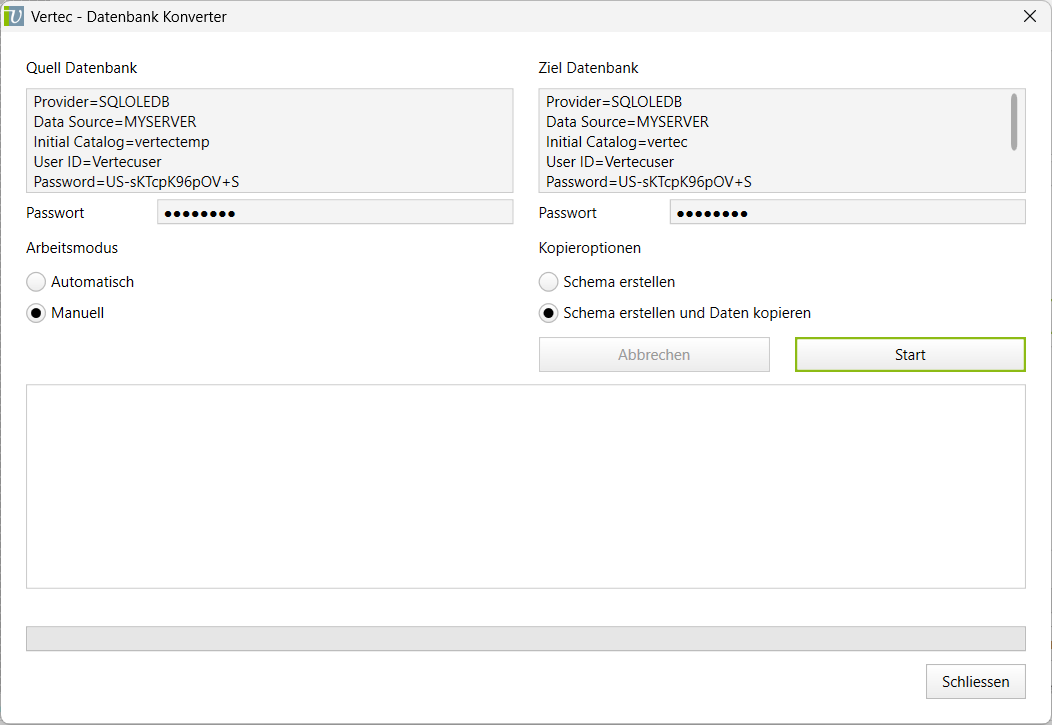
The Target Database field should already be initialized with the default setting of the Vertec installation and point to the Vertec database of the SQL Server.
For the information on the Quell Datenbank copy the contents of the field Ziel Datenbank and set Initial Catalog=vertectemp (or the name of the temporary SQL Server SQL Server
Manual conversion changes the source database, so create a backup if necessary.
By pressing the Start Buttons first delete the tables in the target database and then create them. Then the data is copied from the VertecTemp database to the Vertec database and converted to the new version.
After conversion, the Vertec Desktop App has to be started once. The temporary database vertectemp is now no longer needed and can be deleted.
Copying databases
With the DB converter you can copy Vertec databases. It is also possible to copy a Firebird database to a Microsoft SQL database and vice versa.
The procedure is similar to manual conversion:
- Start Vertec with the /DC parameter.
- Select the database you want to copy as the source database.
- Enter an empty Firebird or MS SQL database as the target database.
The following information is required:
| Firebird | |
|---|---|
| Server name | Identifies the server and database |
| User Name | Identification for the database server |
| Password | Encrypted password for identification to the database server, together with the user name. The password can be encrypted in the Customer Portal – instructions can be found in the article Service Customer Portal . |
Example:
ServerName=MYSERVER:C:\Programme\Vertec\DB\Vertec.fdb
User Name=SYSDBA
Password=US-sKTcpK96pOV+S| Microsoft SQL Server | |
|---|---|
| Providers | Driver for the SQL connection |
| Data Source | Server name (or IP address) of the MS SQL Server |
| Initial Catalog | Name of the database on the MS SQL Server |
| User Name | Identification for the database server |
| Password | Encrypted password for identification to the database server, together with the user name. The password can be encrypted in the Customer Portal – instructions can be found in the article Service Customer Portal . |
Example:
Provider=SQLOLEDB
Data Source=MYSERVER
Initial Catalog=vertec
User ID=Vertecuser
Password=US-sKTcpK96pOV+S
You can then select whether only the database schema should be created or whether the data should also be copied:
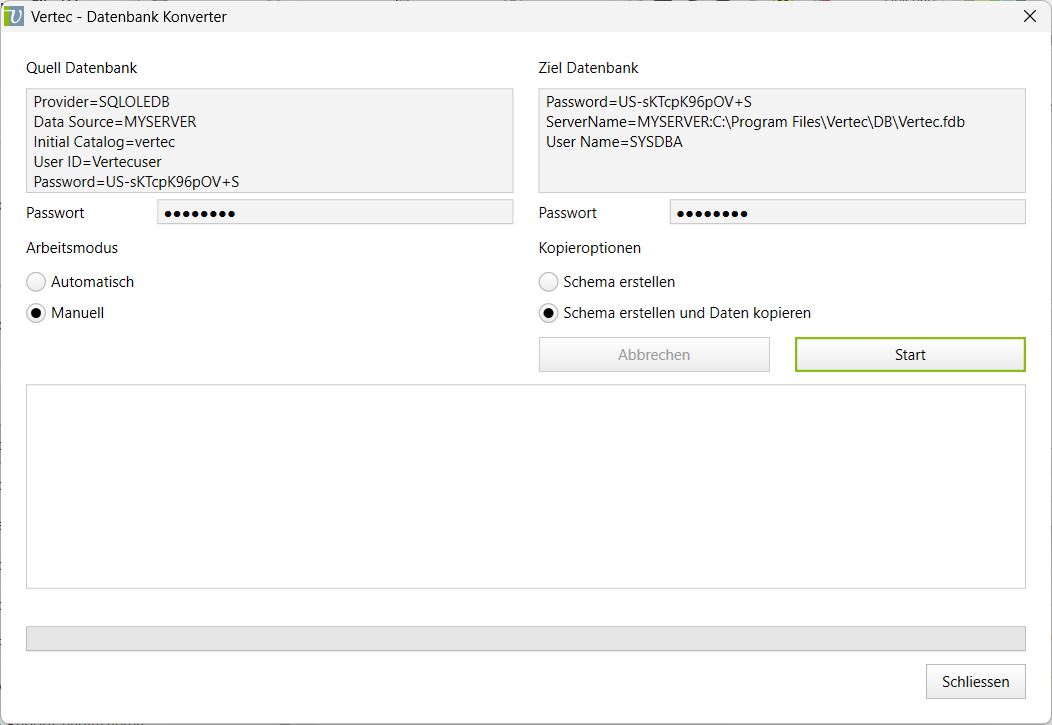
With one click on Start the database converts. The progress is shown in a status bar.
After the conversion is complete, enter the information about the copied database in the Vertec.ini – file and restart Vertec.
Error Converting Firebird to SQL Server
When converting from Firebird to SQL Server, you may encounter error messages such as value out of bounds or Invalid character value for cast specification come.
This may be due to invalid date values in the source database. Firebird and MS-SQL Server accept different ranges of date values: Firebird can handle dates from 01.01.0001 to 31.12.9999, MS-SQL Server accepts dates from 01.01.1753 to 31.12.9999.
If a date, e.g. of the form 12.01.1000, is accidentally saved in a Firebird database, this leads to an error message when converting data to MS-SQL Server.