
This additional feature complements Vertec with features for selling, managing and charging license sales and service contracts.
 Cloud Suite
 On-Premises
This additional feature makes it possible to manage and charge the sale of software licenses and of service contracts, such as maintenance and support contracts, and to record their development.
You can find the corresponding config set here.
After import, the following folders are created or added (if the Sales root folder and Invoicing root folder have already been imported):
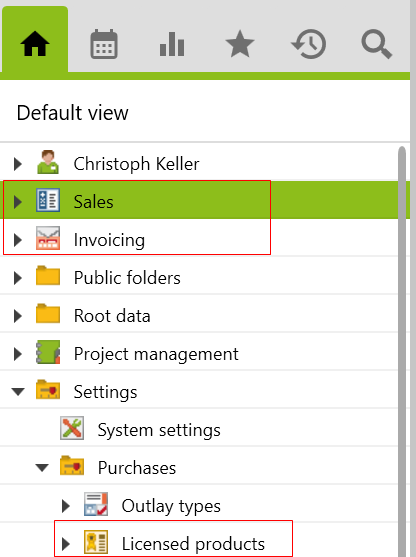
To access the Sales and Invoicing root folders, the users must be assigned to the folder access sales and invoicing user groups (see also the Invoicing section).
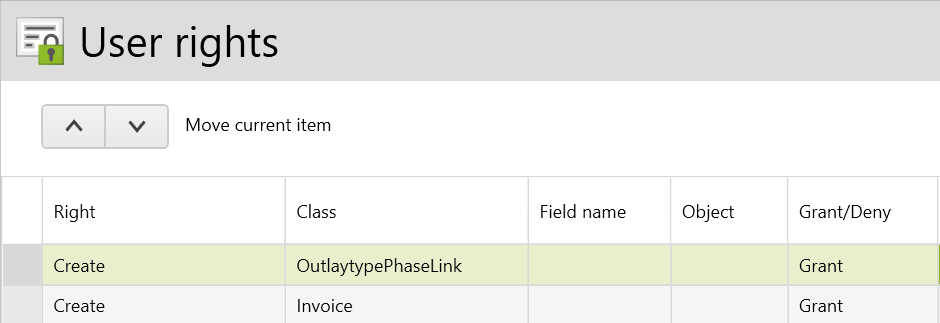
In order to create license sales and service contracts, the users must be assigned to the project leader or project administrator user group, or the appropriate user rights in the user group (see also Create license sales and service contracts section). By default, the project leader user group can create and charge licenses and service contracts for their own projects and project supervisors on all projects. If other user groups should only create and charge, then the following user rights can be added:
Before licenses or services can be charged, two steps must be taken in the Licensed products and Outlay types subfolders. This can only be done by users with administrator rights.
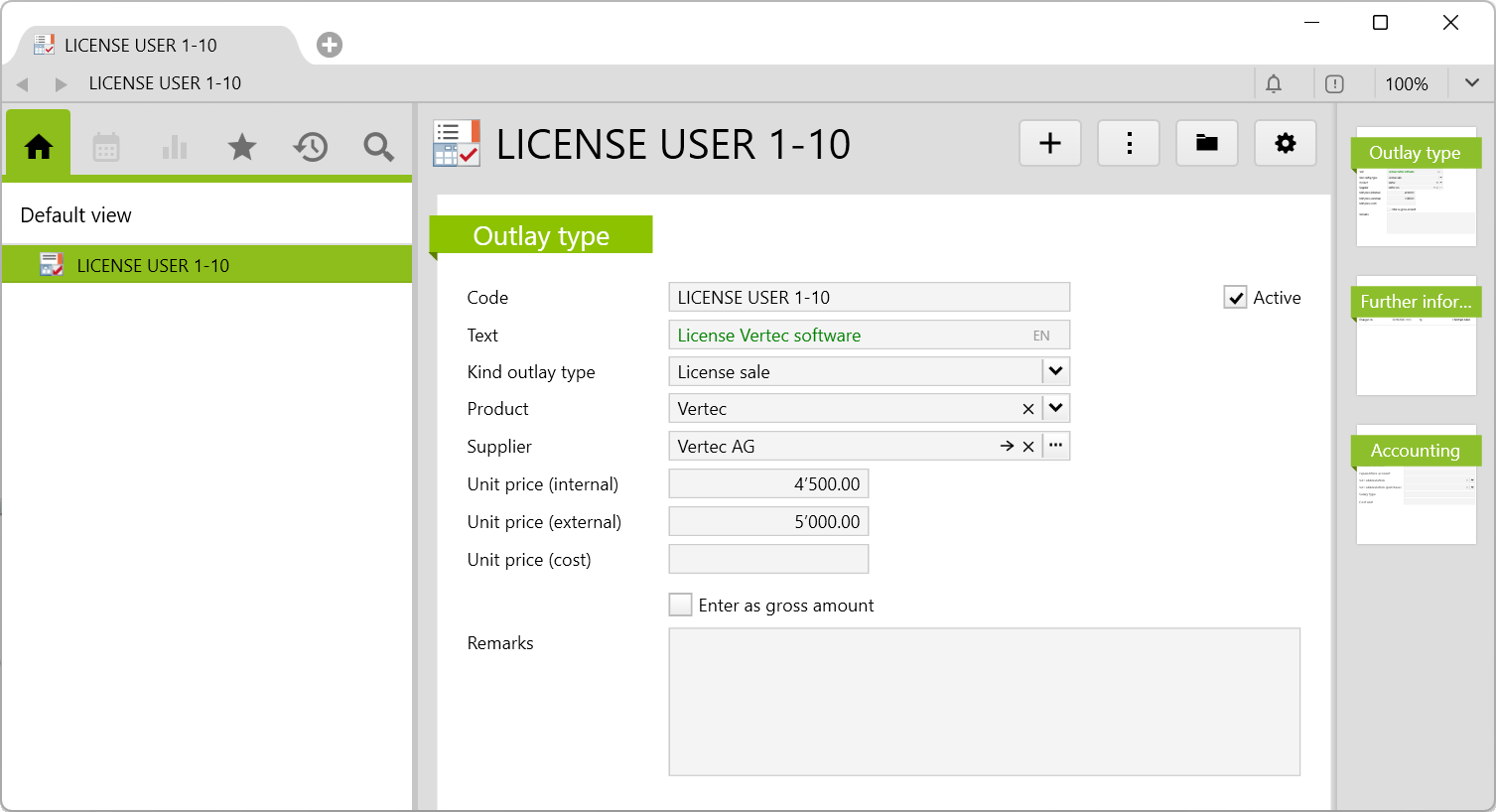
Name and Manufacturer must be filled in. The licensed product will be selected later when creating the outlay types.With the selection of license sale, the fields product, where the entered licensed product is selected, and the supplier can also be filled in. Fill in also the Text field because then the Manufacturer will be printed on the service item after printing the invoice. The prices per unit can be defined using the internal and external unit price.
With the selection of service contract, the following additional fields can be filled in:
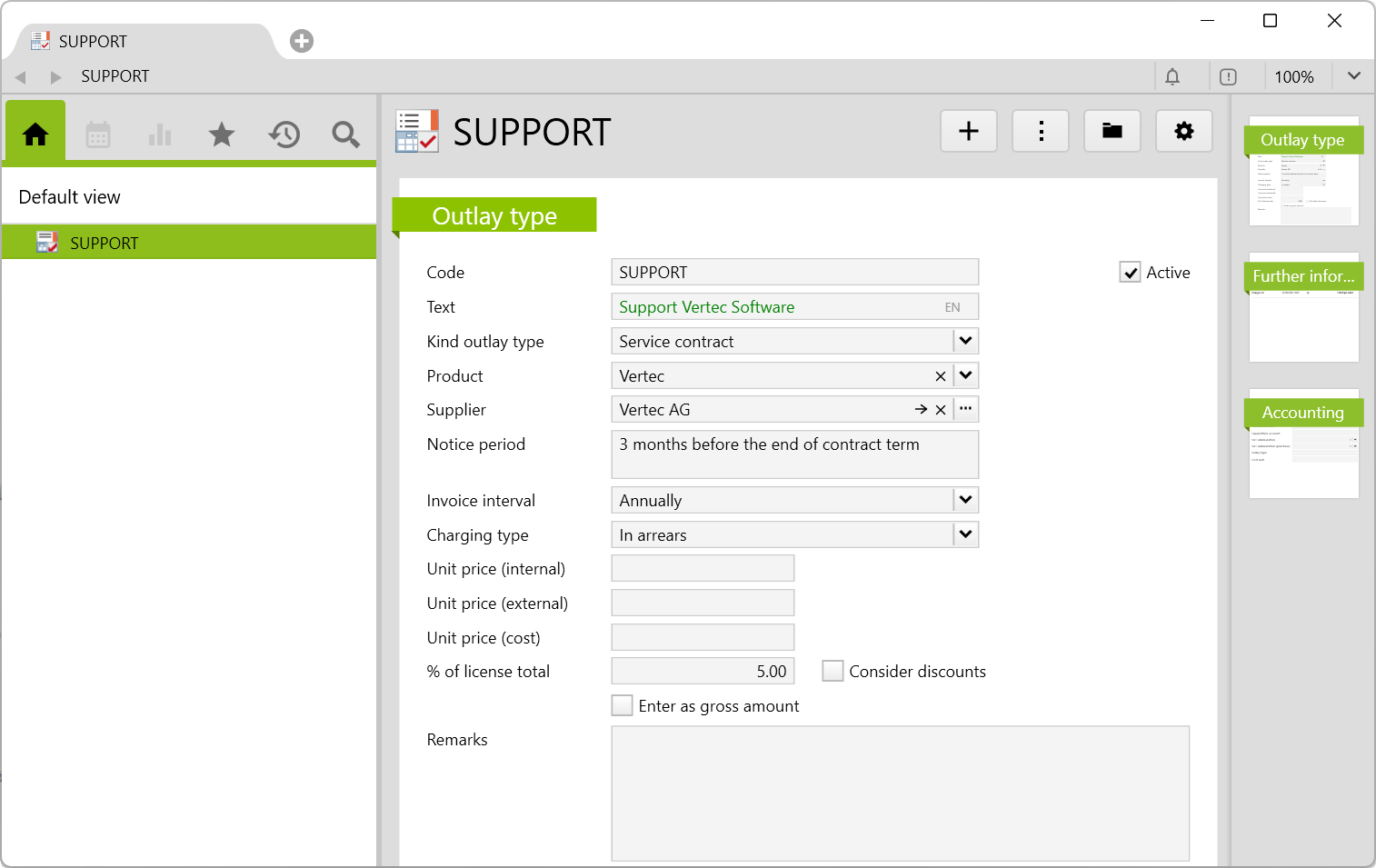
Text |
If the Text field is filled in, it is automatically entered in the Designation and Quote text fields after the service contract has been created. |
Notice period |
Is a free text field for information purposes only (terminations must be entered manually). |
Invoice interval |
There is a selection of: For a description of the intervals, see the section Charging Service contracts. |
Charging type |
There is a choice of:
|
% of licence total |
This is an alternative to entering the fixed price. Here you can set the percentage of the service amount calculated from the license amount. Example: 5% of a license sale of 5,000 CHF results in a price of 250 CHF. The value can later be overridden on the service contracts (see section Service contract). |
Consider discounts |
If a license sale is created and an additional discount is set there, this checkbox can be used to determine whether the original price or the discounted price should be taken as the basis for the service contract. Example: |
In order to be able to create license sales and service contracts, projects and phases must be created for them. Only on phases can both types be created and can only be invoked by right-clicking on the phase.
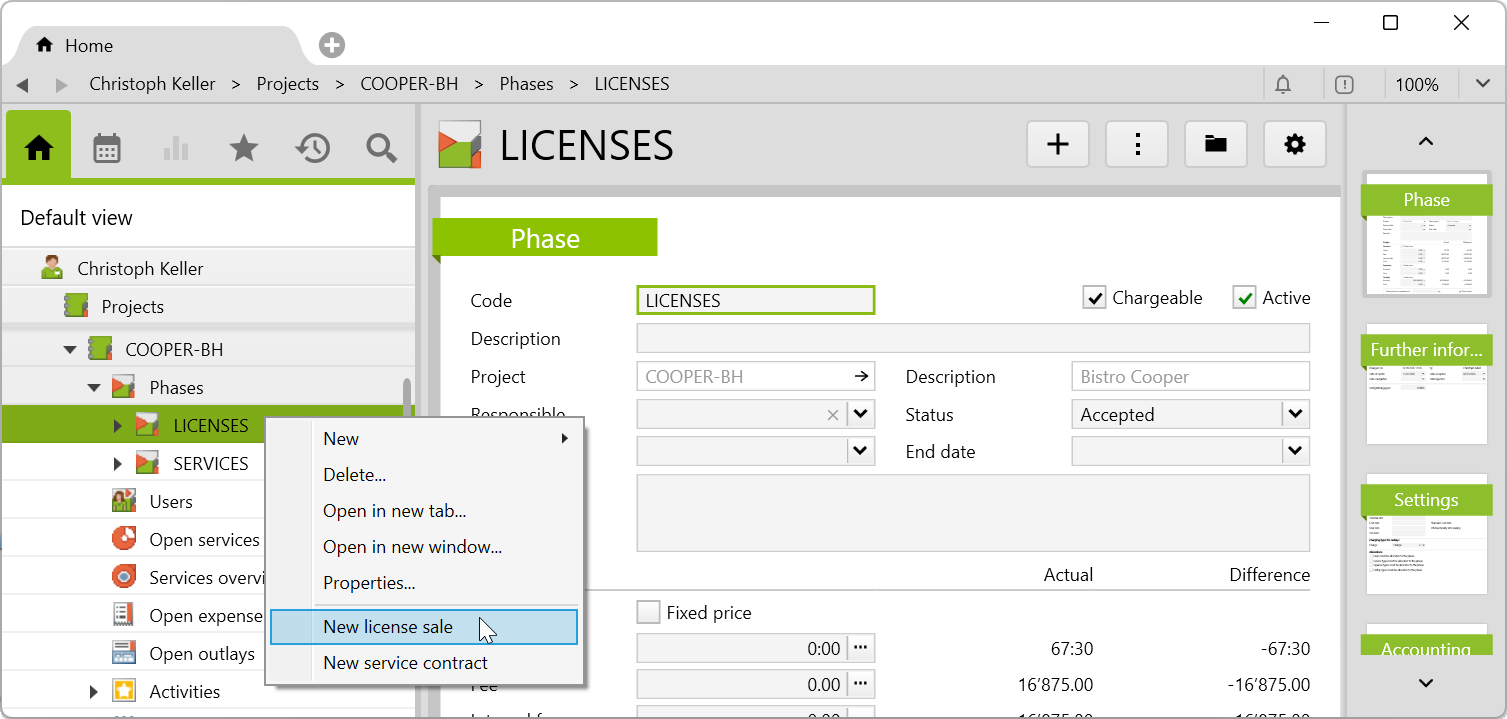
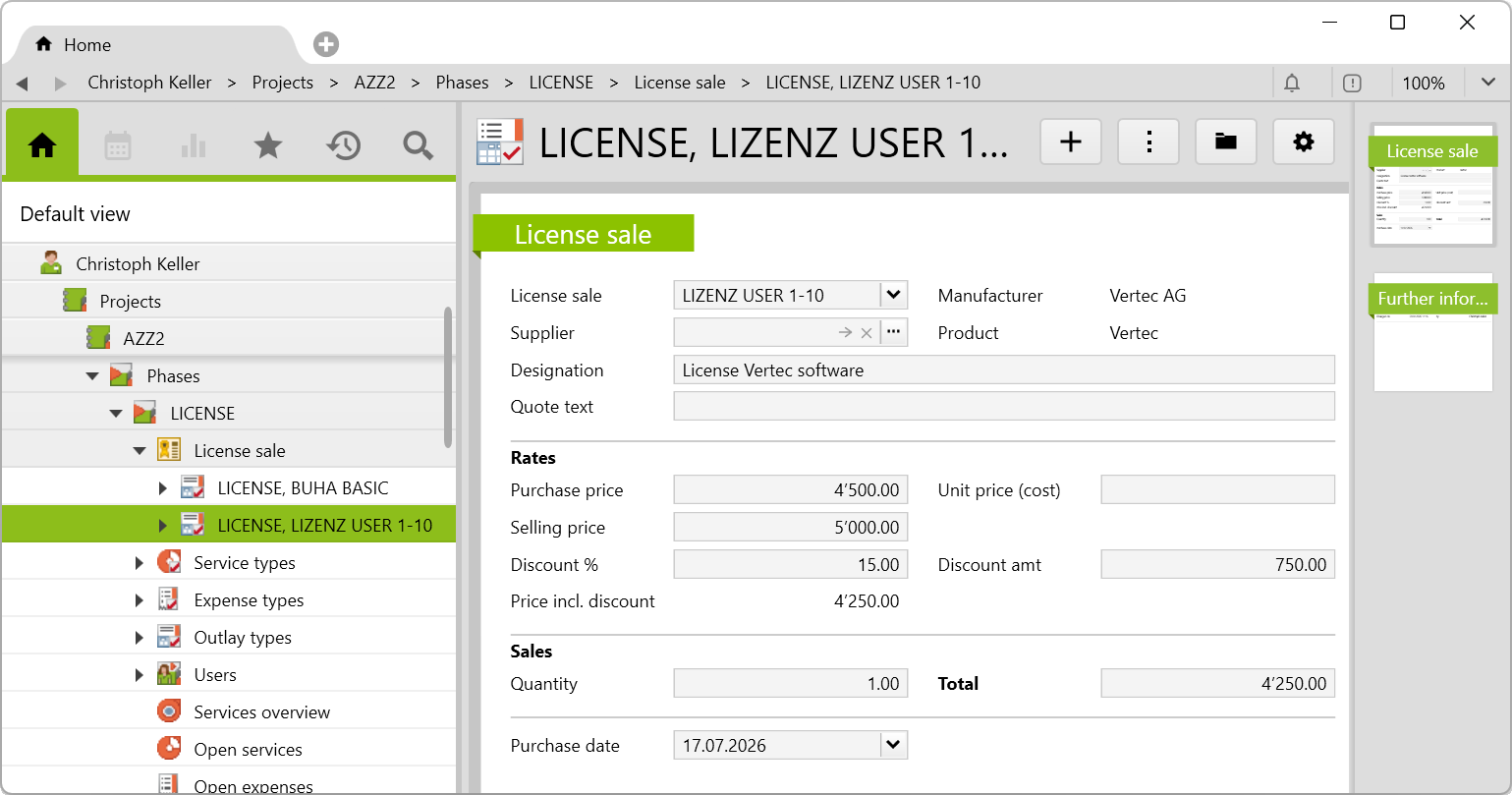
In the project phase, you create the license sale by right-clicking and select one of the previously created licensed products. The corresponding fields are filled in, which were previously defined for this outlay type. However, they can still be overwritten manually. The Designation and Quote text fields are automatically filled in with the same name when the Text field was filled in before in the outlay type. If the Quote text is deleted, then the Manufacturer will not be printed on the invoice (see section Charging licenses).
The rates are applied from the outlay type and can be changed if necessary. A percentage discount or discount amount can be granted on the sale price. After entering the quantity, the total amount will be calculated. Be sure to select the purchase date, otherwise no license invoice will be created.
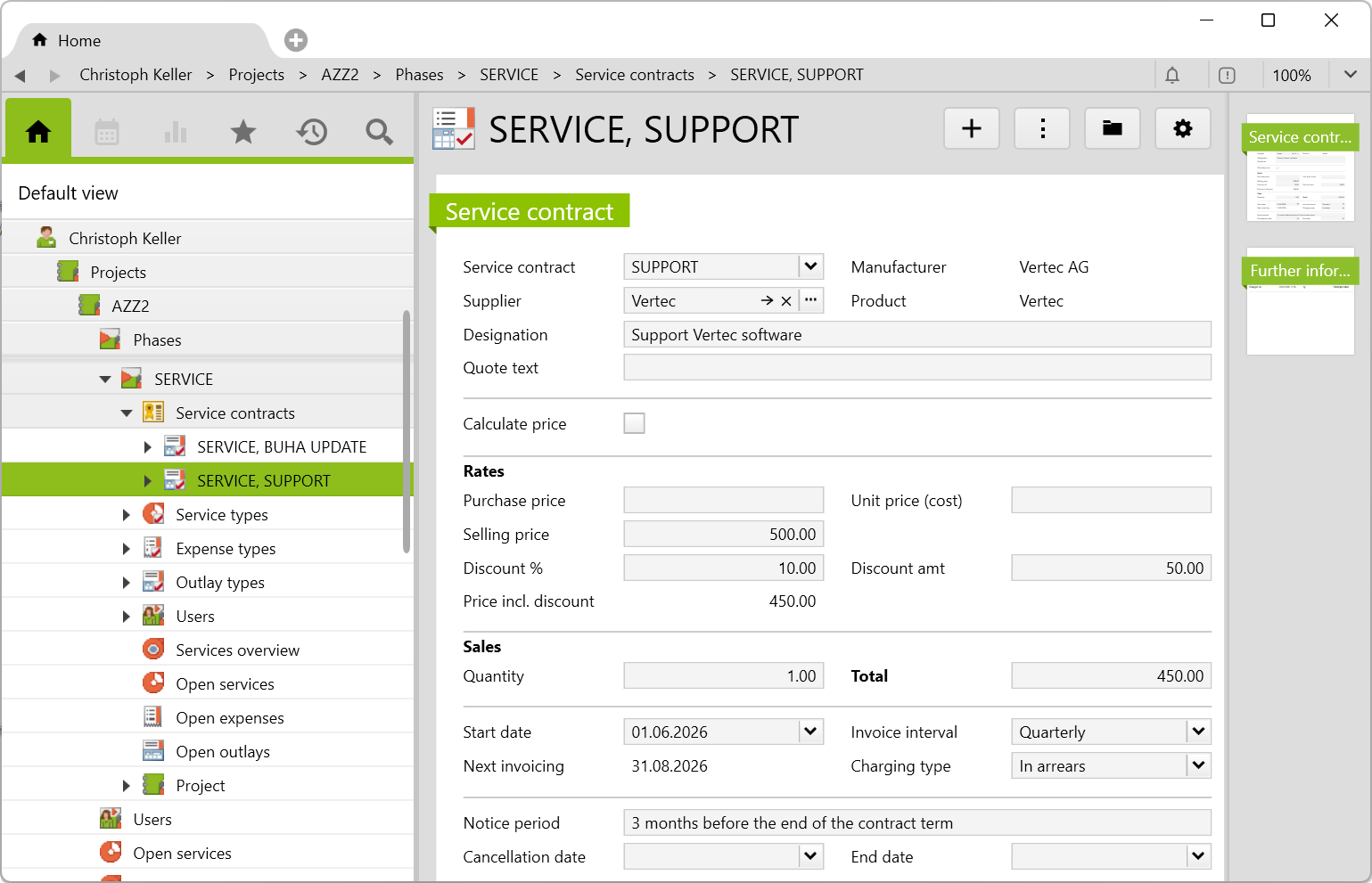
Like the license sales, the service contracts are created by right-clicking on the phase, then the predefined service contracts are selected and in general the fields can still be overwritten manually. The Designation and Quote text fields are automatically filled in with the same name when the Text field was filled in before in the outlay type (see section Outlay type Service contract). Both fields describe the service item on the invoice. Therefore, you can fill only one of them. If both fields are empty, no designation of the service contract will be printed on the invoice.
There are two ways to calculate the price of a service contract:
In this calculation, the total amount of quantity and sales price is calculated. A discount can be granted on the price. In the sales section, the start date can also be entered and the next invoicing date is calculated automatically, taking into account the invoice interval and the charging type. These fields can still be changed until the first charging, after which the setting is fixed. The next invoicing date is automatically updated for each charging. This allows you to see at any time when the next charging is due or if at all one has been forgotten.
For this calculation, the checkbox Calculate price must be activated. Afterwards, the licenses can be selected from which the price is to be calculated as a percentage.
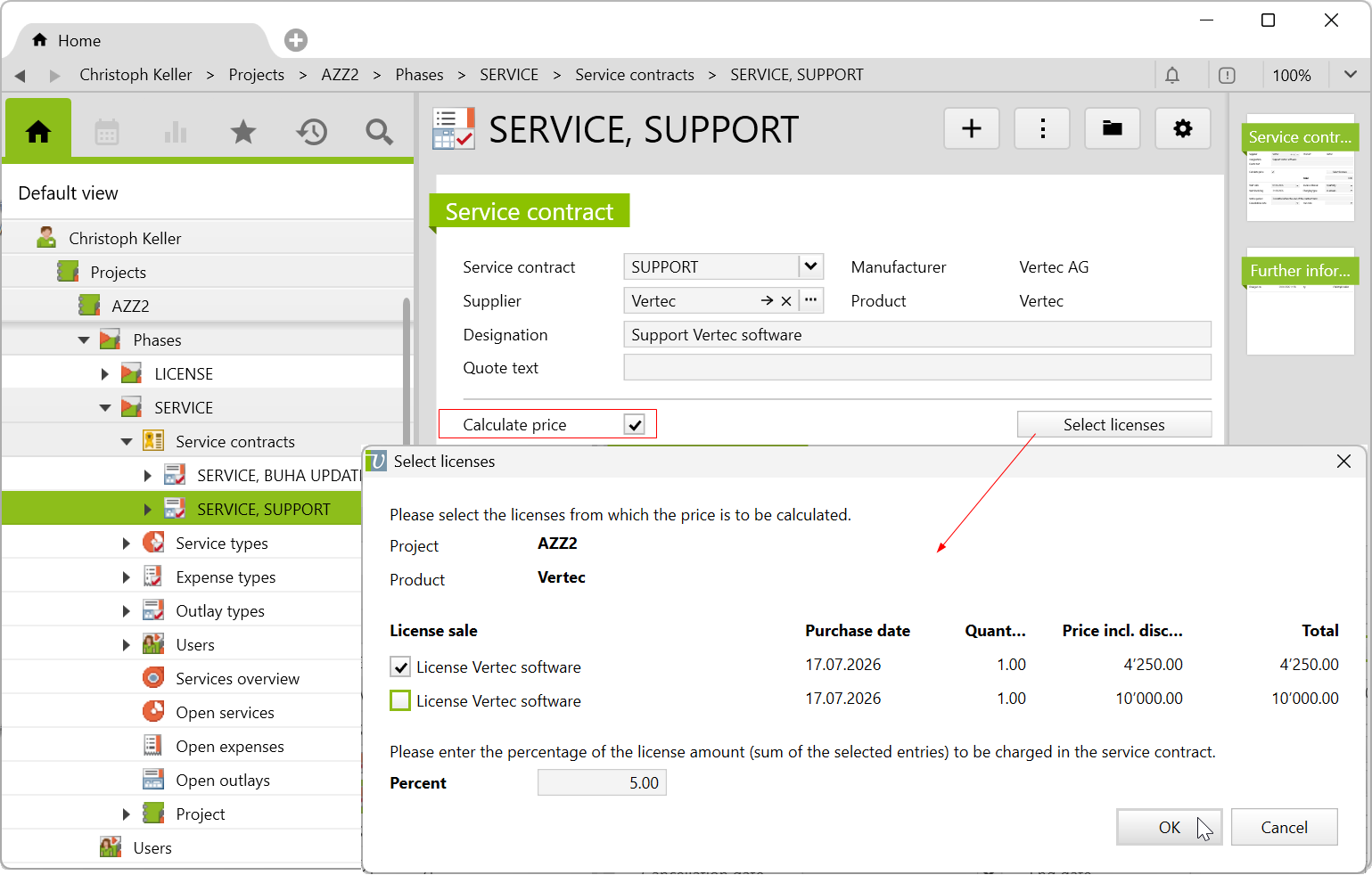
Depending on the outlay type, discounts on the license sale are either considered or not. By clicking on OK, the field Calculation appears and the Total is entered. All created license sales and service contracts can also be viewed in the sales and invoicing root folder.
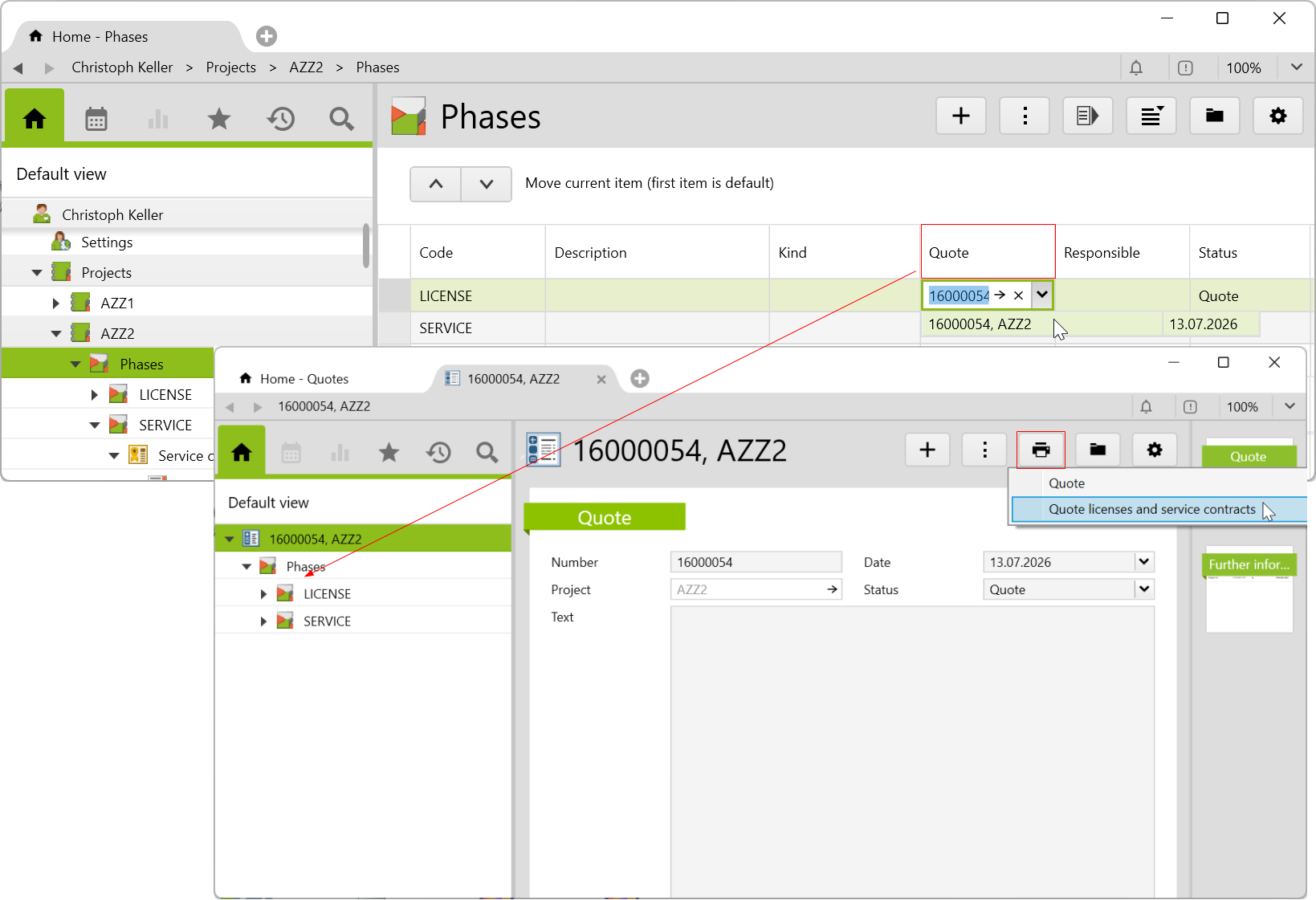
This config set comes with a report template, which allows you to create and print quotes for licenses and service contracts. To do this, create a quote on the project and assign the corresponding phases to the license sale and service contract. The latter is done by going to the phase list and selecting the most recently created quote in the quote column. Now select Quote licenses and service contracts from the print menu.
The quote will be generated and opened as a PDF file. In addition, an activity will be created which will save the quote as an attached document.
There are two scripts for invoicing licenses and service contracts:
Charge licenses (creates a license invoice via project phase)Charge service contracts (creates an invoice for all service contracts via project phase)License sales or service contracts can only be charged separately. Likewise, no other entries of the project or phase (services, outlays, expenses, etc.) are automatically included in the invoice.
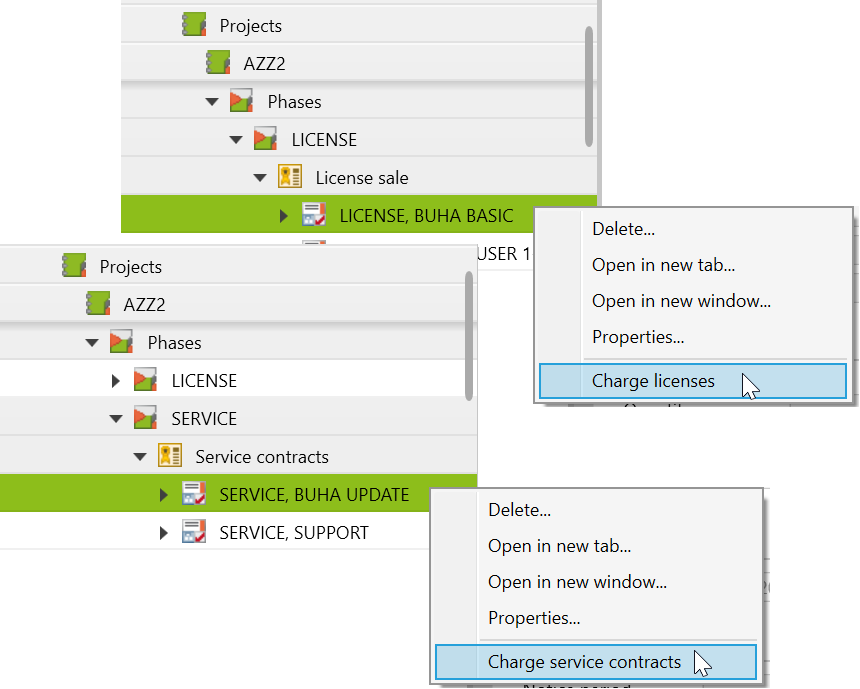
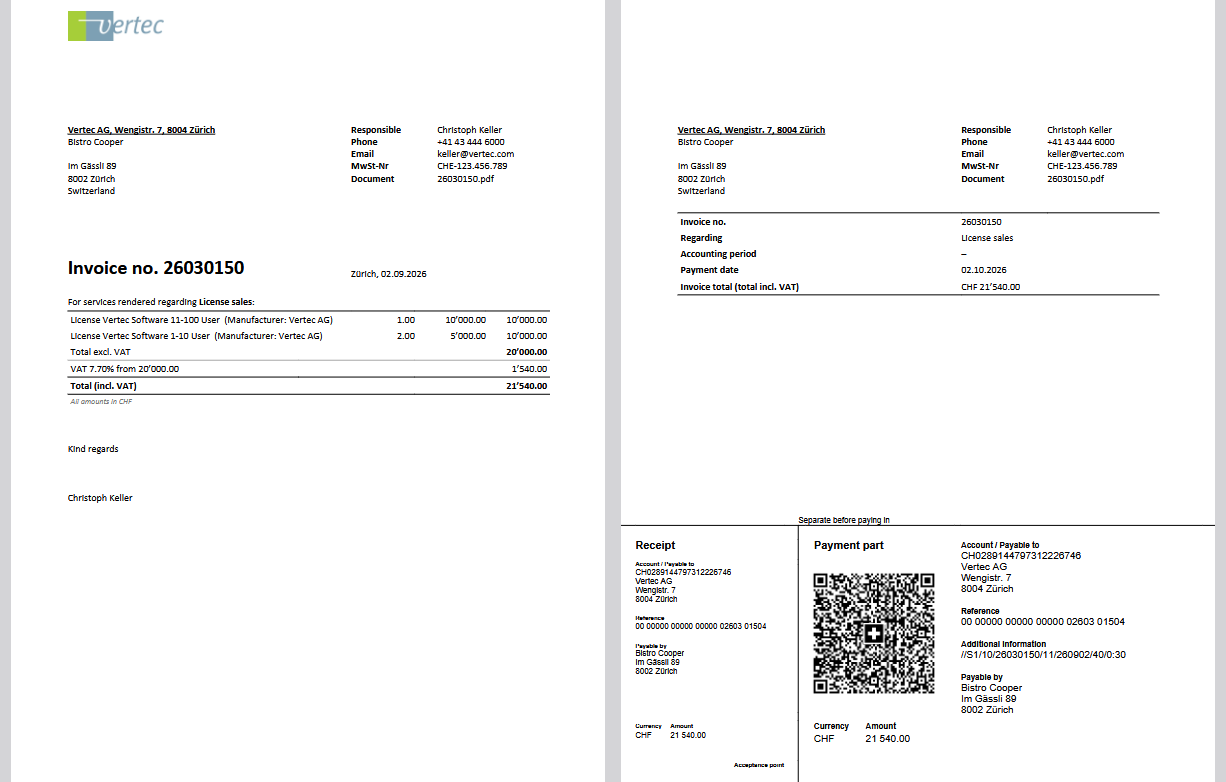
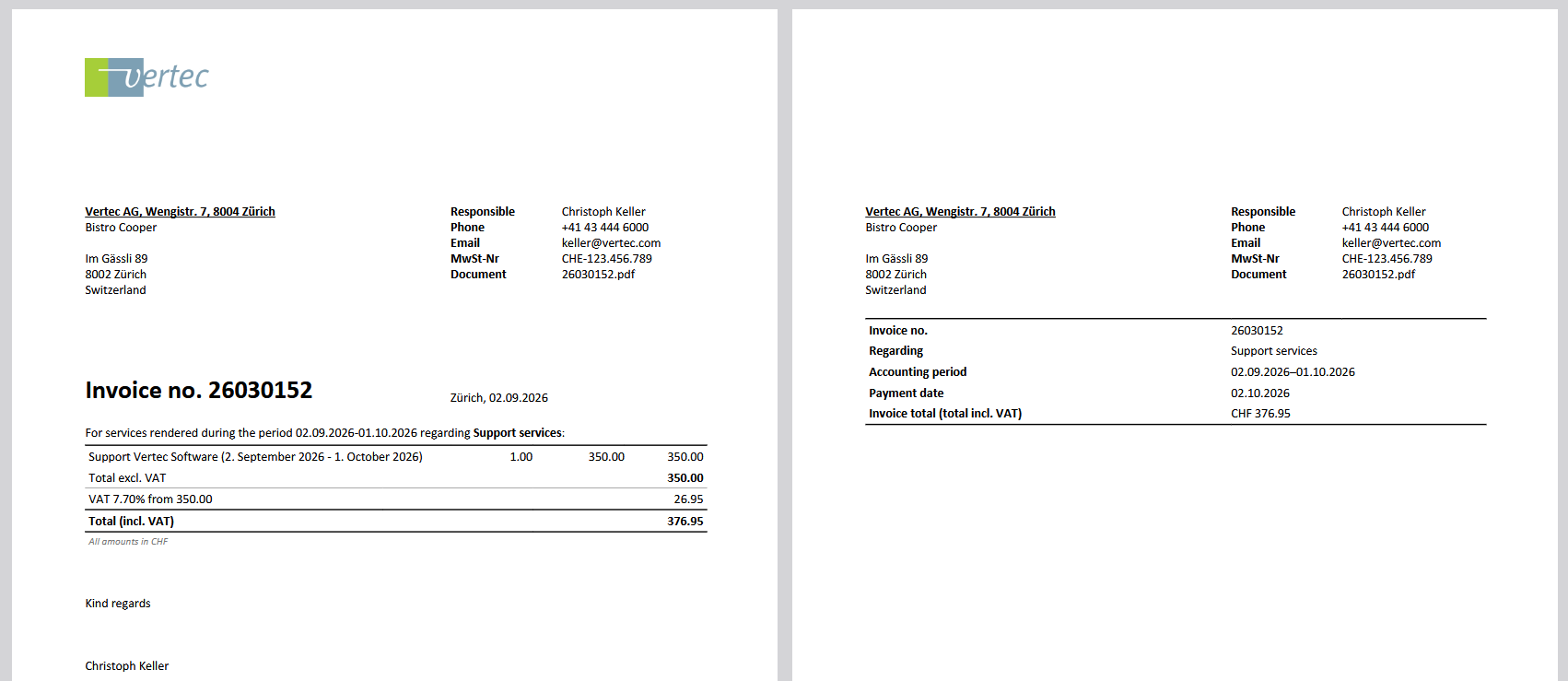
In the corresponding project, either all licenses can be charged by right-clicking on the list license sale or only the selected entries in the list and selecting the function Charge licenses. Only licenses that have not yet been charged can be charged. Then, an invoice is created on which the report Invoice licenses and service contracts can be executed via print. This generates the invoice including QR code as a PDF document:
If there are no or unpaid licenses, this message shows: No licenses available for invoicing..
The system checks whether according to the entry in the invoice interval (monthly, quarterly, semi-annually, annually) an invoice must be created and whether there was already a charging for this period.
The invoice intervals are described below:
The following table shows examples of how the next invoicing date is charged according to the start date, charging type, and invoice interval.
| Start date | Charging type | Next invoicing date | Example |
|---|---|---|---|
| First / Last day of the month | In advance | On the first / last day of the target month |
Monthly: |
|
Between the first and last day of charging period |
In advance |
On the same day of the target month |
Quarterly: |
|
First day of the month |
In arrears |
On the last day of the target month |
Monthly: |
|
Last day of the month |
In arrears |
The day before the end of the target month. After that, the next invoicing starts. |
Monthly: |
|
Between the first and last day of charging period |
In arrears |
On the day before the next charging period of the target month |
Semi-annually |
If you change the invoice interval or charging type after selecting the start date, you can simply select the start date again and the next invoicing date is updated. After the first charging, no change is possible.
In the corresponding project, you can either charge all service contracts by right-clicking on the service contracts list or only the selected entries in the list and selecting the function Charge service contracts. After executing the feature, brief information about the project, service contract and the charging period is shown in a dialog box and the invoice date (not the invoicing date) must be selected.
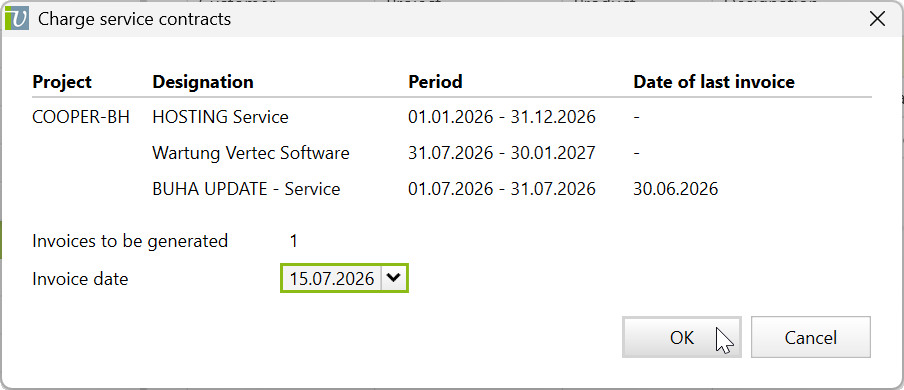
The invoice is also created by executing the function Invoice licenses and service contracts via print. This generates the invoice including QR code as a PDF document:
It is also possible to manually change or set the period manually of the service contracts during charging. For this purpose, the feature Service contract: Manually invoice period has been introduced, which is not active by default. Therefore, it must be activated in the corresponding script by a user with administrator right. If you now execute the feature via right-click on the service contract, a dialog box will appear again. There, you can also select the Period start and confirm with OK. Then, an invoice and the associated outlay(s) will be created.
A service contract can also be terminated. Optionally, Cancellation date can be selected. This is simply the calendar day on which the termination was announced.
However, the End date is decisive because it then defines the next charging. The end date defines the definitive termination of the service within the notice period. For example, if the end date is before the current next invoicing date, then no new date is set for the next invoicing. The corresponding field remains blank. This means that the partial period is still fully charged. Accordingly, it is not possible to create pro-rata invoices for service contracts.
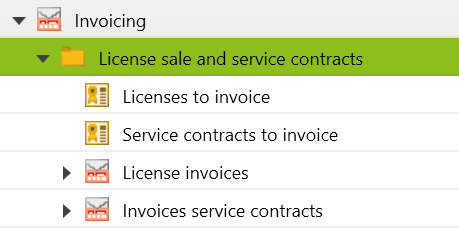
In the invoicing folder, you can view all invoiced license sales and service contracts of all projects. However, created license sales or service contracts can be charged here instead of individually on the project phases. In all subfolders, you can filter by customer, project, product, purchase and charging time as well as ordered phases (phase status to Accepted or Completed).
Especially for the charging of licenses and services, it is recommended to use the lists Licenses to invoice and Service contracts to invoice. In the list for licenses, only the licenses that have not yet been charged are shown. In the list for service contracts, all service contracts due up to this point can be shown using the filter function, so that none are overlooked.
In the invoice lists for licenses and service contracts, it is important to note that the quantity in the license sale and service contracts columns does not show the quantity in pieces of the service or product. For example, a service contract is created and the service is charged three times. Based on this, an invoice is generated and in the invoices service contracts list the quantity in the Service Contracts column will be 1 and not 3, because in the end only one service contract was created.
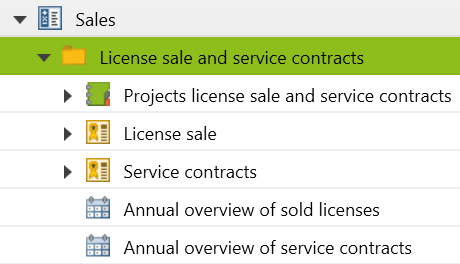
In the sales folder, you can also view all created and charged license sales and service contracts of all projects. They are divided into folders by project, type and annual overview.
In the license sales and service contracts lists, all created and charged (see column Charged) licenses and services are shown. If the date fields in the filter are empty, license sales and service contracts that do not yet have a purchase date are also shown.
In general, the corresponding entries can also be charged from here by right-clicking. However, it is recommended to use only the invoice root folder for charging. In the annual overview lists, the created and charged service contracts are shown. The unpaid service contracts are recognizable by the fact that no sales have yet been recorded for them in the respective month.
Deleting an invoice of license sales or service contracts also deletes the assigned outlays. Deleting the last invoice of a service contract resets the invoicing date to the penultimate invoicing date (i.e. the last invoice). Deleting additional invoices leaves the next invoicing date unchanged. Deleting an older invoice can result in inconsistent invoicing data in the service contract. Therefore, only the most recently created invoice should be deleted or, if necessary, the Service contract: Manually invoice period feature should be used (see section Charging period manually).
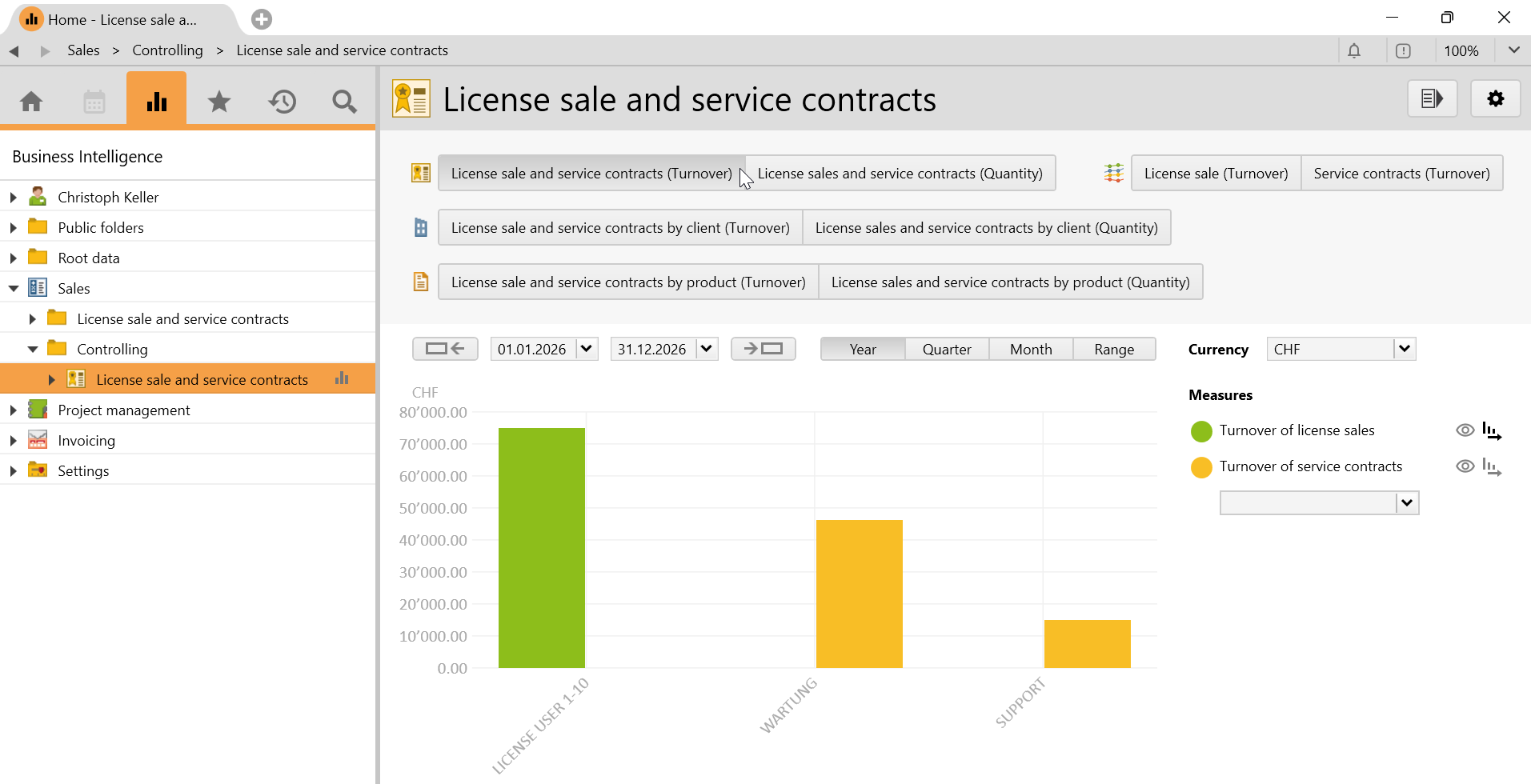
If you have licensed the Controlling & BI module, then there are BI views available for license sales and service contracts. Therefore, the License sales and service contracts subfolder was additionally configured which you find under Sales > Controlling. By switching to the BI view icon in the navigation pane, the corresponding BI views and thus the evaluations will be shown. The following views are available:
Before importing the config set, we recommend you read the article Key information about the additional features. Config sets modify data in Vertec, which can overwrite existing data.
The exact import process is described in config sets.
You can download the additional feature with the following link:
| Version Requirement | Download |
|---|---|
| 6.8.0.20 | LicenseSalesAndServiceContracts.xml |