
Config Sets for importing additional features
 Cloud Suite
 On-Premises
Additional features are imported into Vertec as an XML file in the form of Config Sets. An overview of the available additional features can be found here. Since Config Sets affect the entire Vertec, they can only be imported by an administrator.
Article overview:
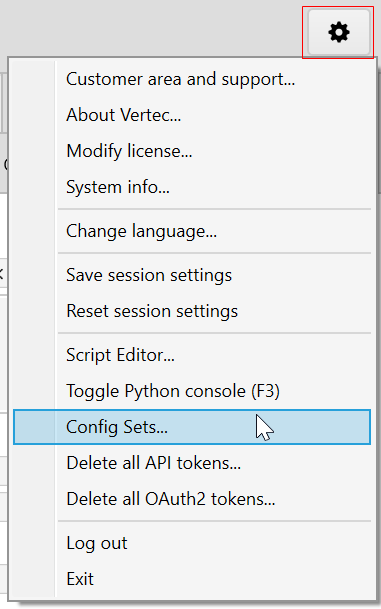
In the respective articles, the additional features can be downloaded via link and then imported into Vertec via the settings menu using the Config Sets dialog:
With the button Import the downloaded Config Set can finally be selected and imported:
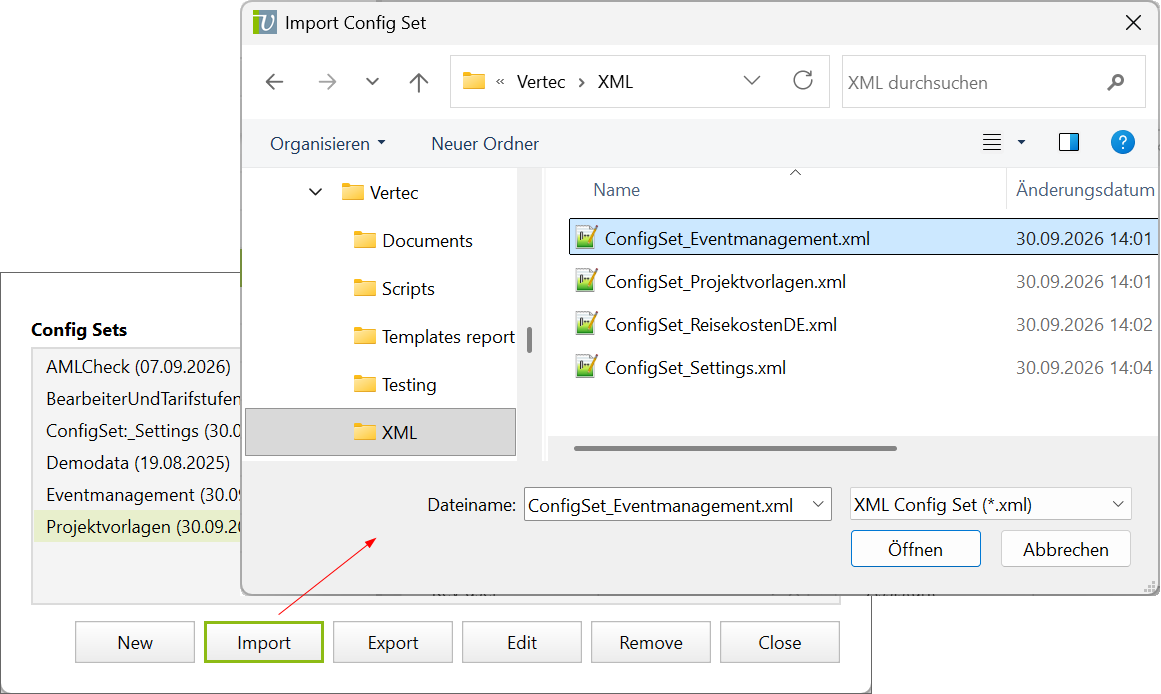
Note: In the Web App, the buttons New and Edit are not present, as it is a non-modal dialog that allows clicking in the Vertec tree, which cannot be mapped in the Web App.
When importing, the Config Set is first checked for plausibility. The following conditions must be met:
If errors occur, an error message is output and the Config Set is not applied. If there are no errors, the additional feature is imported and the corresponding objects are created in Vertec.
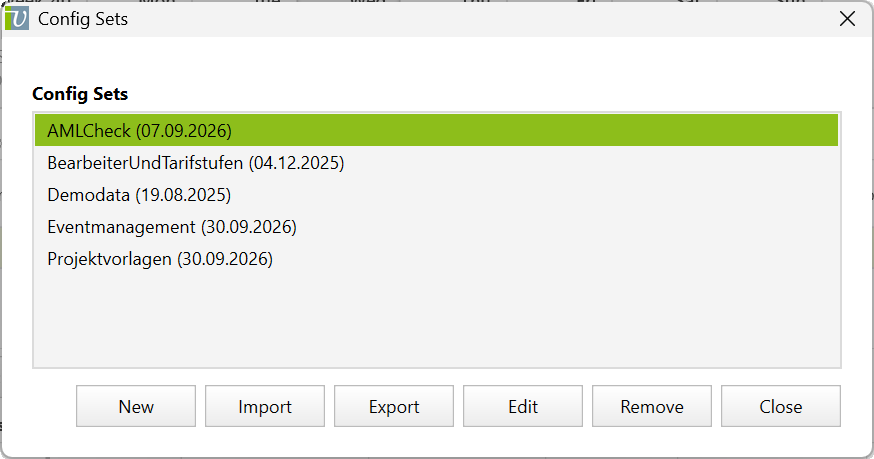
After importing a Config Set, it appears in the list of the Config Set dialog:
In Python, there is a method importconfigset() which accepts a Config Set as a string (or as a file).
To create Config Sets, the Config Set Builder is available in the Cloud and Desktop App. This allows the interactive compilation of additional features and exports the Config Set in the form of an XML file. To create a new Config Set, click on the button New in the Config Set dialog.
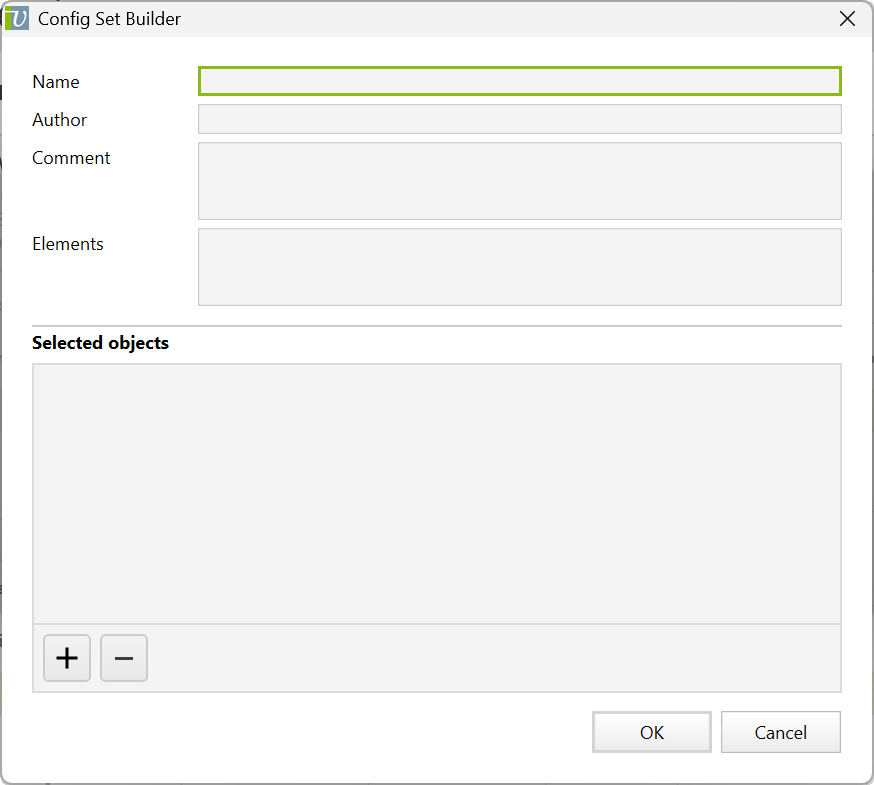
It has the following fields:
Name |
Name of the Config set. Since the Config Sets can be referenced to each other, make sure that they have unique names. |
Author |
Author of the Config Set. |
Comment |
Free comment text for a more detailed description of the Config Set. |
Elements |
In this field you can enter requirements, references, settings and updates. This text must be written in valid XML.
The following elements are supported:
The individual elements are specified directly in the field: <version-requirement>6.7.0.1</version-requirement> The detailed structure of the XML for Config Set can be found in the article Config Set XML. |
Vertec objects can be added or removed in this field. All objects included in the Config Set are listed here.
In order to include a specific object in the list, it is selected in the active Vertec window and then dragged into the field in the Config Set Builder via the + button or directly by drag&drop. In a hierarchical folder structure, the sub-objects are automatically included, so only the parent folder has to be inserted. By multiple selection in a Vertec list and drag&drop, several objects can be dragged into a Config Set at the same time.
To remove an object from the Config Set list, select it and click the - button.
To include only the list settings of an object in the Config Set, right-click the option Include list settings instead of folder. Only the list settings are exported, not the folder. In this case, however, the corresponding folder must already be present in the target system via the entry ID.
In addition, objects are given an alias and can be explicitly referenced within the Config Set or from another Config Set. Within a Config Set, an alias must be unique. The alias can be renamed by right-clicking on the object:
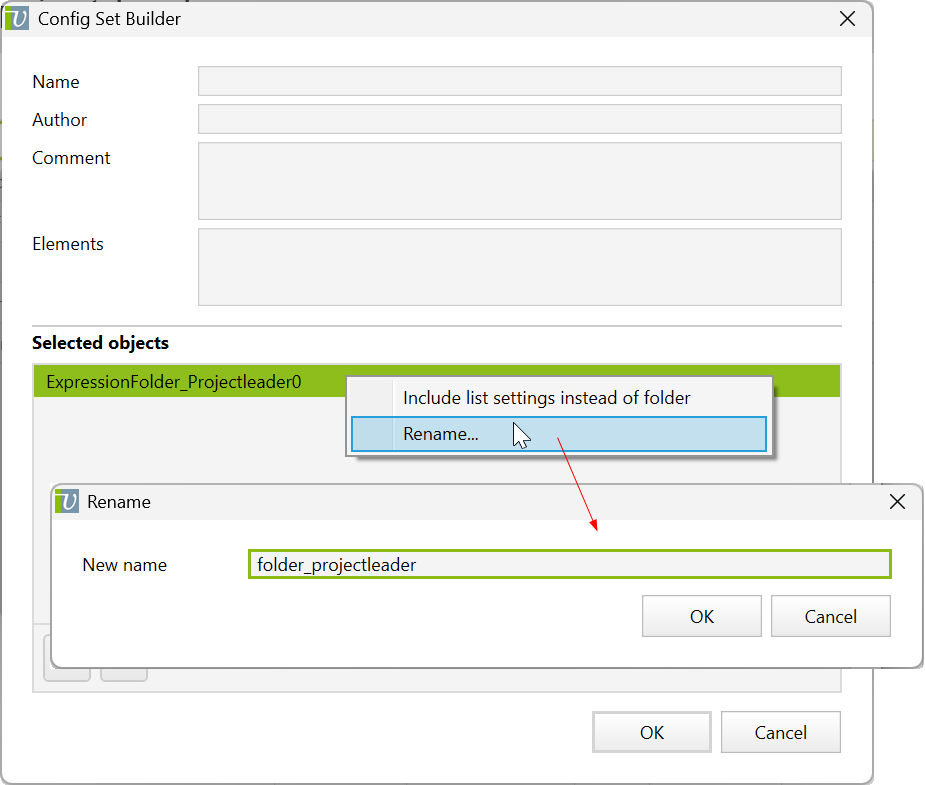
In certain situations, no new object is created for an object element in a Config Set, but the properties of an existing object are written.
The entry ID identifies the Vertec objects across systems and is central to the object transport from one Vertec system to another. Therefore, the entry ID identifies whether the object already exists in the target database or not.
The standard objects supplied by Vertec as well as all objects created by additional features contain an entry ID. Therefore, when creating Config Set, make sure that the same entry ID exists in the source and target system so that an update can take place. Otherwise, objects will be created multiple times. How to set the entry ID can be found here. Object without an entry ID are newly created in the target database.
It should also be noted that the objects added in the Config Set are often linked to other objects (parent folders). If they are not added to the Config Set, entry ID references are automatically created for them. This is not a problem as long as the same entry ID reference is also present in the target system, otherwise the objects will be created again. If an object referenced with an entry ID is not found in the target system, the importing throws an error (see suggestion).
If a specific additional class is to be configured as part of a Config Set, it must be ensured that it is not yet used in the target system. For this purpose, an appropriate OCL-requirement can be formulated.
If an object with custom fields is added to a Config Set, the field values and the corresponding custom field definitions are automatically added. These do not have to have an entry ID, but are uniquely identified via class and name.
If the custom fields are located on a custom class, the reference is also entered directly. Here it must be ensured that there is not already another custom class with the same number in the target system, because the class is simply entered accordingly on the custom fields and would therefore be incorrectly linked.
If you want to transfer the class settings of the additional class as well, these must be added to the Config Set separately.
Permissions cannot be transferred individually via Config Set, otherwise an error message appears like
Die Eigenschaft "Benutzer" von "ObjektRecht" verweist auf ein Objekt welches nicht im Config Set enthalten ist
Instead, the parent user group must be added to the Config Set. This will also export all their rights. Care must be taken that each right has an entry ID, otherwise it will be created several times during repeated import.
When passing MLStrings, not only the text in the up-to-date language is transmitted, but all specified languages including the native language introduced with this version.
This means:
If you want to write existing system settings or create new system settings, this must be done manually. The exact procedure is described in the article Config Set XML.
From Vertec 6.7.0.7 onwards, custom links can be created via Config Set.
For this purpose, both linked objects and the Custom link type must be present in the Config Set or must already be present on the target system with the correct entry ID
By clicking on the button Export the Config Set Builder creates an XML file that can be saved on the file system.
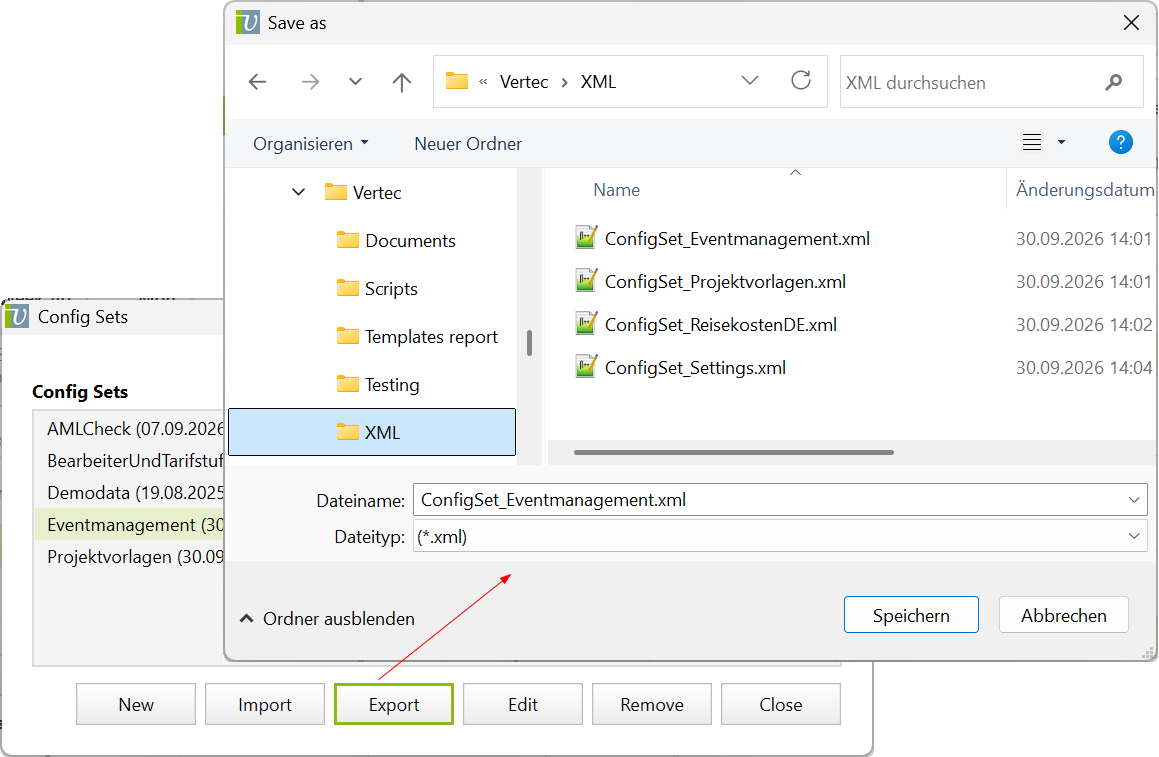
To edit an existing Config Set, select it in the list and click on the button Edit (only Desktop App and Cloud App). This will bring you back to the Config Set Builder where you can customize the Config Set as described and then export it again.
Advanced users can of course also customize the Config Set directly in the XML file, taking into account the described Config Set XML validity conditions.
This Config Set can then be imported into the target installation.
Config Sets can either be removed or deleted in the Config Set dialog:
Select the appropriate Config Set in the list and click Remove.
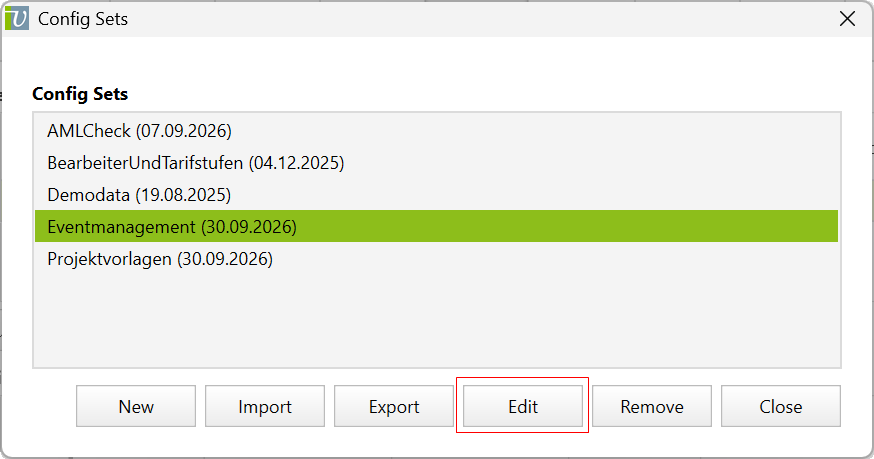
The Config Set is removed from the list, but the objects remain in the system. The main purpose of removing Config Sets is to protect them from being deleted. The Config Set cannot be reimported, otherwise the objects are duplicated. There is no way to add a Config Set to the list without creating the objects anew.
Right-click on the corresponding Config Set and select Delete:
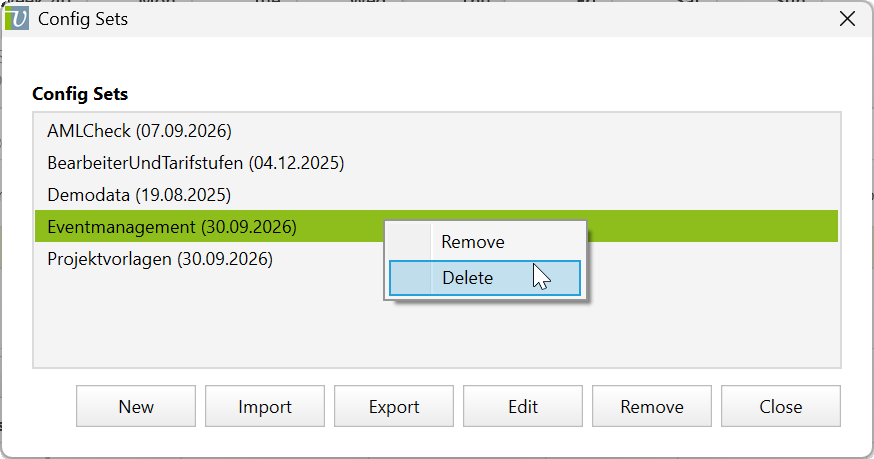
Attention! This operation deletes all objects created by the Config Set. If you have already worked with them, all changes made will also be lost. Adjustments to previously existing objects initiated by the Config Set will not be undone. To protect a Config Set from being deleted, it can be removed from the list (remove).