In this article, learn how to implement and make the most of the Vertec AI Chatbot.
 Cloud Suite
 On-Premises
With Vertec version 6.8.0.19, Vertec introduces the AI Know-how Management module. The module provides an AI Chatbot that analyzes and summarizes your Vertec data and allows you to retrieve specific information from it. The module was developed in collaboration with the Swiss company Squirro, which specializes in artificial intelligence and data analysis. Vertec data is processed in the background and made available on request via an integrated Chatbot. The Chatbot is available in the Cloud App and the Web App. In addition, all necessary settings are made via your Vertec.
Note: The module is currently in a pilot phase and is therefore not available to all customers. Those who are interested in using this module are welcome to register by email at mail@vertec.com.
The data processing is based on a Rag system (Retrieval Augmented Generation) system, which rates two approaches:
So when you send a prompt (a question or request) to the AI Chatbot, Squirro searches your Vertec data and creates an enriched context from it. The information found is then passed back to the LLM via a prompt, which formulates the response and outputs it back to the Chatbot. This allows RAG to access the indexed data so that LLM can generate relevant and contextual responses.
Currently, Activities Invoices, Projects and Addresses are used as data sources. This means that all relevant data related to the named objects are considered and processed and output in relation to the prompt. Text-based data is processed, i.e. all content contained in the data fields of the aforementioned objects. For example, Word and PDF documents stored activities are also taken into account. The objects actually used are shown in the response to the prompt (see Chat with the AI Chatbot section). For addresses, all types of addresses, such as person, account, contact and couple, are considered.
The following data fields are exported for the respective objects:
| Addresses | Name Address Remarks |
| Projects | Project code Description Regarding Remarks |
| Invoices | Invoice no. Invoice date Checkbox paid Total Text from printed invoice document |
| Activity |
Title |
Before communicating with the AI Chatbot, make sure that the system settings for the Chat are set up. Please refer to the KB article System settings - Chat.
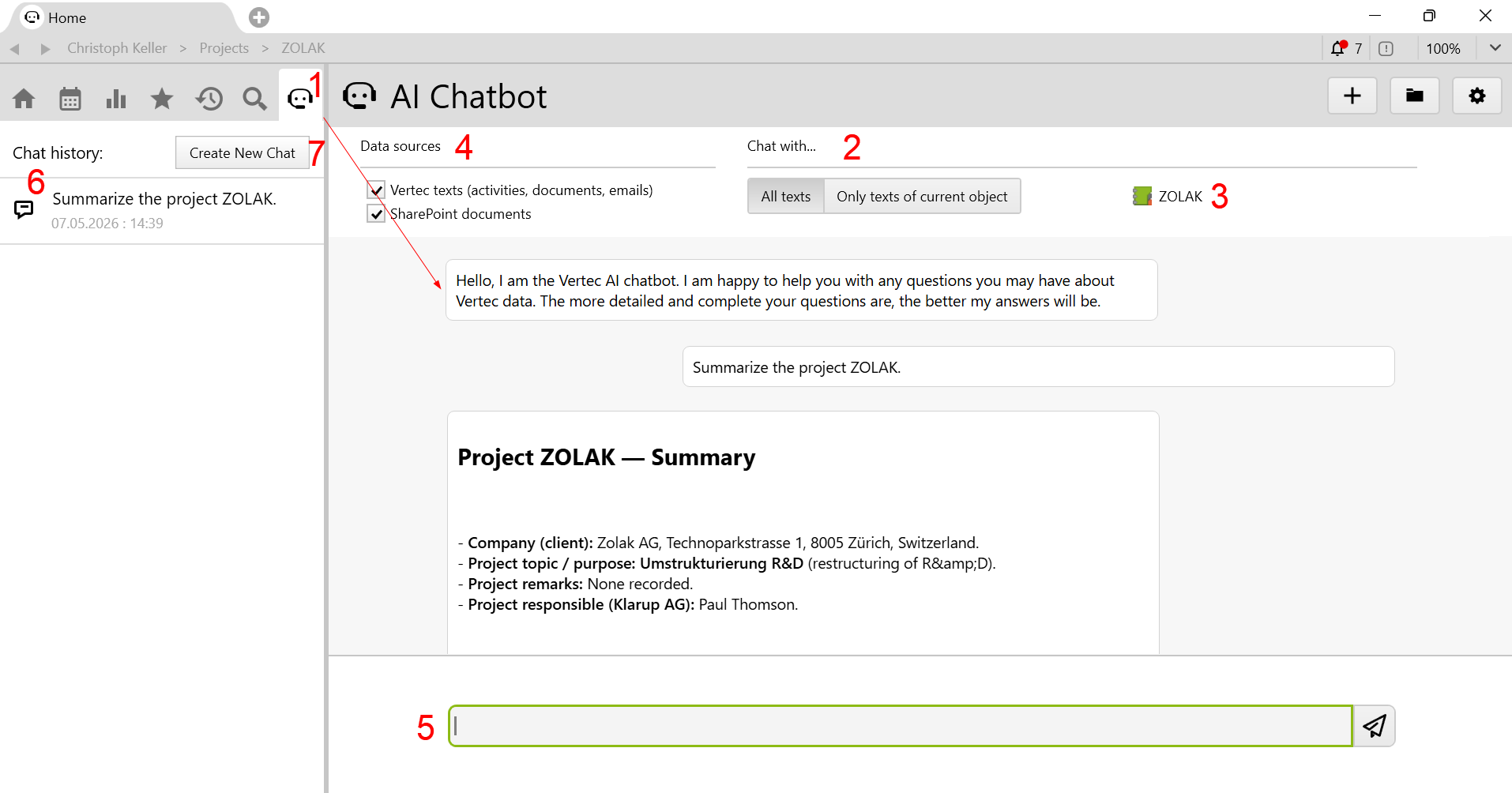
Below is the view of the AI Chatbot. Subsequently, is the description of the individual numbers.
| No. | description |
|---|---|
1 |
With this new tab you switch to the AI Chatbot. |
2 |
In the Chat with... section, you can communicate in two contexts:
|
3 |
If you are communicating via an object, it will be represented at this point by the corresponding object icon. 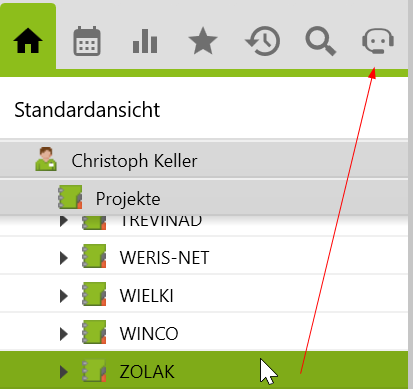 This is also possible for addresses, projects and activities. |
4 |
In the Data sources section, you can select which data sources the Chatbot uses to generate the response. This section is only available if the option |
5 |
Enter the prompt here. |
6 |
Every chat opened (even without prompt entry) is saved in the Chat history. As long as the session is active, you can access the existing chats at any time. After the session ends, the chat history is automatically deleted. |
7 |
Apart from step 1 & 3, you can create another chat manually by using the button Create New Chat.As soon as you enter the first prompt, the prompt or question is applied as the title of the chat. Before the first prompt is entered, the chat is shown without a title. |
A new user right has been added to this feature called Chat. This allows you to control whether the user can see and use the chat. To assign a new user right, see the KB article User Rights.
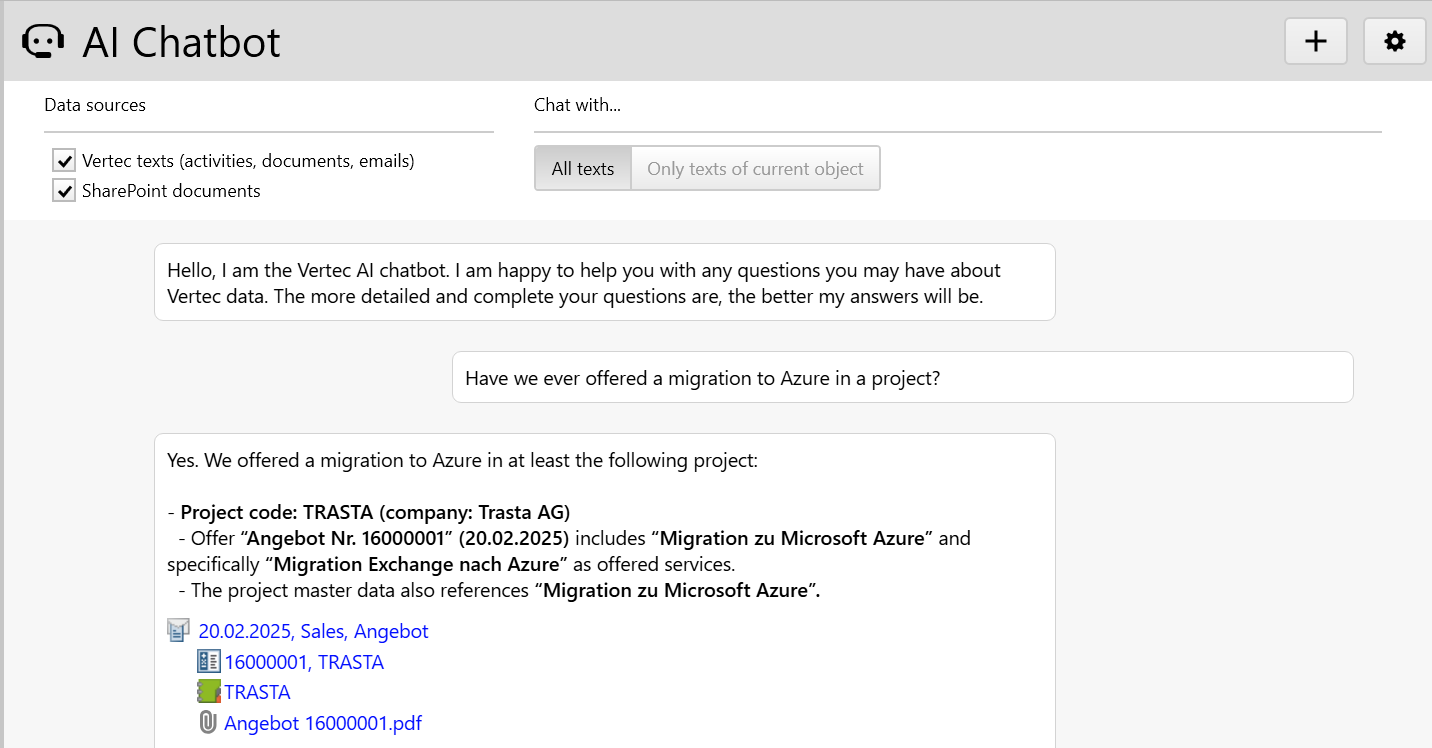
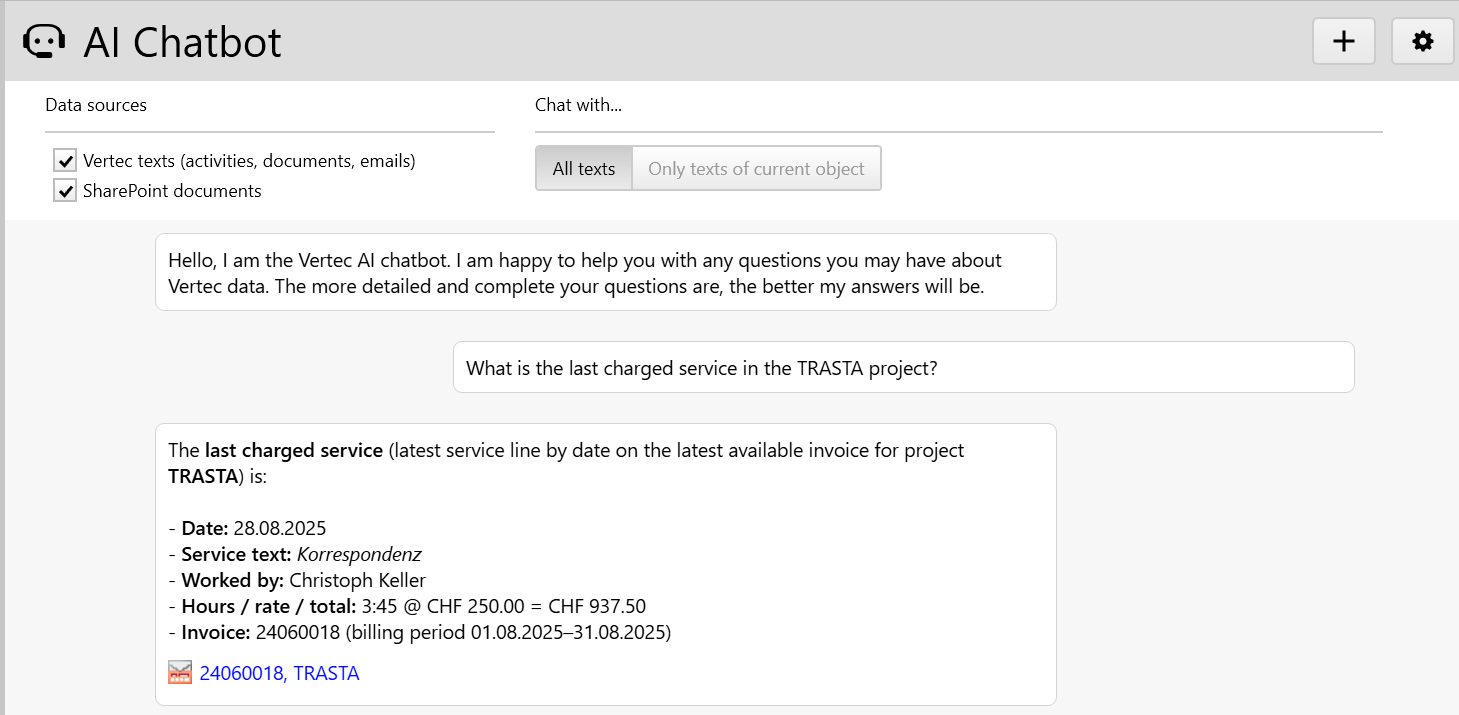
So how does communication with the Chatbot work? The following section provides two examples of how the Chatbot communicates with the linked objects.