
Create your own web services
 Cloud Suite
 On-Premises
Vertec offers the ability to provide web services that can be accessed externally. Incoming web requests are processed by the Python code, which allows flexible integrations and individual extensions to be realized. These include, for example, the processing of webhooks, the connection of external automation platforms or the deployment of customer-specific Api. Vertec provides a web service as standard with the Vertec REST API.
A web service consists of two parts:
Create a new Script. Select Python 3 as the platform. Web services can only run with Python 3.
The name of the script is part of the Python class reference in the web service object, so choose a name without spaces and special characters.
Enter the Python code in the script text.
The base module for all Python web services is “vtcweb”. It contains routing logic that determines which web service and feature handles the incoming web request. The base class for web services is vtcweb.WebServices, and all Python web services must inherit from this class:
from vtcweb import WebService

class myService(WebService):
    ...
In order for a method to be accessed in the Python code via webrequest, it must be annotated with a decorator. Each decorator corresponds to a specific type of request. The following decorators can be used:
The self.as_json(content) method automatically serializes the content as a JSON string and returns a response object with the appropriate parameters.
Detailed information about the Python code for web services can be found in the article Vertec python module “vtcweb”.
In the following example, an activity is created using the method name create_todo. The ID of the newly created activity is returned.
from vtcweb import WebService, http, get, put, post, delete, WebException

class HelloWorld(WebService):

    @post("create-todo")
    def create_activity(self):
        expected_values = {
            "title": "str",
            "text": "str",
            "date": "datetime"
        }

        try:
            values = self.parse_request_body(expected_values)
        except ValueError as e:
            raise WebException(400, str(e))

        act = vtcapp.createobject("Activity")
        act.title = values.title
        act.text = values.text
        act.createdBy = vtcapp.currentlogin()
        if values.date:
            act.dueDate = values.date

        response = {}
        response["id"] = act.objid

return self.as_json(response)Next, create a web service object under Settings > Extensions > Web Services.
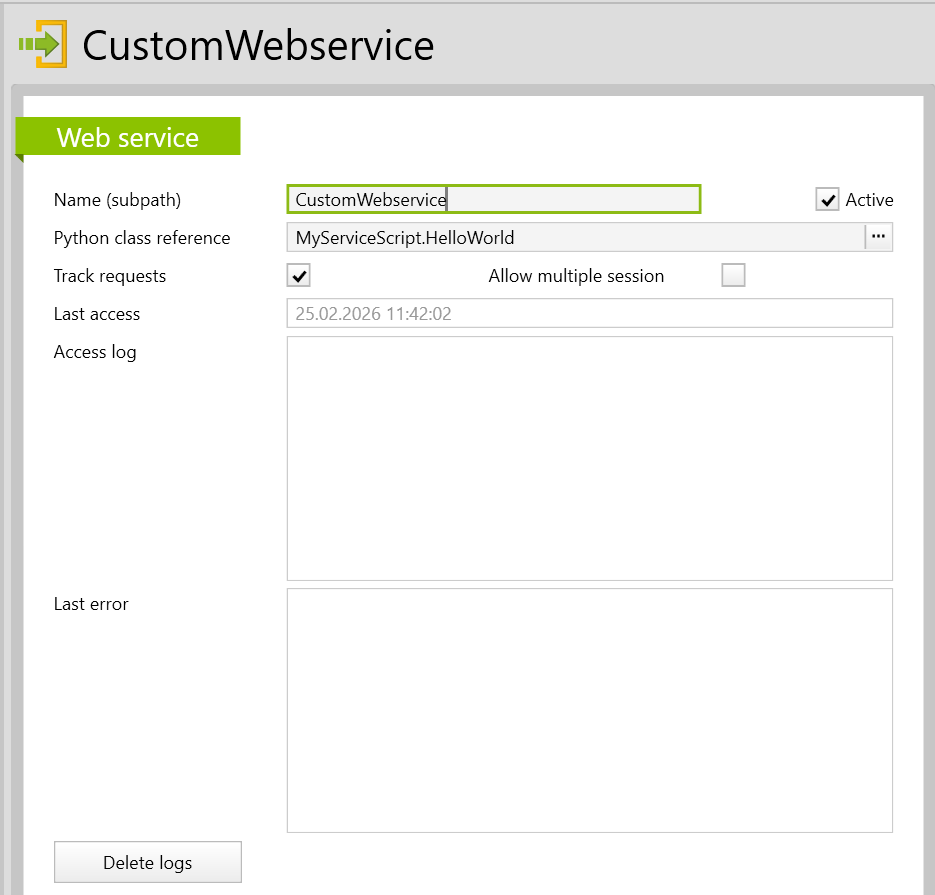
Name (subpath) |
Name of the web service, which is also part of the URL of the web server. |
Python class reference |
The designation of the script entry and the class to use. |
Active |
Webrequest can only be processed if a web service exists and is active. |
Track requests |
If this checkbox is enabled, the print and self.log messages as well as the timestamps of the web service are shown in the Access log field. This helps in setting up and testing the web service. For normal operation, the checkbox can be deactivated. |
Allow multiple sessions |
If this checkbox has been activated, a VertecSessionTag can be added to the WebRequest header similar to the Article xml server to create specific sessions. |
Last access |
If there is a valid API token and a corresponding script entry for the web service, this field saves the current time regardless of whether the web service is active or valid, and regardless of whether the web request was successful or not. |
Access log |
If the checkbox Track requests is active, the print and self.log messages as well as time are shown after each incoming WebRequest. |
Last error |
This field always tracks an error that occurred and saves the current time of occurrence in the first row. It saves errors that are not already clearly explained by the HTTP status. For example, the 404 Not Found error is not tracked. |
Delete logs |
The logs are automatically overwritten with current entries until the next request. Alternatively, the entries can be cleared manually using the Delete Logs button on the detail page or in the Actions menu. |
An empty or broken python class reference causes the entry to be shown as invalid, and when attempting to access the web service, Status 404 NOT Found is returned. If the Track requests field was previously activated, a message appears under Invalid web service request log:
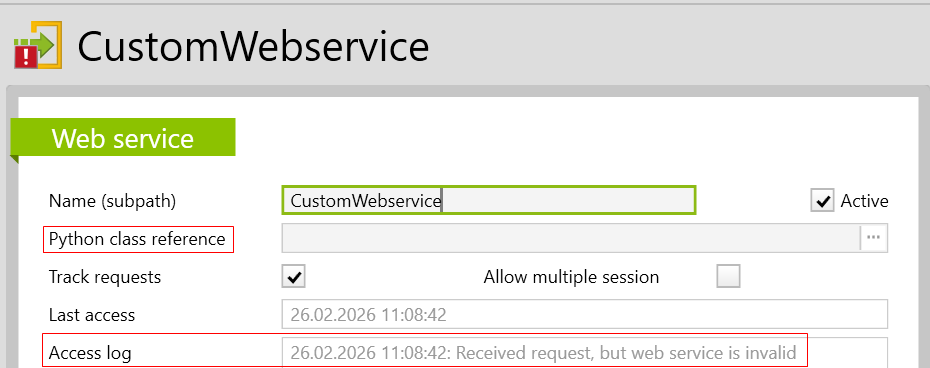
To enable or block the create or Running the web services, two options are available:
User rights are assigned by default to the Administrators and Standard Users user groups.
Web services always run via the login of a user. In order for Vertec to identify a user and check whether the user is allowed to run the web service, authentication is necessary. For the web services, this is done via an API token, which can be generated in Vertec. The API token can be passed either as a header or via a query.
The web service checks the identity via a bearer token, which is transmitted in the HTTP header under Authorization: Bearer <apiToken>.
The query must have a key with the API token as value and be completed in the URL: ?apiToken=<apiToken>.
Example: http://<host>/api/webservice/<Name (Subpath)>/<method-name>?apiToken=<apiToken>
This type of authentication is useful when there is no way to define a header for the WebRequest, for example, if you are using a web service to respond to webhooks.
After authentication, it checks whether the user is allowed to run the web service. If so, a session is provided and the Python code is executed with that user’s user rights.
The following HTTP error codes may occur:
The parameter Web Services Server in the [CloudServer] section of the Vertec.ini – file can be used to disable web services. If the parameter is not specified, web services are activated.
[CloudServer]
Web Services Server=False
The following parameters can be set in the [Log] section of the Vertec.ini configuration file:
[Log]
DebugCategories=Vertec.Webservices
Then the objects logged by the web service using the self.log(log_object) method are written to the session log.
For web service sessions, a timeout is configured via the Vertec.ini file under [CloudServer] with the parameter Webservice Session Timeout (default: 10 minutes). If a web service session does not receive a request during the defined time, the Cloud Server sends a command to close the session. The session itself checks whether it can be exited and remains open when active WebRequests are being processed.
When creating a Web service, it should be noted that a separate session is created for processing the WebRequests. Change to the Web service code is sent from the developer’s session to the Web service’s session via a notification. Likewise, the fields Last access, Access log and Last error are written in the Web service session and are sent back to the developer’s session via a notification. In this case, it may be useful to reduce the poll interval in order to get a quicker response. Please refer to the KB article Notif Data Update.