
Additional feature for checking presence time rules and recording differences
 Cloud Suite
 On-Premises
This additional feature implements configurable presence time rules for employees. Regular checks and recording differences are shown directly via notifications and evaluation lists. You can find the download of the config set here.
Overview:
The users must be assigned to the folder access HR user group. In addition, they must be assigned to a user group that has team leader rights.
The presence time rules can be managed in the root folder user in the settings (only by the administrator). The predefined rules correspond to the current working time law in Germany.
Each attendance rule has one of the following types: Break regulation, Maximum presence time or Rest time.
If necessary, a rule can only apply to a specific user group. For example, rules based on location or age can be defined. A notification text can be entered per rule and different fields can be filled in depending on the type.
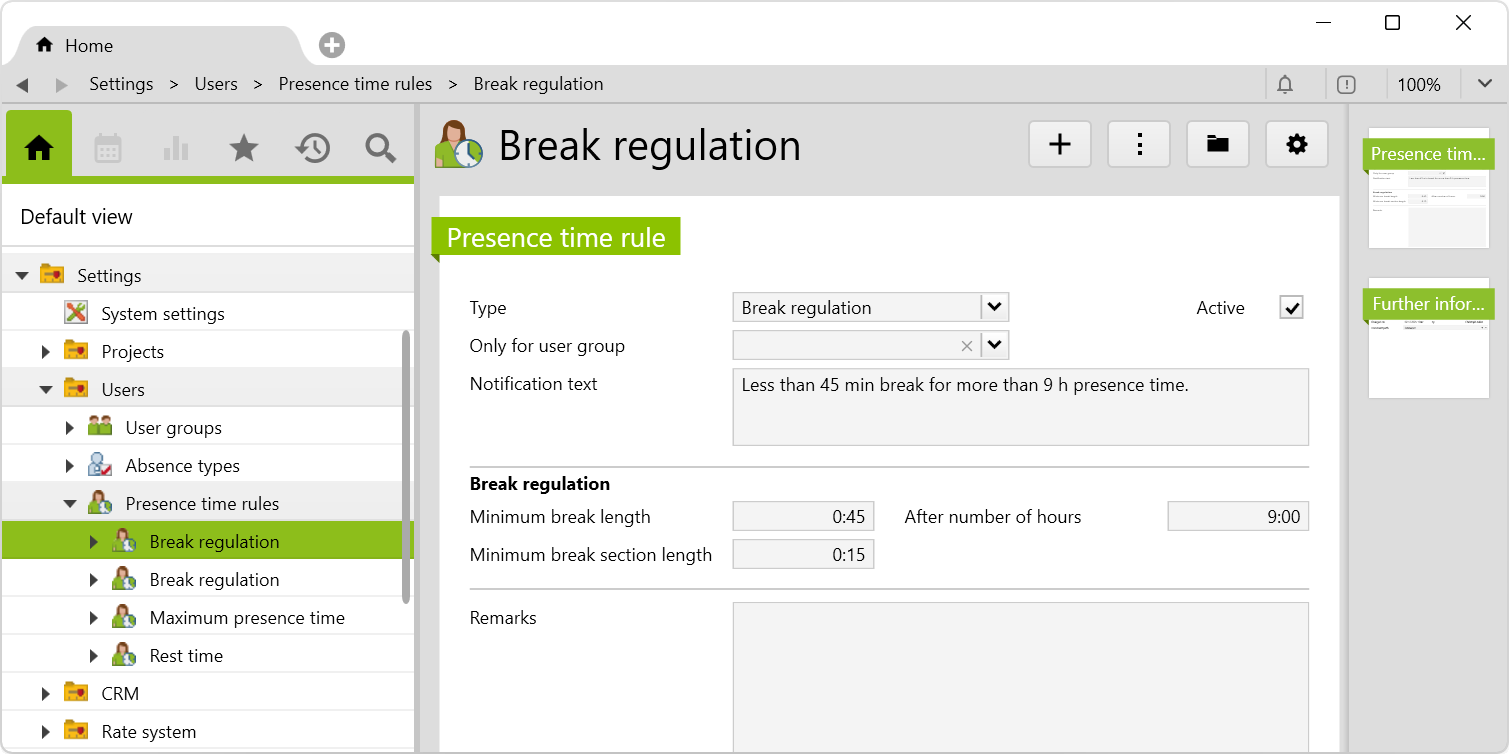
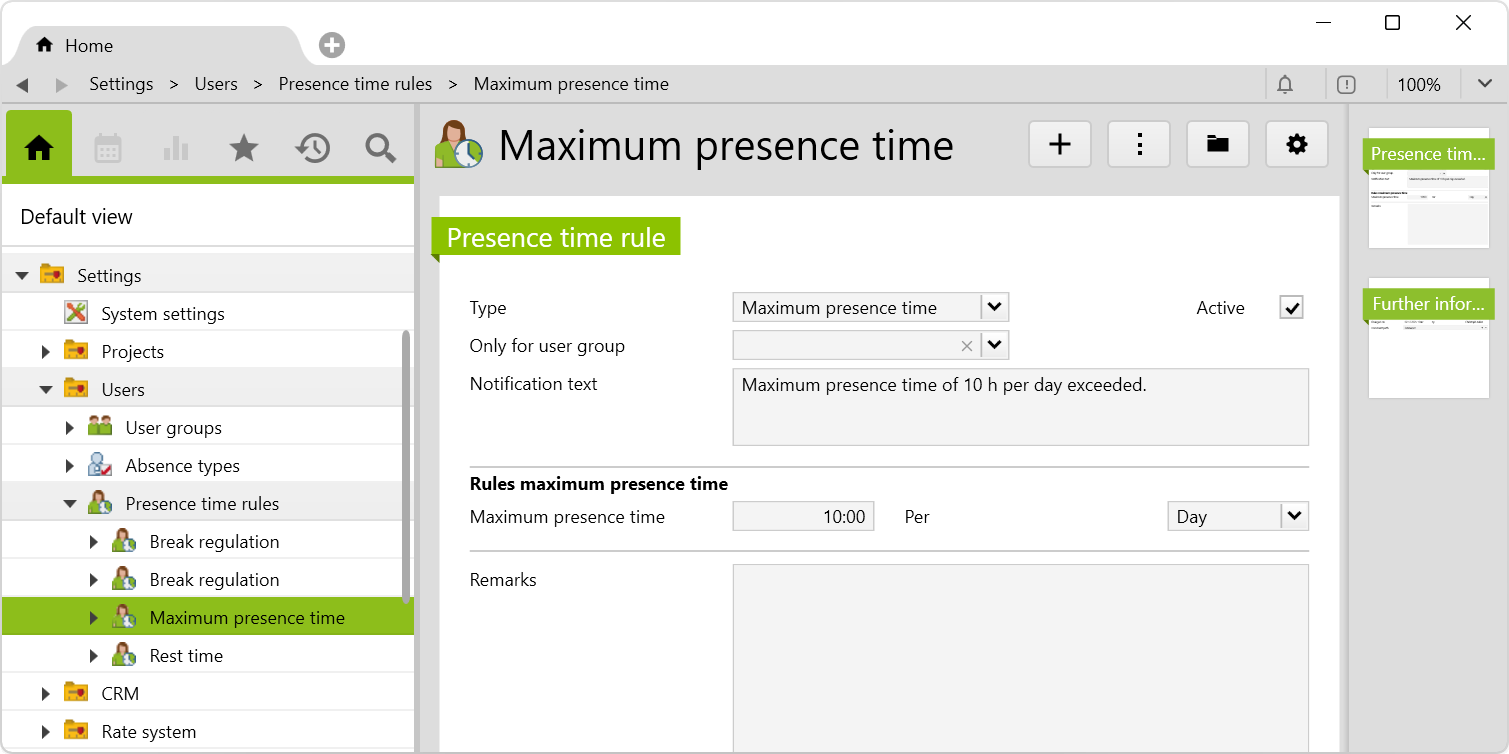

The notification text is stored as native in the translation items under Settings > Customize > Translation. If the text is changed, the translation items must therefore be adapted in order for the text to be translated. If no translation is necessary, the text can also be entered here directly in the appropriate language.
In the root folder HR, the presence times folder is created with the subfolders presence time evaluation and recording differences.
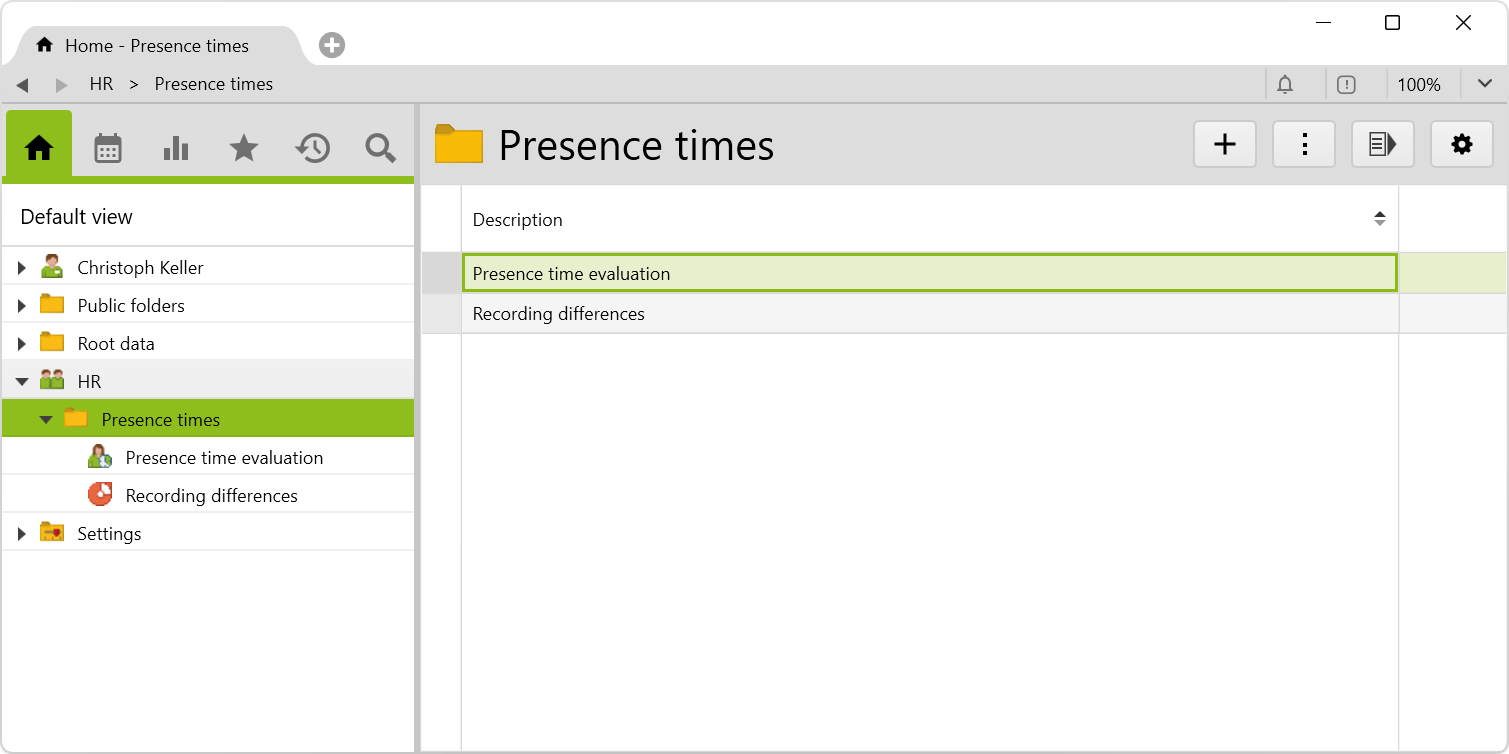
This folder shows an evaluation based on the configurable rules. The evaluation checks whether all presence time rules that apply to employees (team members) have been adhered to. A team leader sees all employees to whom he has been assigned as team leader. In addition, he must dispose team leader user rights.
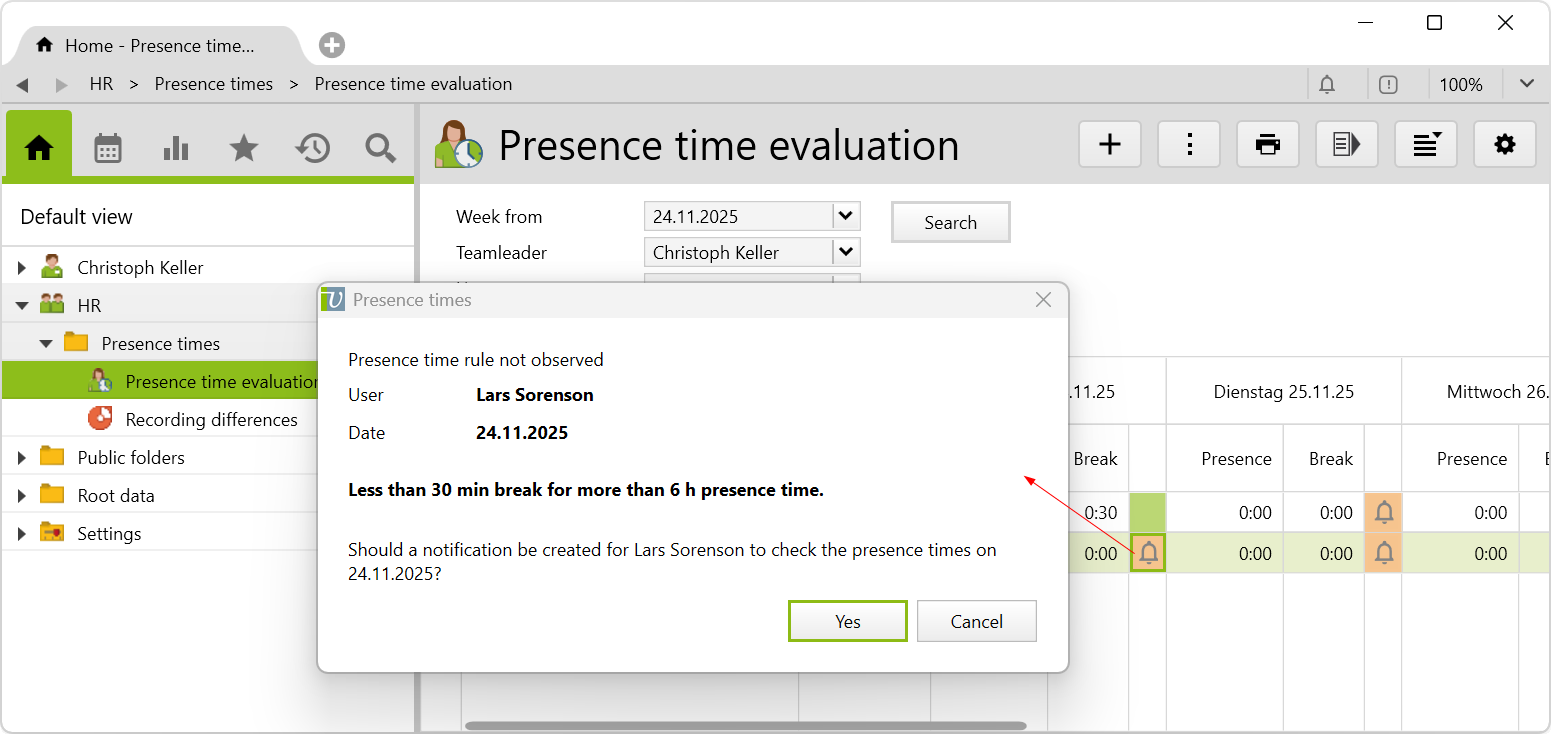
If all rules have been complied with, the day is highlighted in green. If a rule is broken, this day is highlighted in red and the corresponding employee can be notified directly via a button in the report. The report can be filtered by week, team leaders and users and shows a list of all presence times and breaks per day.
A tooltip on the red entry indicates which rule it is:
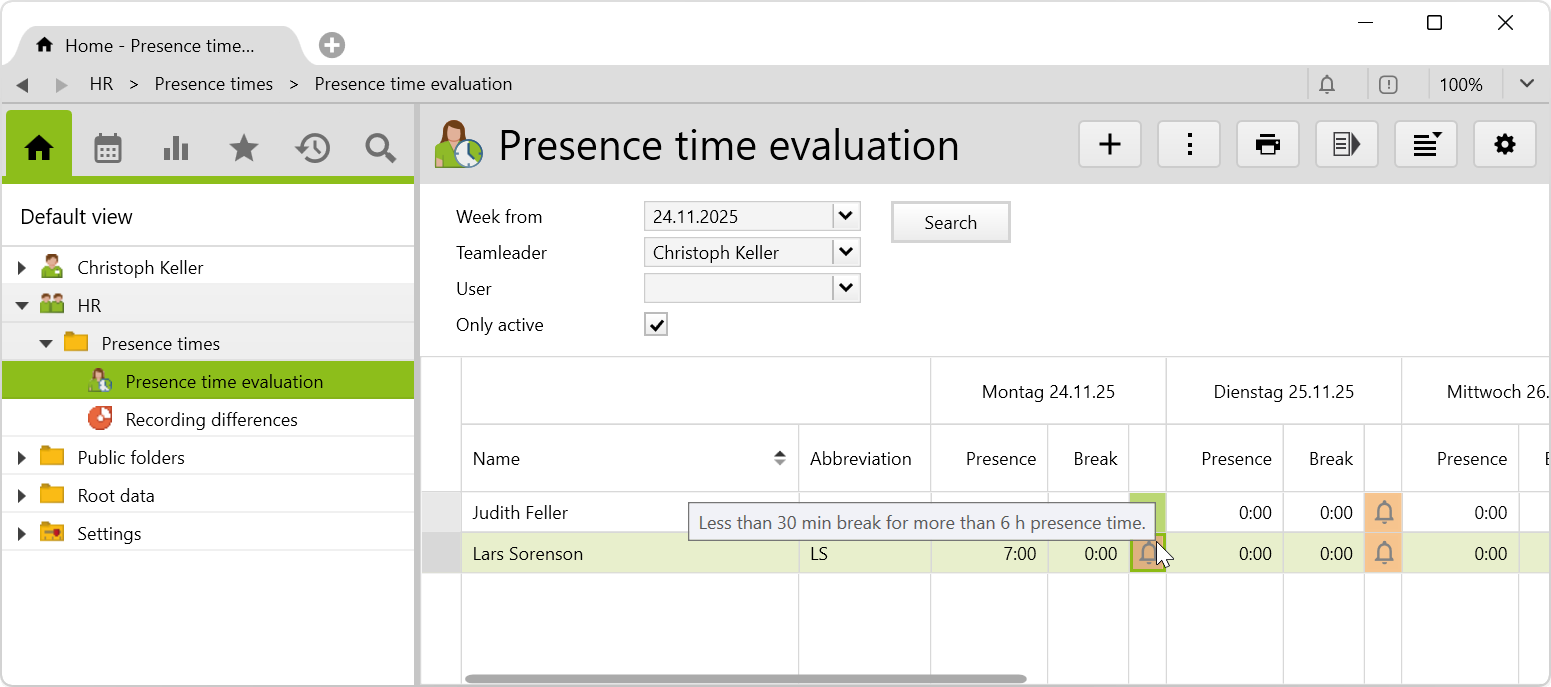
In addition to these rules, it is also evaluated whether a presence time has been entered at all. If not, the day is highlighted in red and labeled with the tooltip No presence time recorded.
With a click on the button, a dialog appears, with which the corresponding employee can be alerted directly via notification:
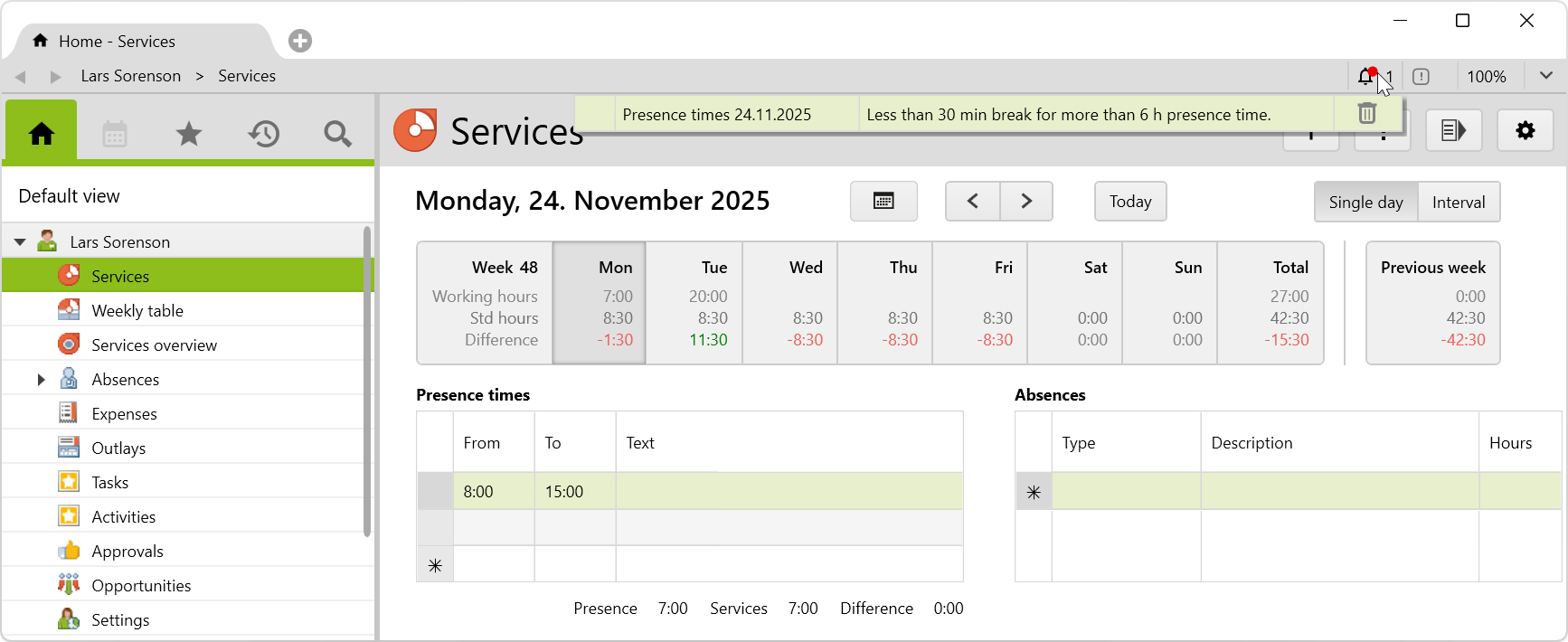
The notification indicates the presence time on the corresponding date and the tooltip or the notification text entered in the settings is shown as text:
In addition to the presence time evaluations, a list is shown in the recording differences folder, which compares the entered presence time with the recorded services of the employee:
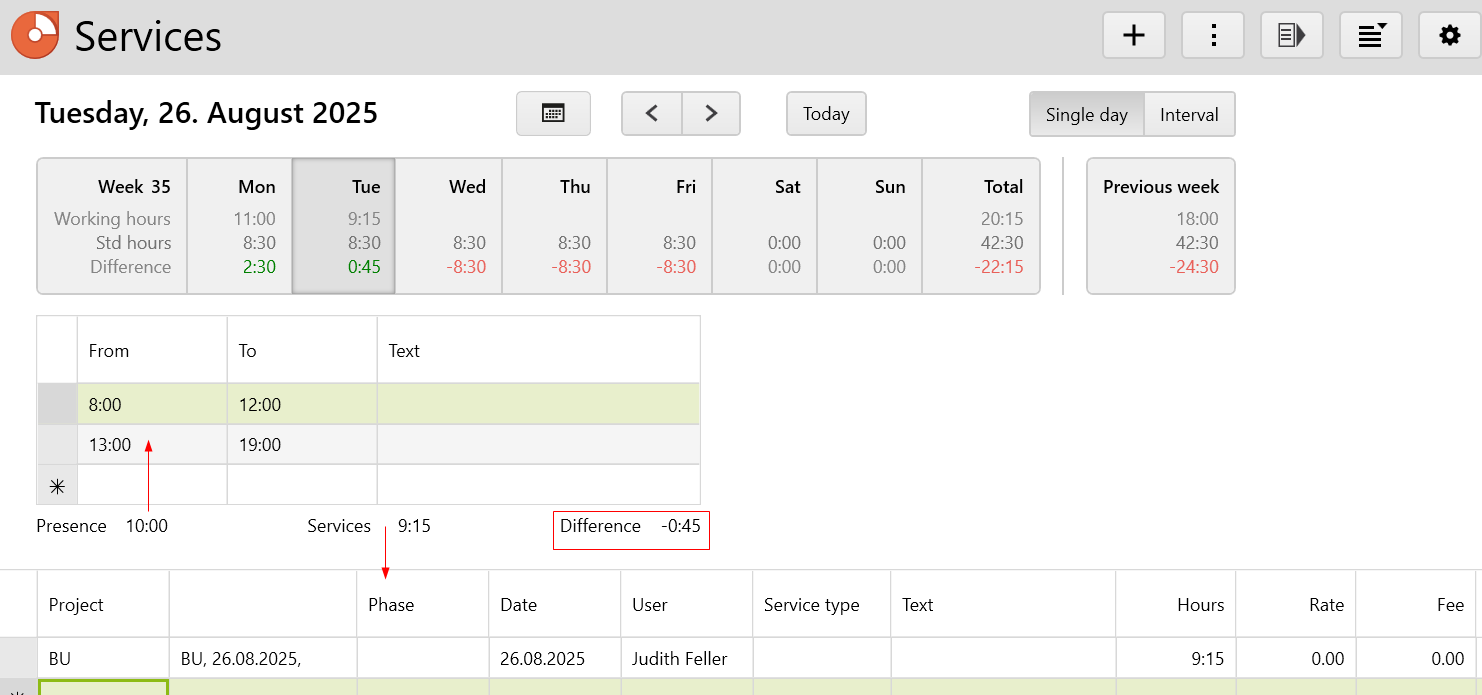
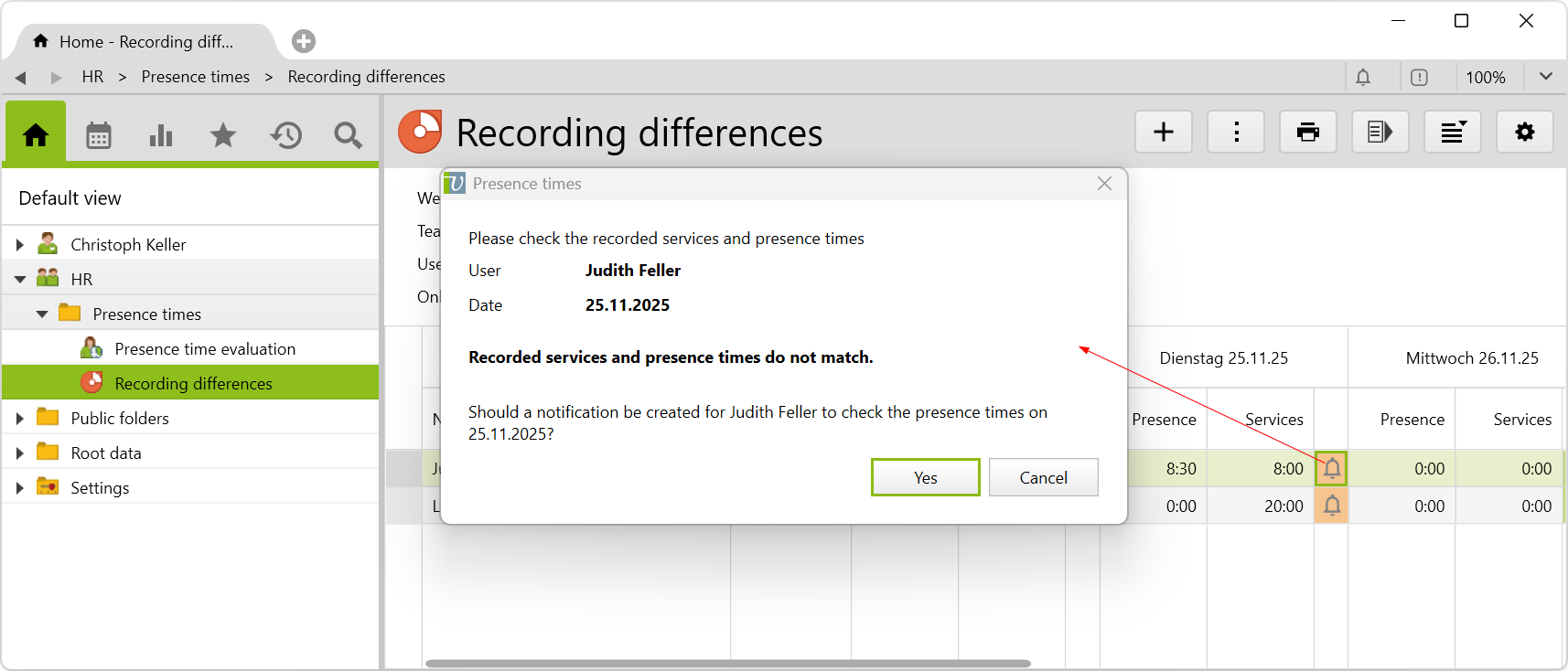
It is checked – in the past until today – whether these two data match, if a standard hour is entered. Here again, the red button signals discrepancies and the tooltip reads: Recorded services and presence times do not match. With a click on the button, the employee can be notified directly:
The notification that the employee receives will refer to the services on the relevant date and will be shown as the text of the tooltip:
Important information before importing can be found in the Key information about additional features article. Config sets modify data in Vertec, which can overwrite existing data.
The exact import process can be found in the articles about the config sets.
Download the additional feature with the following download link:
| Version Requirement | Download |
|---|---|
| 6.7.0.17 | ConfigSet_AttendanceTimeRules.xml |