
How to create quotes using Vertec
 Cloud Suite
 On-Premises
The quote is based on the structure Project > Phase > Service types. This structure is already created when the quote is made and later, when the accepted quote is made, it is directly available for entering services.
To create a new quote, go to the relevant project and select New > Quote. The following window opens:
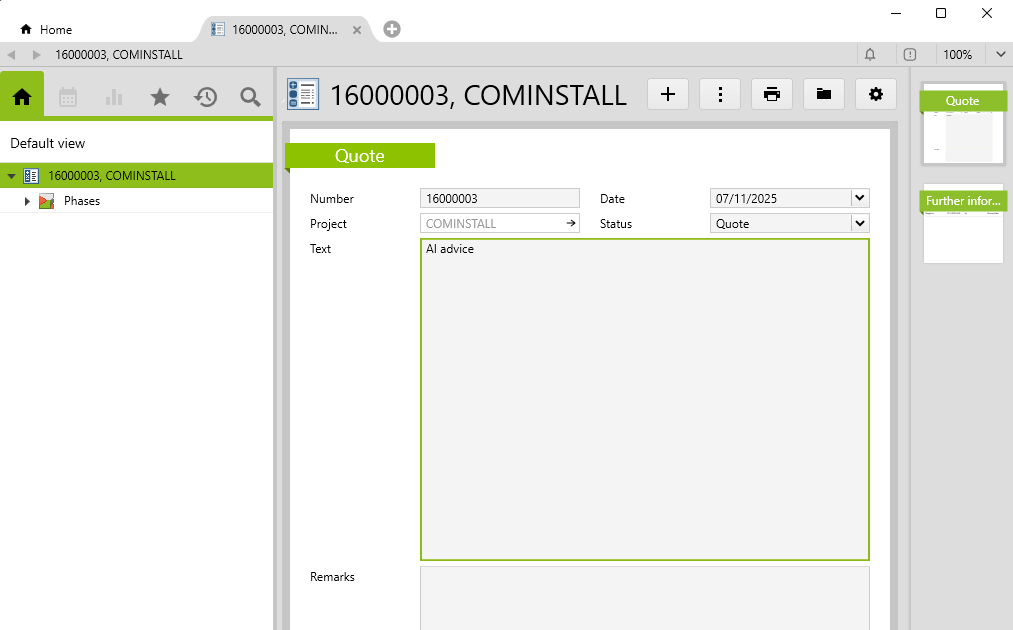
Number |
The number is generated automatically. There is a relevant ID generator for this. |
Text |
Description of the quote. |
Status |
The following statuses are available:
The quote status is also applied to attached phases if it is changed. |
Date |
When creating a quote, today’s date is entered. You can overwrite this. |
The quote phases are entered in the Phases subfolder.
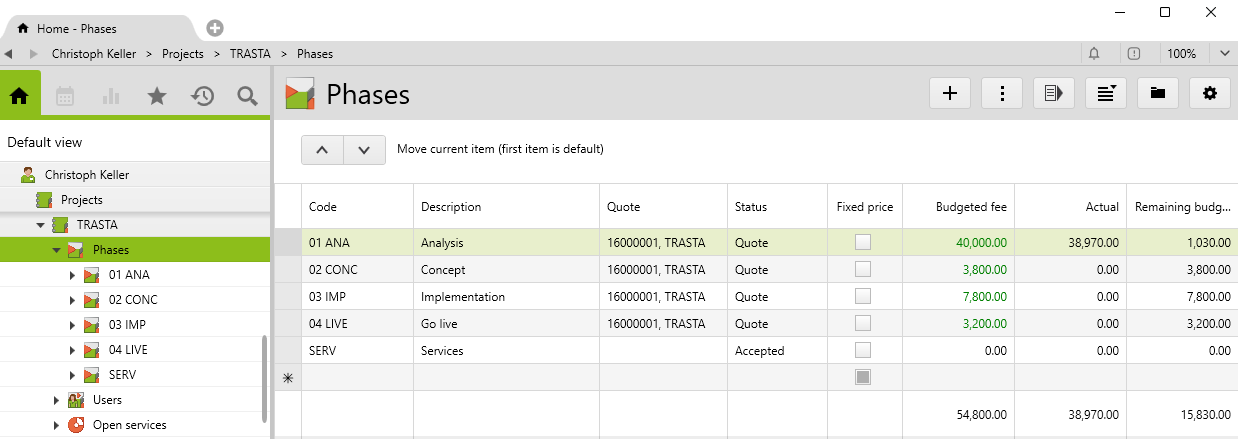
Here, you can budget for the quote amount. In the example above you can see from the green font that the amount was entered directly.
If you want to subdivide the quote even more finely, service types can be allocated to the quote and budgeted accordingly:
In the Service type subfolder on the phase, you can make allocations and budget:
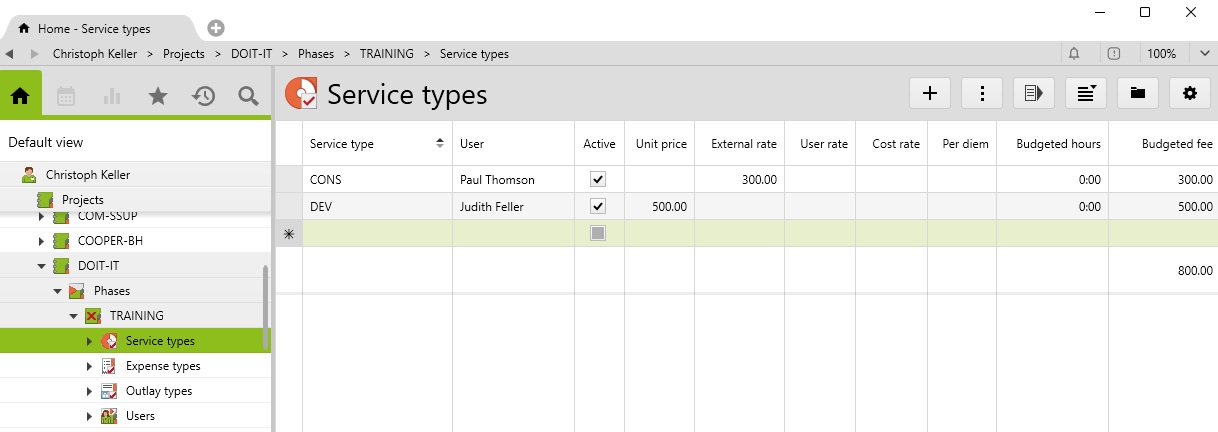
You can also enter expense budgets and outlay budgets for the relevant types.
As usual, all the budget values can also be used for a quote, i.e. fees, hours, costs, etc.
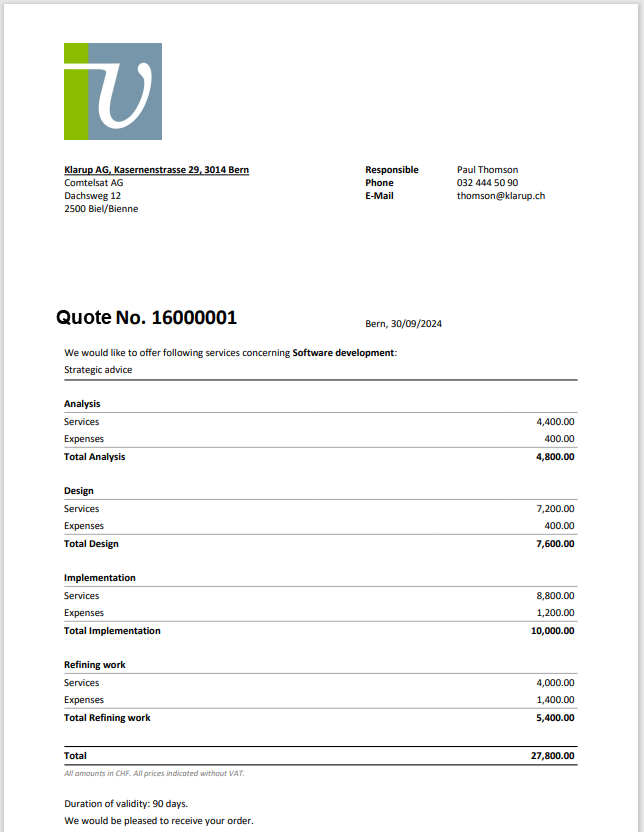
Once you have the quote screen open, you can print the quote report using the Print menu button:
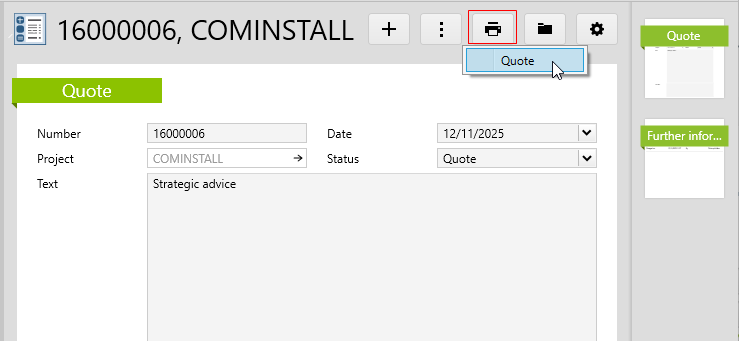
The quote report in Word shows the project structures of all phases. Quotes can also be created for subsequent phases.
As of Vertec 6.2, a link type for activities on quotes is available by default. This is called Quote-Activities.