
Show your vacation in days.
 Cloud Suite
 On-Premises
In Vertec, vacations are calculated and reported on an hourly basis by default. With this additional feature, the values are also shown in days. Whether the workload is 100%, 80% or 50%: this feature allows you to show the vacation credit and vacation balance in days according to the employment level.
This application is an additional feature. The corresponding config set can be found here.
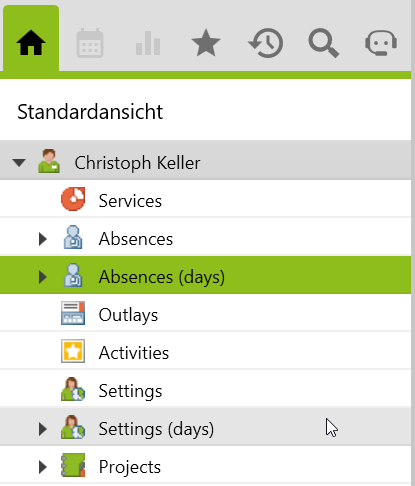
After importing the config set, two folders are created: Absences (Day) and Settings (Days). These are created directly under the existing default folders absences and settings in the user. Functionally, the new folders are based on the default function. The enhancement consists of additionally showing the vacation credit and balance in days in the absences (Days) and settings (Days) folders.
Accordingly, the wrapper link types for the default absence and settings folders can be disabled and only those for absence (days) and settings (days) can be activated instead.
This article presents three scenarios in which it is described how vacation days are credited based on full-time and part-time workload.
Settings can be defined both via user groups and directly on the user. The settings in the user groups are automatically shown to the users as long as they belong to the respective user group (not vice versa). However, we recommend that you use this additional feature to create the settings in the new folder. If necessary, see the KB article User settings
For all of the following scenarios, we assume an annual vacation credit of 25 days, which equates to a total of 200 hours based on an 8 hour workday.
After the vacation has been entered, click on the info icon of any row to open the window with the current vacation balance or right-click on the user and select Show vacation balance.
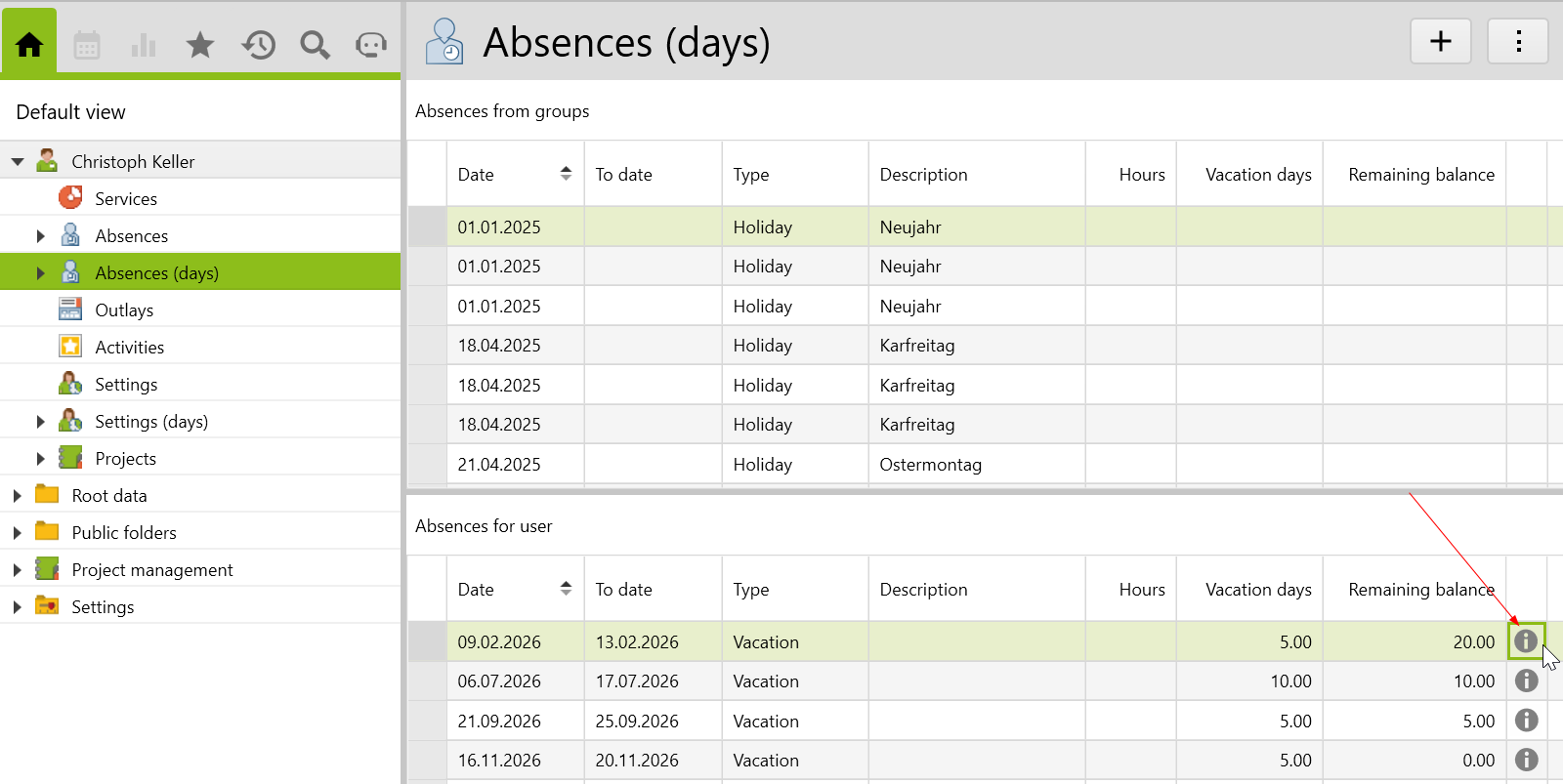
In this scenario, the employee works 100% of the year with a working time of 8 h/day.
The data in the columns Vacation taken to Remaining balance are highlighted, depending on which vacation entry was previously selected using the info icon. The table below describes the content.
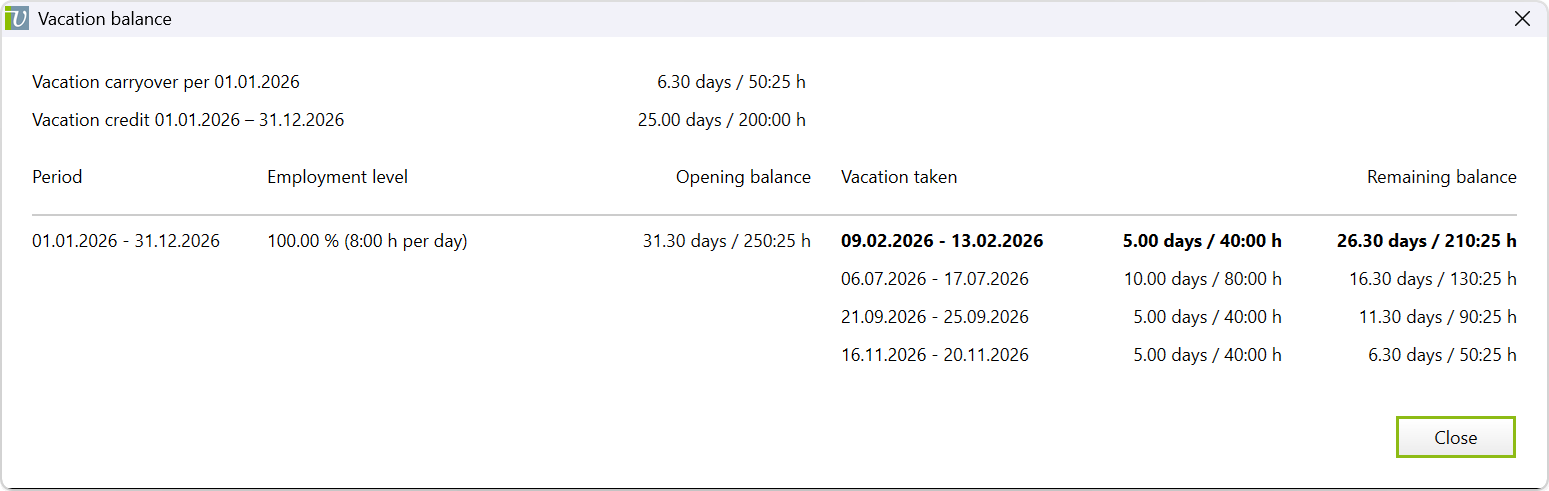
Vacation carryover |
The remaining vacation days from the previous year. These are also considered in the calculation according to the column Opening balance (see also Vacation Carryover). |
Vacation credit |
The annual vacation credit.
|
Period |
The entered period in which all entries regarding employment level and vacation taken and vacation balance are saved. |
Employment level |
The employment level defined in the settings is shown. For part-time work, a distinction is made in parantheses between reduced working hours per day and reduced working days per week. Note the next two scenarios. |
Opening balance |
The newly set vacation balance after the vacation taken.
|
Vacation taken |
The specified vacation dates and the number of days and the corresponding hours of the vacation taken. |
Remaining balance |
The calculated remaining balance after the vacation taken. |
In this scenario, the employee works 60% of the year during a certain period. The setting was defined as a reduced working time of 4 hours 48 minutes per day, evenly distributed throughout the week.
If you open the vacation balance window again and click on the button on the left Show details, the following is shown: The table is expanded with a column Vacation credit in period. This indicates how many vacation days the employee is entitled to during this period based on their specific employment level.
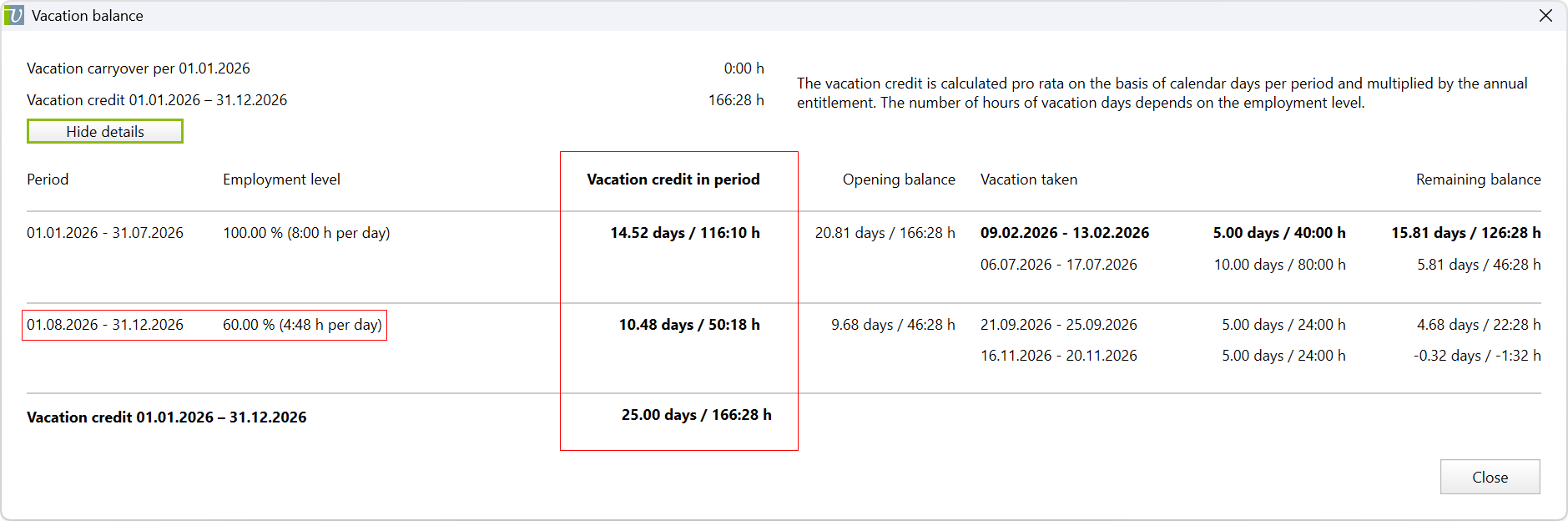
number of days per period/yearly days * vacation credit (yearly) = vacation credit in period| Period | Calculation |
| 01.01.2026 – 31.07.2026 |
|
| 01.08.2026 – 31.12.2026 |
Note: |
In this scenario, the employee works 90% of the year during a certain period. The setting was defined as a fixed number of 4.5 working days with 8 h/day.
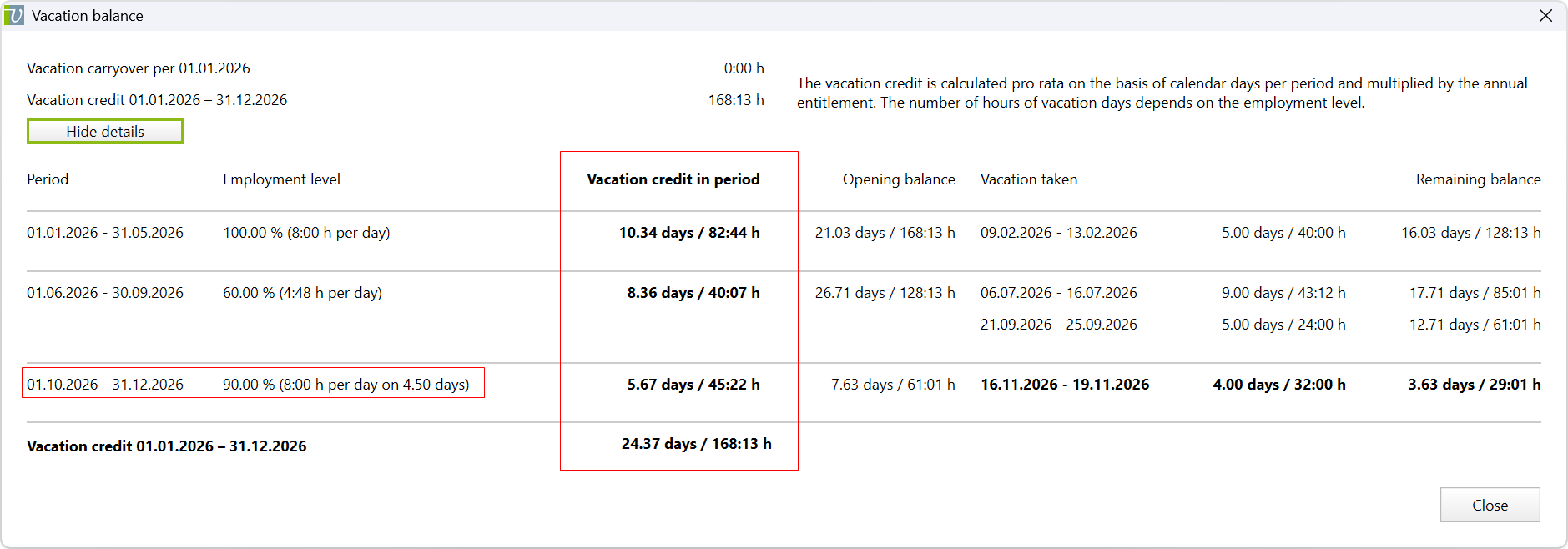
For the example with 90% employment level, the fixed number working days must be included:
number of days per period/yearly days * vacation credit (yearly) * fixed working days/weekdays = vacation credit the period| Period | Calculation |
| 01.01.2026 – 31.05.2026 | 151/365 * 25 = 10.34 Tage (*8 h = 82:44 h vacation credit in hours) |
| 01.06.2026 – 30.09.2026 |
Note: |
| 01.10.2026 – 31.12.2026 | 92/365*25*4.5/5 = 5.67 Tage (*8 h = 45:22 vacation credit in hours) |
Before importing the config set, we recommend you read the article Key information about the additional features. Config sets modify data in Vertec, which can overwrite existing data.
The exact import process is described in config sets.
You can download the additional feature with the following link:
| Version Requirement | Download |
|---|---|
| 6.8.0.20 | ConfigSet_VacationBalanceInDays.xml |