
Additional feature for the connection of the M-Files DMS extension.
 Cloud Suite
 On-Premises
This KB article describes the connection of the M-Files DMS extension to Vertec. M-Files is a document management system based on metadata, with which documents can be managed by their properties and relationship. Vertec builds on this by linking the created activities to the documents in M-Files. This ensures a parallel document storage. The config set can be found at here.
Using the M-Files Admin tool, settings of the M-Files server and the document management (Vaults) are set. Here it is important that you create a property under Property Definitions for the document management. The name can be freely chosen. The ID must be entered in the system settings in Vertec (see next section). The documents stored in M-Files receive an ID, which is saved as a key on the activity. This creates the link (not the access).
Note: The Multi-Server-Modus of M-Files is not supported.
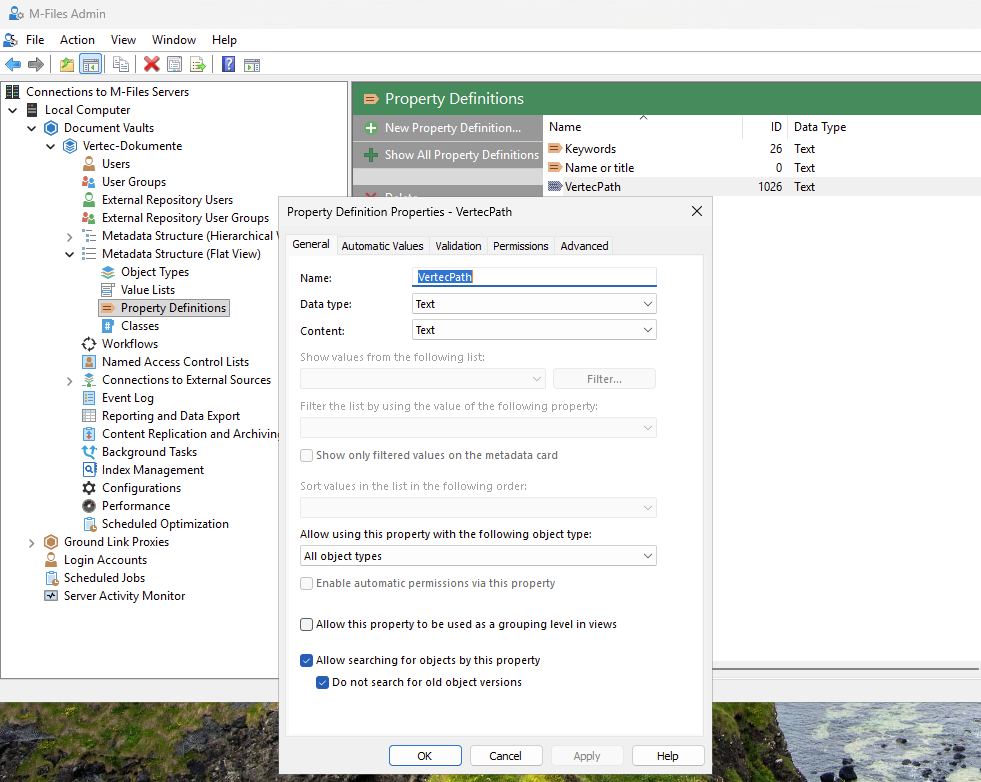
Since the document storage in M-Files is done via the activities, some settings have to be made beforehand.
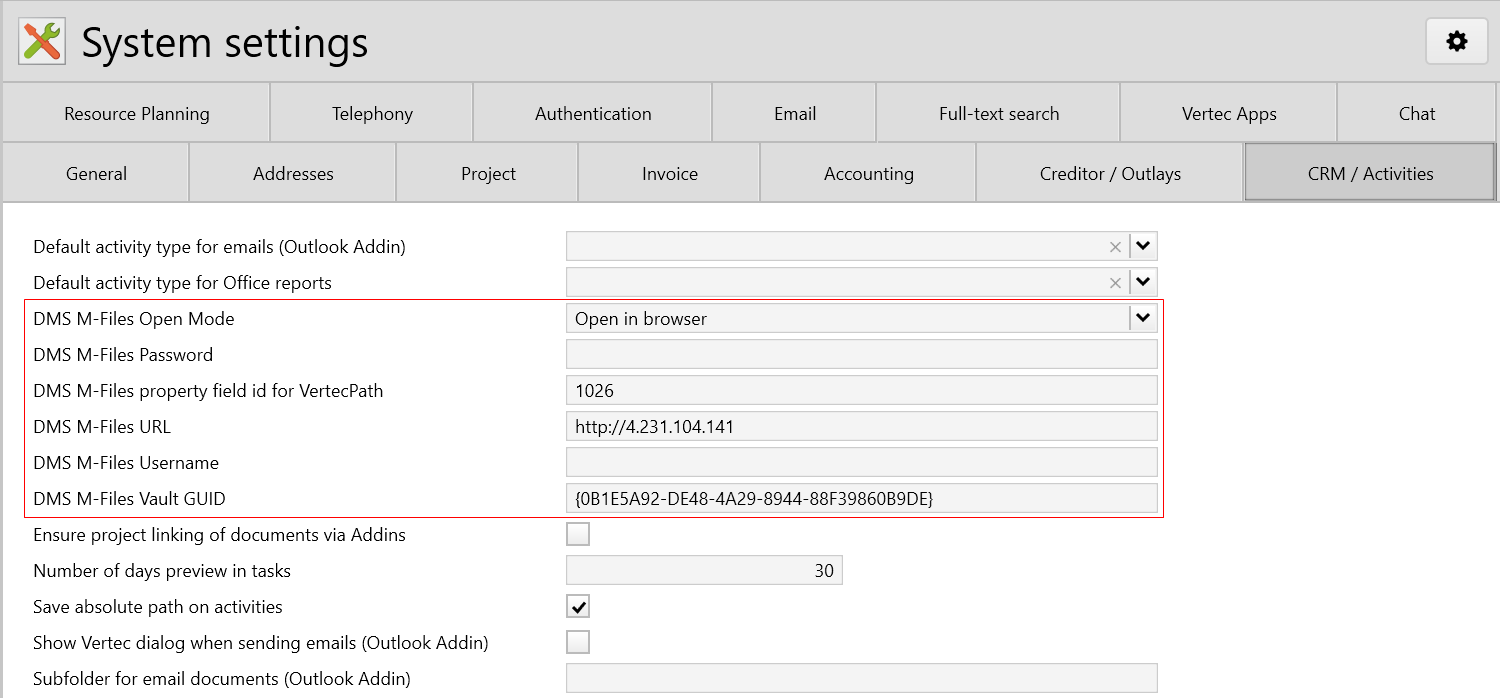
After importing the additional feature, the following fields are additionally created in System settings > CRM / Activities or existing fields are adapted accordingly:
Save absolute document paths on activities |
This option is activated automatically. This sets the document path. This means that if an activity is moved to another project, the document path does not change. A dynamic document path means that the document is no longer retrievable when changes are made (see also System settings crm / activities). |
DMS M-Files Open Mode |
There are two options for the open mode:
By default, |
DMS M-Files Password |
The login data is user-specific. The default values are entered in the system settings, which are applied when creating a user. Usually, these fields are left blank. Afterwards, the users enter their the login data under User > System settings page > CRM / Activities section. |
DMS M-Files property field id for VertecPath |
Here the ID of the previously created property from M-Files Admin is entered. |
DMS M-Files URL |
Enter the URL of the M-Files vault. For security reasons, we recommend connecting to HTTPS. |
DMS M-Files Username |
The login data is user-specific. The default values are entered in the system settings, which are applied when creating a user. Usually, these fields are left blank. Afterwards, the users enter their login data under User > System settings page > CRM / Activities section. |
DMS M-Files Vault GUID |
Here, the GUID (globally unique identifier) is enclosed in curly brackets {}, which uniquely identifies the M-File Vault. It forms part of the URL and can be copied from there. |
In System settings > General, the values MFiles:\\ for the document path and Filesystem or DMS for the document storage are automatically set after importing the additional feature. In addition, we recommend restarting Vertec after adjusting the system settings.
After the document has been saved in the activity and the DMS M-Files Open Mode set to Open in browser, the document can be opened directly in M-Files via the arrow. The arrow in base path opens the location in M-Files.

Note that documents with the same name cannot be uploaded in two activities in the same project, because this will overwrite the first document in M-Files by the second, and both activities are then linked to the same document in M-Files.
When the document is deleted in M-Files, the following message appears:
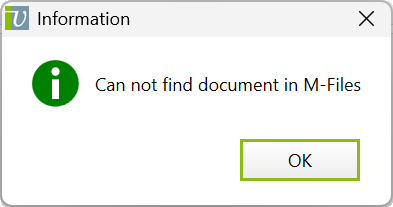
Thus, the link between the activity and the document in M-Files no longer exists and in this case the document should be reuploaded in the activity.
Before importing the Config Set, we recommend you read the article Key information about the additional features. Config Sets modify data in Vertec, which can overwrite existing data.
The exact import process is described in Config Sets.
You can download the additional feature with the following link:
| Version Requirement | Download |
|---|---|
| 6.8.0.20 | ConfigSet_MFilesDmsExtension.xml |