
System settings, Section “Chat”
 Cloud Suite
 On-Premises
With Vertec version 6.8.0.19, the module AI Know-how Management was introduced. By licensing the module, the section Chat is enabled in the system settings. In order for the AI Chatbot to be operational, certain settings must be made. The setup is done in cooperation with the project leader, as it cannot be fully implemented on its own.
Further information on implementing and using the module can be found in the KB article AI Chatbot in action.
The following settings are set by default and/or can be adjusted:
Activity types for AI ExportThe specific activity type must be specified here. Then only these will be considered by the AI Chatbot. Only activities that have at least one project or address assigned are exported. Activities with an assigned invoice are ignored. The type is specified as a string and is separated by a comma if there is more than one type. Example: PropertyName: |
Assistant PersonaThe persona of the Chatbot can also be defined here. In Squirro, a persona is already stored in the background. However, it is possible to pass more specific information to the Chatbot in this field in order to narrow the context more precisely. For example, the following points can be specified:
PropertyName: |
Enable chatWith this option, the AI Chatbot icon can be shown and hidden in the navigation area above the tree structure. 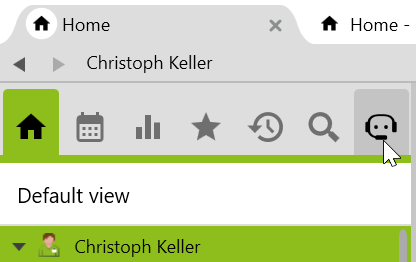 PropertyName: |
Export emailsIn this option, between PropertyName: |
Exporting invoicesIf this option is activated, the invoice data will be transmitted to Squirro for indexing. See also the KB article AI Chatbot in action. PropertyName: |
Export metadata from addresses and projectsThis option defines whether addresses and projects should be exported. See also the KB article. PropertyName: |
LLM API KeyWhen integrating an LLM provider, you need a unique code for authentication. PropertyName: |
LLM Base URLThe main address of the AI service is entered here. PropertyName: |
LLM NameThe model version of the language model is entered here. PropertyName: |
LLM ProvidersEnter the LLM provider here. Currently, OpenAI works best. The language model can be hosted either directly by OpenAI or via Infomaniak. Other possible LLM providers are still being evaluated. PropertyName: |
Prompt InstructionsMore specific information can be described here on how the AI Chatbot should respond to prompts. PropertyName: |
Squirro Cluster URLWill be set up for you together with a project leader. PropertyName: |
Squirro Project IDWill be set up for you together with a project leader. PropertyName: |
Squirro Refresh TokenWill be set up for you together with a project leader. PropertyName: |
Squirro Tenant IDWill be set up for you together with a project leader. PropertyName: |
Use SharePointSquirro can be configured to also index data from SharePoint. If this option is activated, this data can also be considered. Which data source is used can be specified in the Chatbot (see Navigating the Chatbot section). PropertyName: |