
How to automate tasks with Vertec
 Cloud Suite
 On-Premises
Scheduled tasks are useful to automate processes in Vertec that are performed regularly, e.g. overnight.
You can create new scheduled tasks in the folder Settings > Customize > Scheduled tasks.
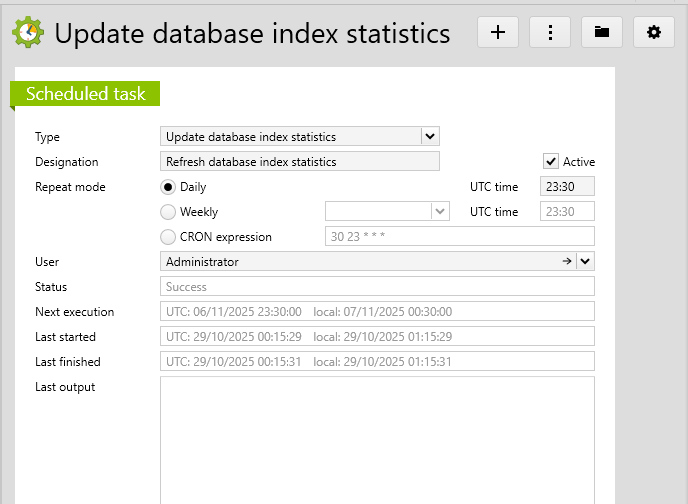
A scheduled task has the following properties:
Type |
There are different types of tasks:
|
Designation |
Designation of the scheduled task. For example, shown in the list. |
Active |
Only active scheduled tasks are performed. |
Repeat mode |
In this field, you can select between Daily and Weekly. The time is given in the Coordinated Universal Time UTC. Alternatively, a CRON expression can be specified. You can find information about the structure of CRON expressions online, e.g. on Wikipedia: https://de.wikipedia.org/wiki/Cron. In the background, each of these data leads to a CRON expression, with which the time of the next execution is determined. You can check your entries in the Next execution field below, which shows the time of the next execution in both UTC and local time. Note for Cloud Suite: We recommend setting the execution time between 03:00 and 19:00. Outside these times, it may happen that a running task is forced to complete or not execute on that day, for example, due to maintenance windows. |
Users |
The scheduled task will be performed under this user, so you must specify here a user with sufficient rights to execute this script, usually, the administrator. |
Function reference |
Only available if The function reference is the name of the script entry, followed by the function to be executed within this script, separated by a period. It must be a feature with no arguments.
Once entered, the code can be shown in a popup by clicking on the button with the three dots. In the popup, click on the Open in Script Editor button to open the script entry directly in the Script Editor. You can also edit it there. |
Status |
Specifies whether the execution was successful or failed. If the execution failed, the error message shows in the Last output box at the bottom. |
Next execution |
Here, the time of the next execution is shown in both UTC and local time. The next run is determined based on the CRON expression (see Repeat mode field above) and the current time. However, if the cloud server is not running at this point, the execution cannot be performed. As soon as the cloud server is running again, it detects the next execution. To prevent a sudden large number of tasks from running at the same time, past “missed” executions are not made up at the start of the cloud server. |
Last started |
Start time of last execution. |
Last finished |
End date of last execution. |
Last output |
Output of last execution. If this failed, an error message is shown here. |
In the context menu of the scheduled task, you can find an Execute now menu item. It is important to note that this operation does not set the scheduled task to the current point in time. Instead, it only executes the script – just as if the script or the called method were executed in the Script Editor, under the logged-in user, and not under the user defined in the scheduled task.
If the Restricted Filesystem Access or Restricted Session Process parameters are enabled, activated reports to be stored on the file system are sent to the client for storage.
In scheduled tasks, this does not work and throws the following errors:
The report cannot be saved. Please use a DMS extension, or specify an empty save path.
To solve this issue, choose one of the following options:
Internal)result = vtcapp.executereport2(project, none, template, ''). The report can instead be sent e.g. by email.Extension codes can also be executed, but these must be online extensions, i.e. under Cloud capability, they have the attribute Cloud and Web App.
The cloud ready extensions, which can only be operated in the Cloud App, are, in the background, local COM extensions, which are communicated with via COM forwarding. This cannot be done by the scheduled task. In this case, a Windows batch task must be created for automation.
In the Vertec.ini file in the [cloudserver] section, several parameters influence the scheduled tasks. They all have the term Task Scheduler in their name.