
iManage DMS Extension
Vertec offers the possibility to manage your documents in integration with iManage.
Operating mode
 Cloud Suite
 On-Premises
Modules
CRM
iManage is a DMS that helps users manage their documents more efficiently. The software also connects with other user programs, facilitating cross-platform work and standardized data transfer. This config set enables effective use of Vertec in combination with iManage.
This application is an additional feature. You can find the corresponding config set here.
To edit and access, the users must be assigned to the administrators user groups.
Note: If you are using iManage On-Premises, the iManage Work Web Server must be installed as only browser-based access is supported.
Application
Register app
- On-Premise installation: If you have Vertec installed on your operational server, you can independently upload your Vertec as a package in the configurator of iManage. You can find the described instructions here.
- Cloud Suite: Users with a Vertec Cloud Suite have their Vertec validated and receive the app registration data. You can find the described instructions here.
Set up in Vertec
Once you have registered your Vertec in iManage and imported the config set, the credentials must first be entered in the system settings under CRM / Activities. This will initialize the exchange with iManage.
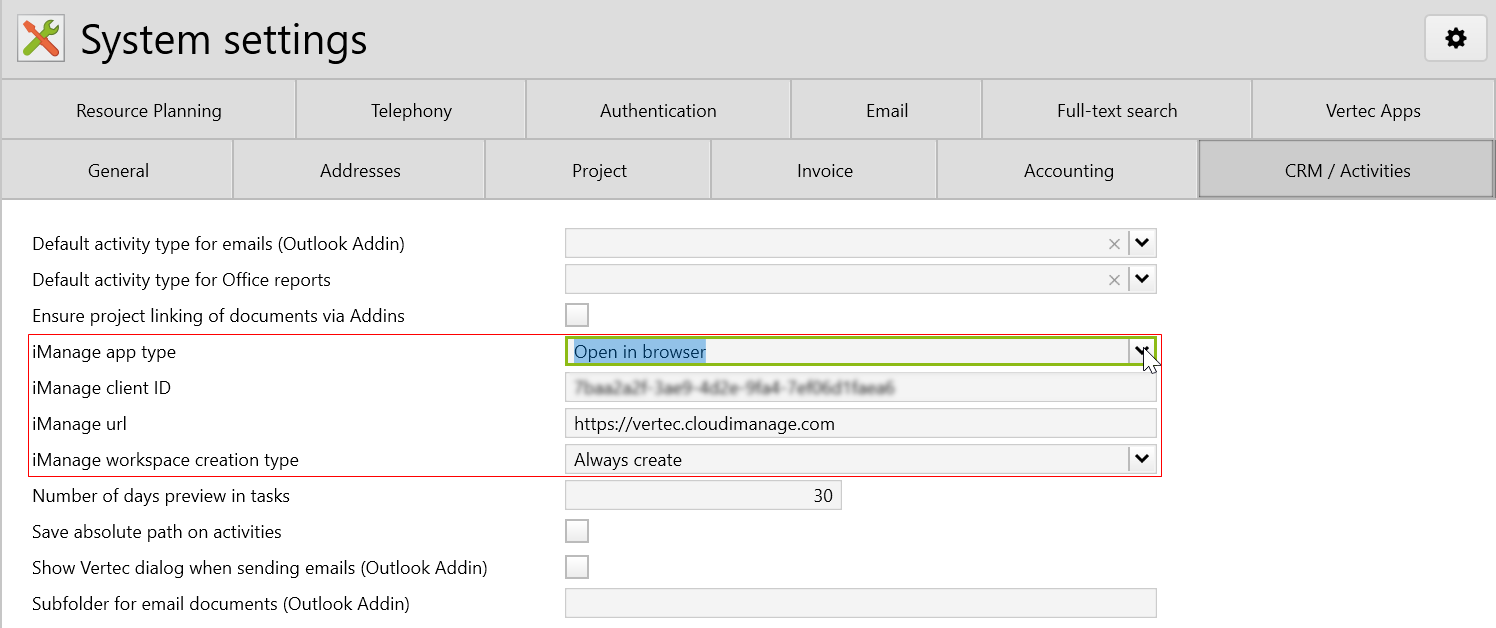
iManage app type
- Open in browser: The document opens directly in the web application.
- Open in app: The document opens in the iManage Work Desktop App if it is installed.
- Direct download: The document is downloaded without reopening the web application, but authentication in iManage is initially required.
Note: This setting only affects the document opening. Creating the workspace or opening folders and documents is done only through the web application.
iManage workspace creation type
Note: In iManage, a workspace represents a project/case in Vertec. The created workspace appears in the lists of matter, documents, or folders. The workspace and the matter apply the same name as the project/case.
| Workspace creation type | Description |
|---|---|
Always create |
A workspace is always created by Vertec, regardless of whether one has already been created with the same name. An associated iManage ID is then saved for each workspace (see iManage workspace mapping). |
Only create with template |
A workspaces can only be created with workspace template. |
Never create (search for workspaces) |
A workspace is not created by Vertec. However, if a workspace with the same name exists, the document to be opened will be linked to it. This means that it is not possible to open a document from another project/case that has not yet been updated in iManage. |
Never create (ever) |
A workspace is not created. This may be the case for migration projects where assignments should be set manually in Vertec. |
Reload extension
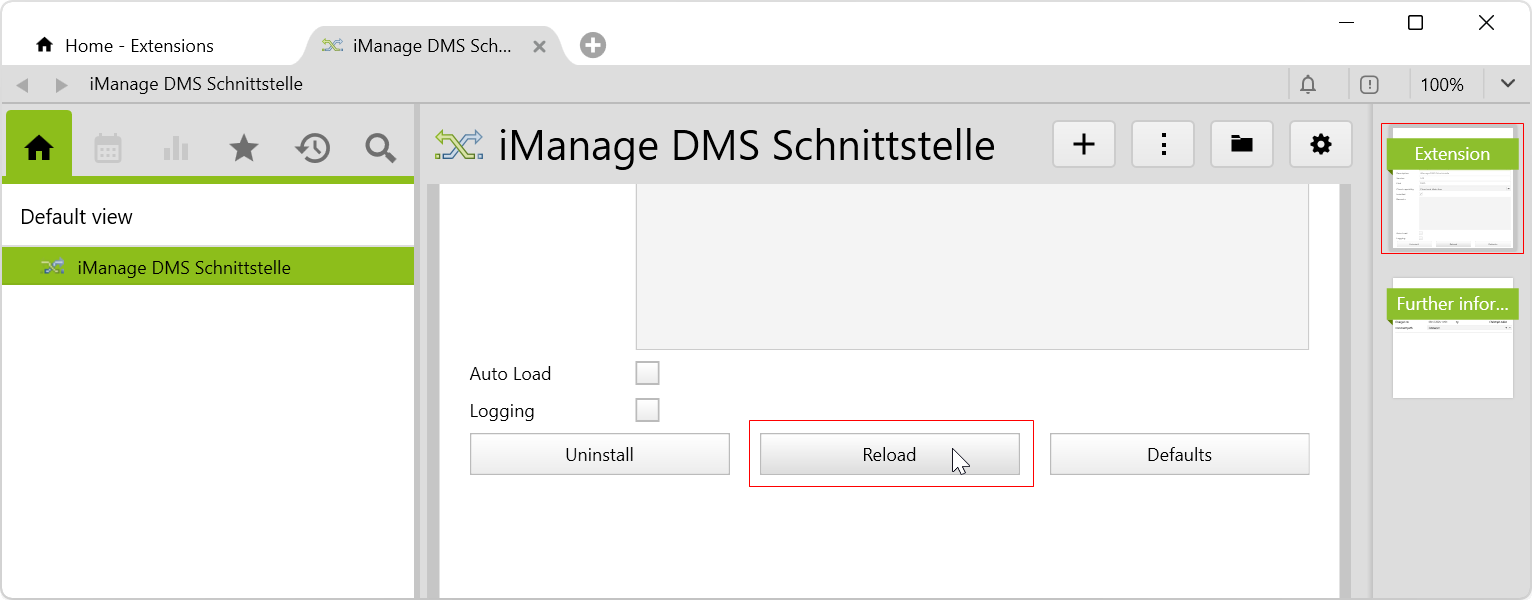
If changes are made in the system settings, the extension should be reloaded each time to ensure that the changes are applied safely. To do so, go to settings > interfaces > extension and click on iManage DMS Schnittstelle. On the first page extension, click on Reload:
Navigation
After importing the config set, the iManage DMS folder is created under settings > interfaces with the following subfolders:
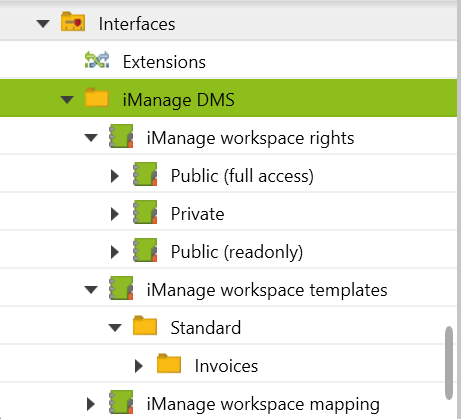
iManage workspace rights |
The subfolders public (full access), private and public (readonly) are created. When the right is assigned in the project, it appears in one of the selected subfolders. |
iManage workspace templates |
By default, the standard and invoices subfolders are created The folders are an example. User can of course create their own folder structures. |
iManage workspace mapping |
All active projects are listed with the corresponding iManage ID, which is assigned automatically and continuously after updating. The ID can also be entered manually, e.g. in the case of a migration (see workspace never create (ever) ). To do so, you can uncheck the Read-only option under iManage ID in the list view. |
Update workspaces
Before updating the projects/cases in iManage, it is important to create a final folder structure in the workspace templates. It is therefore important, as the folder structure cannot be modified once updated (folders can still be added manually in iManage). For a consistent workflow, you can set the document path for the objects (activity & invoice) to be updated in iManage via the class settings.
For this reason, no ready-made folder structure is included in the config set, because every company should be able to create an individual and business-related structure.
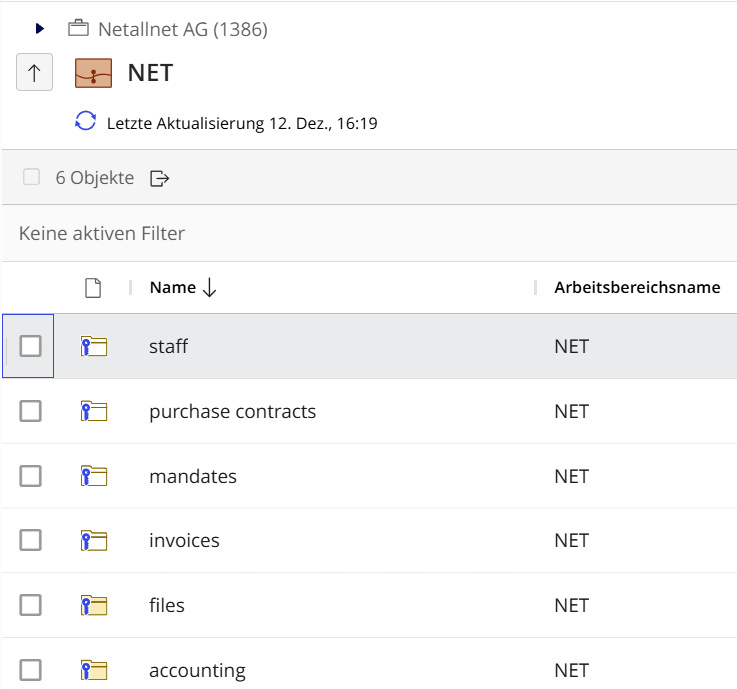
Example of a folder structure in Vertec:
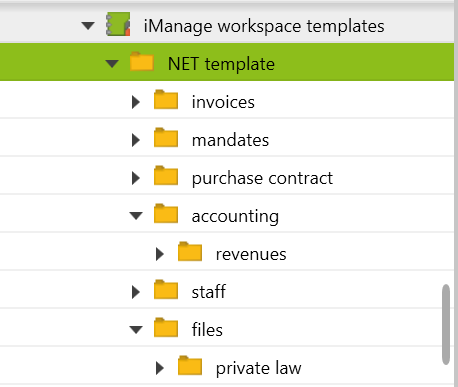
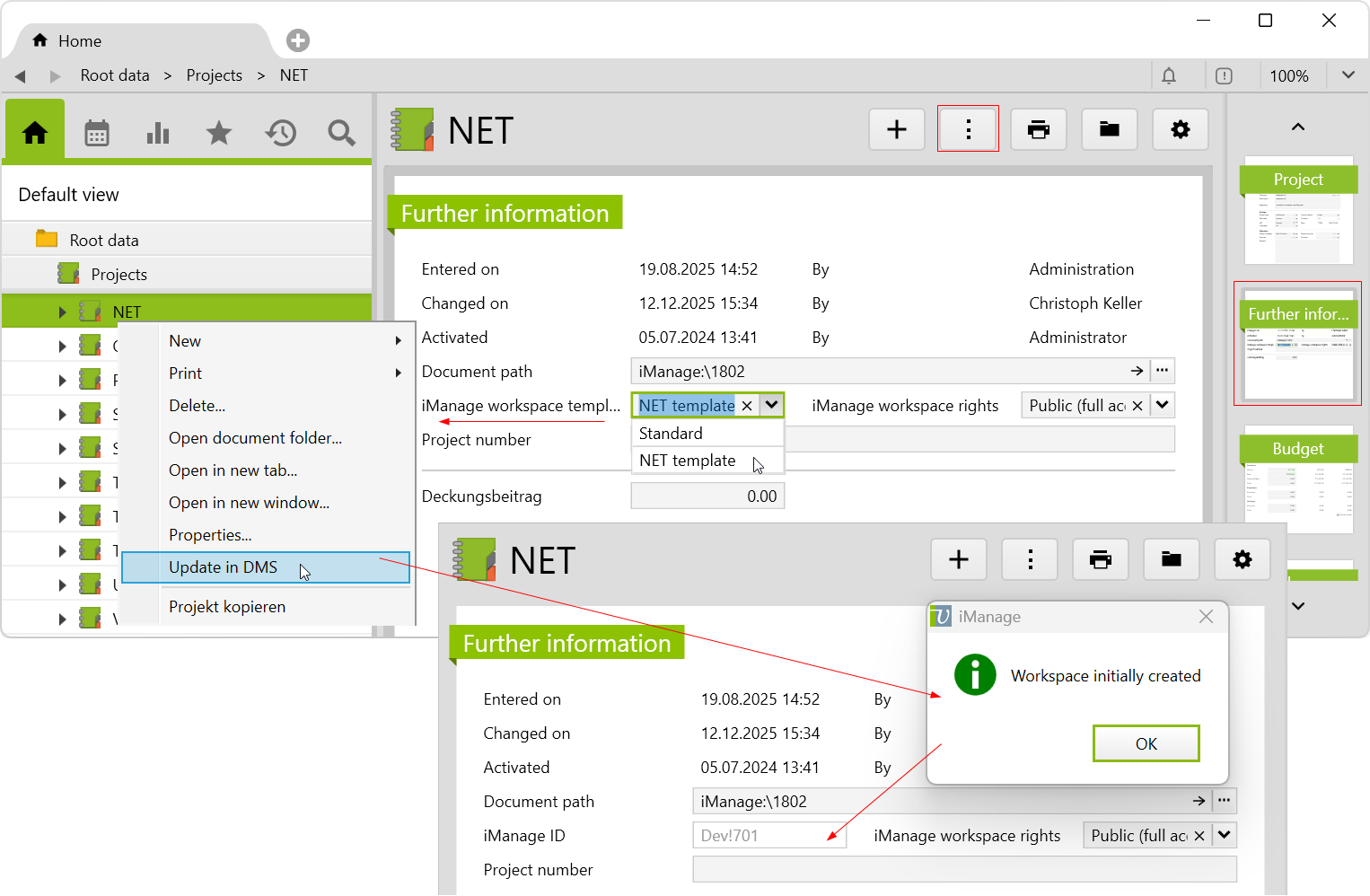
Once the workspace templates have been created, the projects/cases can be assigned to them. If you click on a project > further information, the previously created workspace templates can be selected. In addition, the rights can be assigned and the project is then linked to one of the subfolders of iManage workspace rights.
By right-clicking on the project/case or using the actions menu, you select Update in DMS . After the successful update, the message Workspace initially created appears and then the iManage ID is entered on both the further information page and the workspace mapping list.
View of the folder structure in iManage:
Open documents
Documents such as invoices or files stored in activities can be opened directly as long as a folder is specified in the document path. It is not possible to open a document in iManage without a folder. Invoices are created via print button and stored in iManage according to the document path.
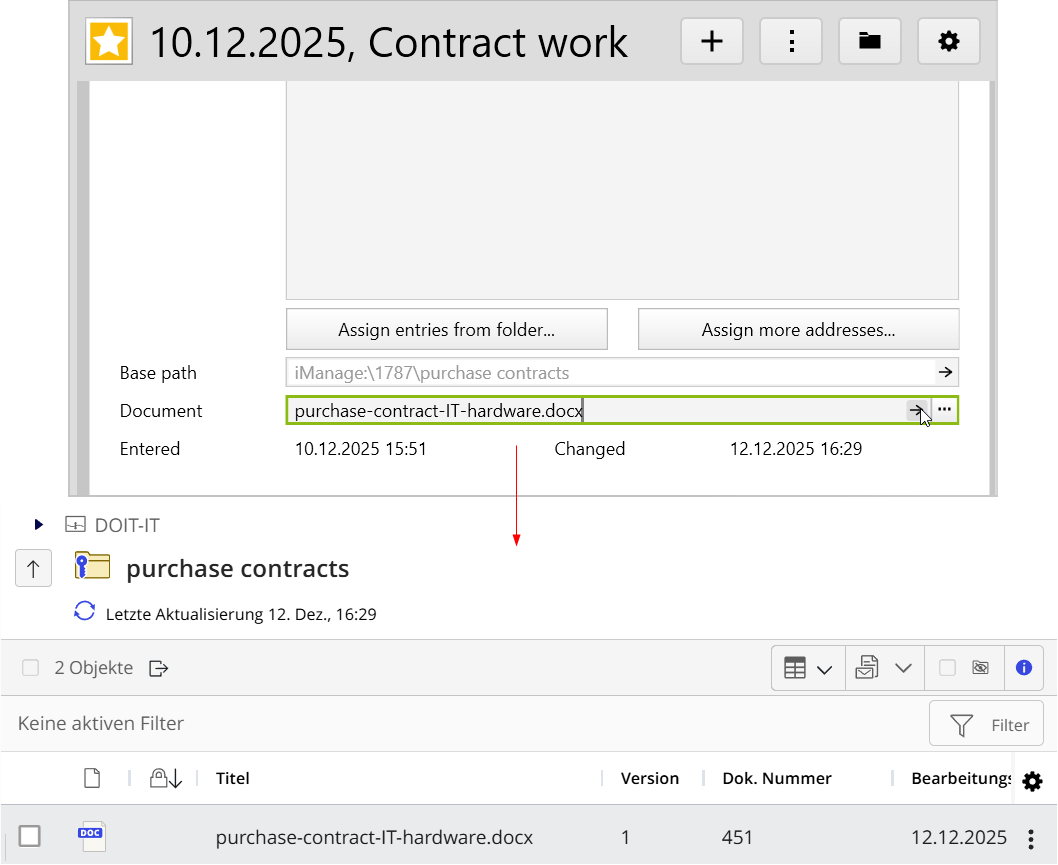
For an activity, the document is uploaded first and then you click on the arrow to open the document. In both cases, the workspace is automatically co-created and the document is saved in the subfolder.
The image shows, how a document stored in an activity is updated in iManage:
Download
Before importing the config set, we recommend you read the article Key information about the additional features. Config sets modify data in Vertec, which can overwrite existing data.
The exact import process is described in config sets.
You can download the additional feature with the following link:
| Version Requirement | Download |
|---|---|
| 6.8.0.12 | ConfigSet_iManageDmsExtension.xml |