
Vertec offers the possibility to manage your documents in integration with iManage.
 Cloud Suite
 On-Premises
iManage is a DMS that helps users manage their documents more efficiently. The software also connects with other user programs, facilitating cross-platform work and standardized data transfer. This config set enables effective use of Vertec in combination with iManage.
This application is an additional feature. You can find the corresponding config set here.
To edit and access, the users must be assigned to the administrators user groups.
Note: If you are using iManage On-Premises, the iManage Work Web Server must be installed as only browser-based access is supported.
iManage Client ID, which must be stored in Vertec (see next section).Once you have registered your Vertec in iManage and imported the config set, the credentials must first be entered in the system settings under CRM / Activities. This will initialize the exchange with iManage.
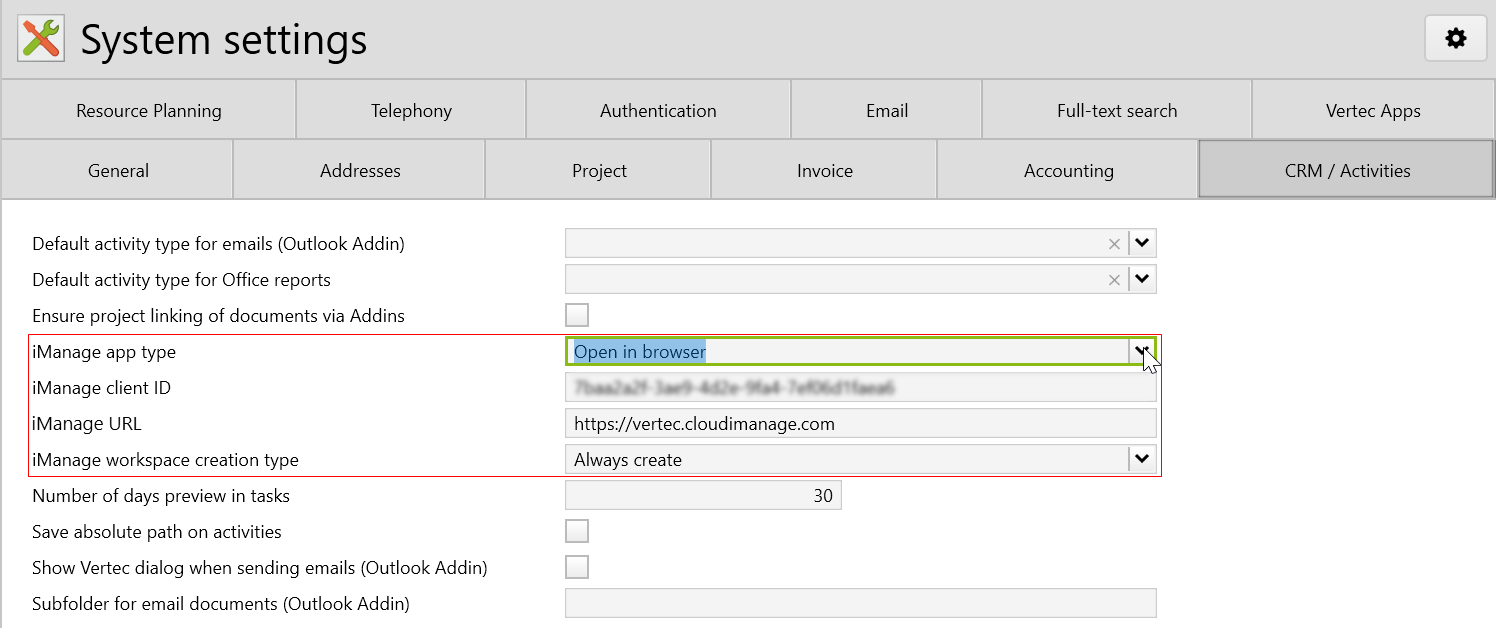
Note: This setting only affects the document opening. Creating the workspace or opening folders and documents is done only through the web application.
Note: In iManage, a workspace represents a project/case in Vertec. The created workspace appears in the lists of matter, documents, or folders. The workspace and the matter apply the same name as the project/case.
| Workspace creation type | Description |
|---|---|
Always create |
A workspace is always created by Vertec, regardless of whether one has already been created with the same name. An associated iManage ID is then saved for each workspace (see iManage workspace mapping). |
Only create with template |
A workspaces can only be created with workspace template. |
Never create (search for workspaces) |
A workspace is not created by Vertec. However, if a workspace with the same name exists, the document to be opened will be linked to it. This means that it is not possible to open a document from another project/case that has not yet been updated in iManage. |
Never create (ever) |
A workspace is not created. This may be the case for migration projects where assignments should be set manually in Vertec. |
If changes are made in the system settings, the extension should be reloaded each time to ensure that the changes are applied safely. To do so, go to settings > interfaces > extension and click on iManage DMS Schnittstelle. On the first page extension, click on Reload:
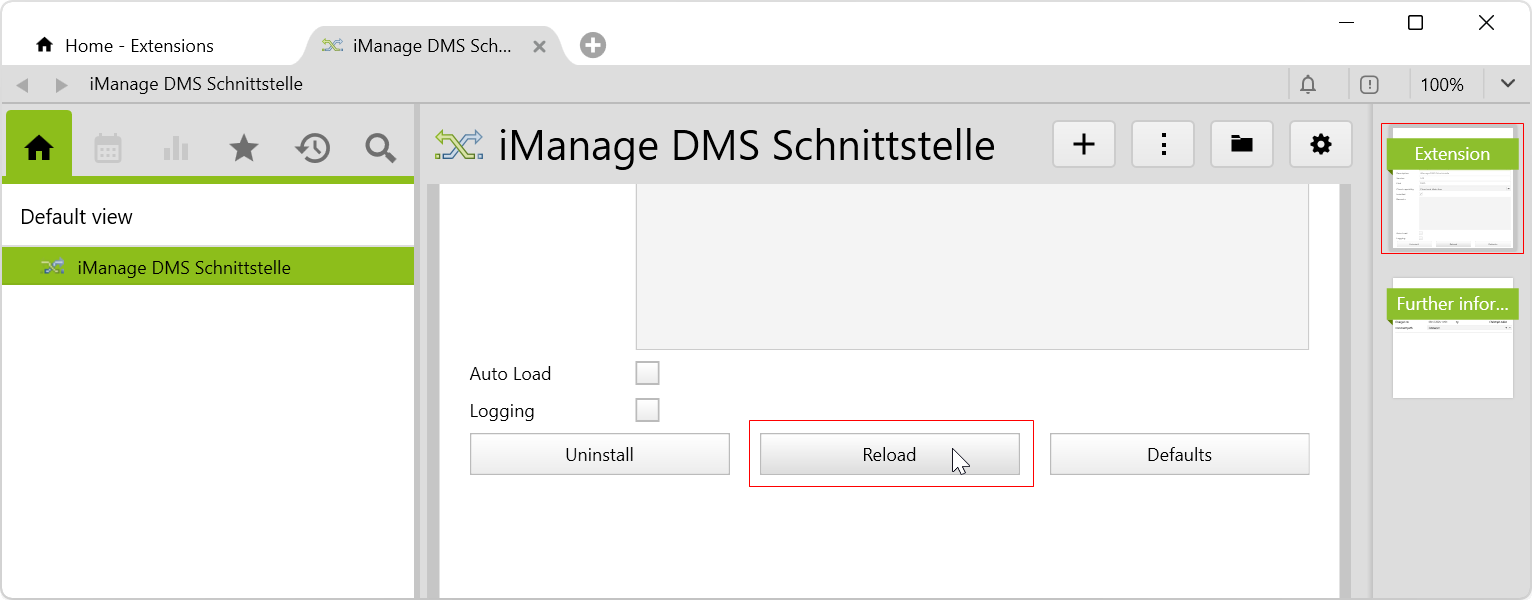
After importing the config set, the iManage DMS folder is created under settings > interfaces with the following subfolders:
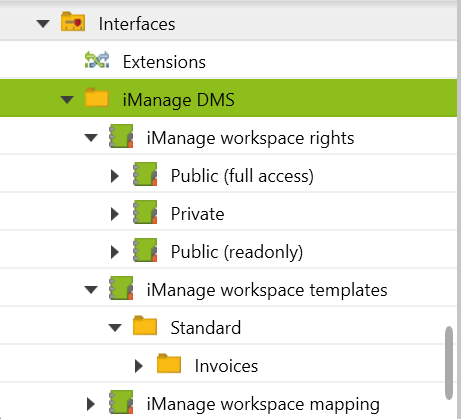
iManage workspace rights |
The subfolders public (full access), private and public (readonly) are created. When the right is assigned in the project, it appears in one of the selected subfolders. |
iManage workspace templates |
By default, the standard and invoices subfolders are created The folders are an example. User can of course create their own folder structures. |
iManage workspace mapping |
All active projects are listed with the corresponding iManage ID, which is assigned automatically and continuously after updating. The ID can also be entered manually, e.g. in the case of a migration (see workspace never create (ever) ). To do so, you can uncheck the Read-only option under iManage ID in the list view. |
Under iManage Work, the document storage is handled. The following applies:
If you have already defined a folder structure, you can create it in the iManage workspace templates folder. It is important to note that this folder structure cannot be customized once it has been updated in iManage.
Example of a folder structure in Vertec:
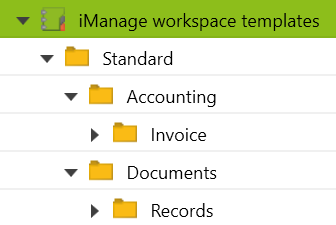
Nevertheless, the document path of the invoice and activity classes is defined via the class settings. This means that the class settings must also be adjusted manually to the workspace templates so that different subfolders are not created.
It is mandatory to specify a subfolder in the document path because iManage cannot save documents at the workspace level.
Follow these steps to ensure that the Vertec documents are stored in the correct subfolder in iManage:
iManage:\\, which represents the iManage URL in system setting CRM / Activities. Document storage is set to Filesystem or DMS.The following are examples of possible document paths in the class settings:
| Vertec object | Document path |
|---|---|
| Invoice |
By specifying a folder name: e.g. By OCL expression: This document path stores the invoice according to the invoice date, in this case by month and year:
|
| Activity |
By specifying a folder name: e.g. By OCL expression: This document path stores all documents attached to activities, except those of the activity type invoice, under records.
|
A predefined class setting is already included by default for the projects class.
| Vertec object | Document path |
|---|---|
| Projects |
This document path identifies the created folder in iManage with the internal ID of the project.
The document path looks like this:  |
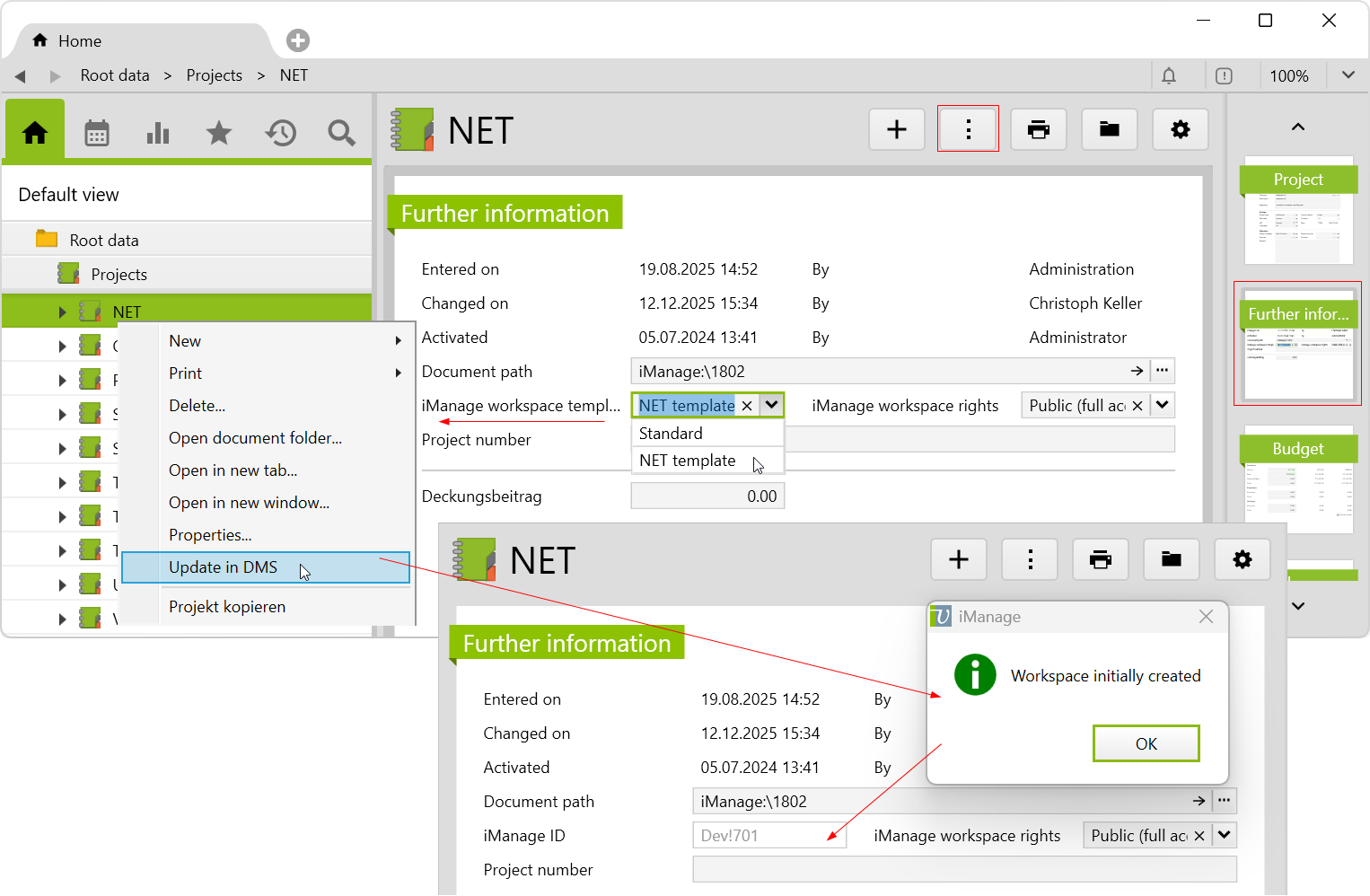
Once the workspace templates have been created, the projects/cases can be assigned to them. If you click on a project > further information, the previously created workspace templates can be selected. In addition, the rights can be assigned and the project is then linked to one of the subfolders of iManage workspace rights.
By right-clicking on the project/case or using the actions menu, you select Update in DMS . After the successful update, the message Workspace initially created appears and then the iManage ID is entered on both the further information page and the workspace mapping list.
Note: Do not change the Document path field manually. The number in the path is assigned automatically.
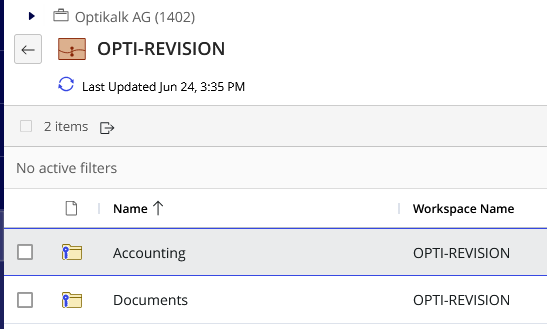
View of the folder structure in iManage:
Documents such as invoices or files stored in activities can be opened directly as long as a folder is specified in the document path, as described before.
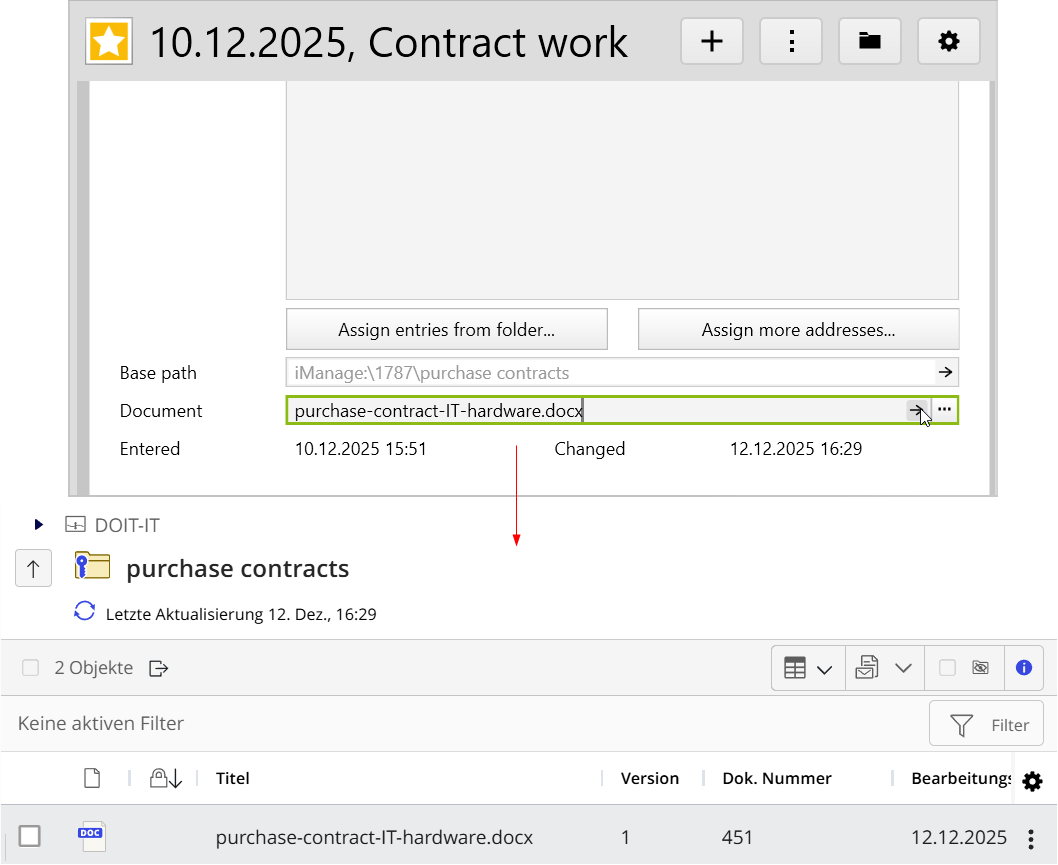
For invoices, it is important that the option Create activity is activated in the corresponding report templates. Then an activity folder is created on the invoice via print button and there the activity with the invoice PDF is stored. Finally, open the document via the arrow under Document (see image below).
For an activity, the document is uploaded first and then you click on the arrow to open the document.
In both cases, the workspace is automatically co-created and the document is saved in the subfolder.
The image shows, how a document stored in an activity is updated in iManage:
Before importing the config set, we recommend you read the article Key information about the additional features. Config sets modify data in Vertec, which can overwrite existing data.
The exact import process is described in config sets.
You can download the additional feature with the following link:
| Version Requirement | Download |
|---|---|
| 6.8.0.18 | ConfigSet_iManageDmsExtension.xml |