
Additional feature for creating project templates
 Cloud Suite
 On-Premises
This additional feature imports a sample project template, which can be selected after creating a new project. The template values are then transferred from the selected project template to the new project. You can use this example to create your own project templates.
You can find the download of the config set here.
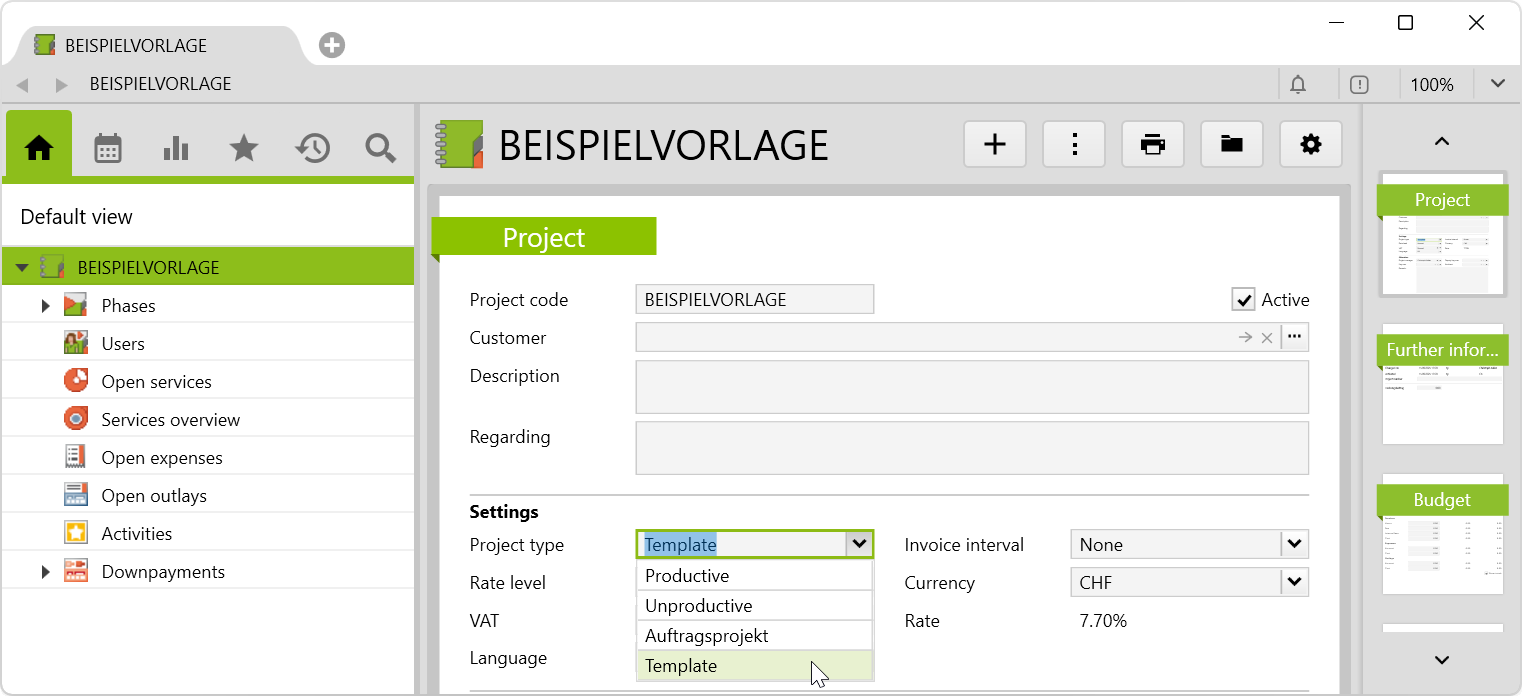
To create a new template, create a project and select the Project type Template implemented by this Config Set :
Now, the project appears under Settings > Projects in the Project templates folder:
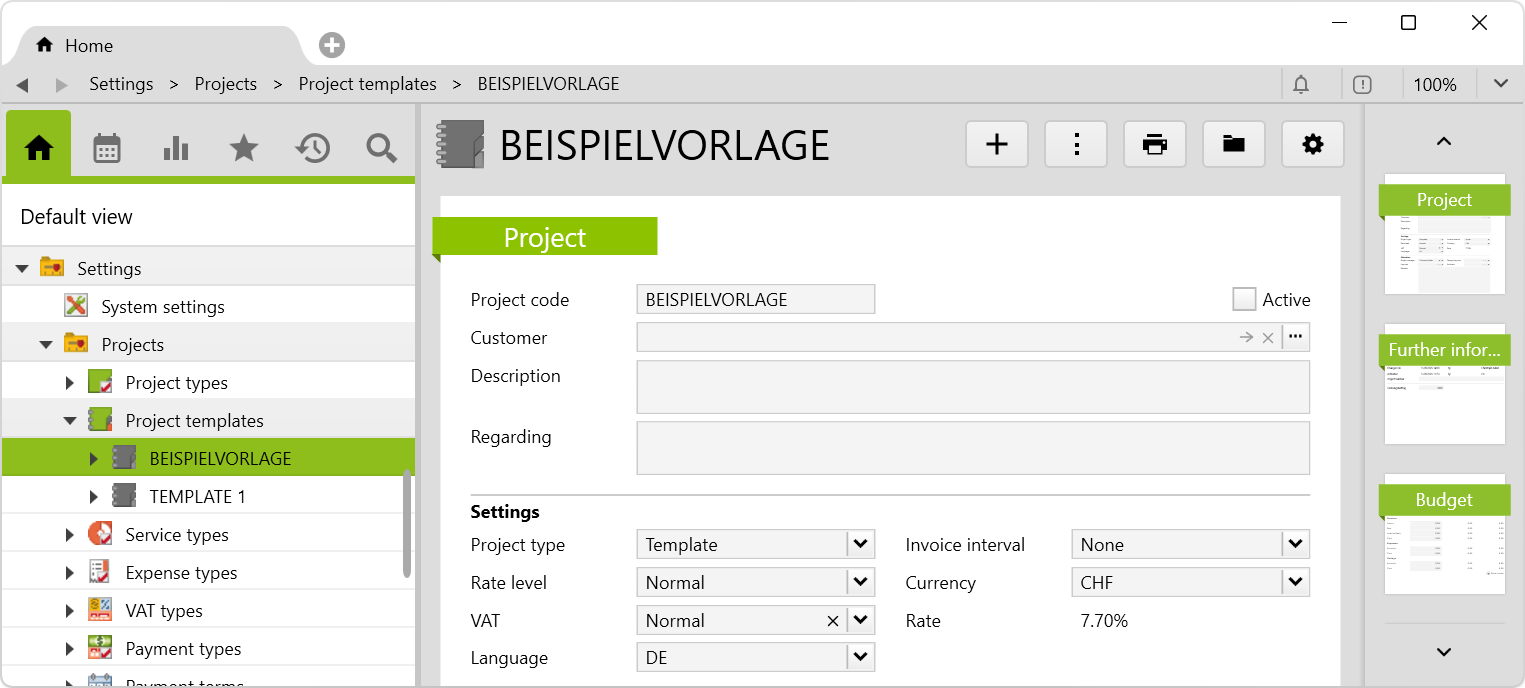
Now the project can be configured according to individual needs. The following conditions apply:
Template and have a code.inactive (disable checkbox Active).To enter a project based on a project template, proceed as follows:
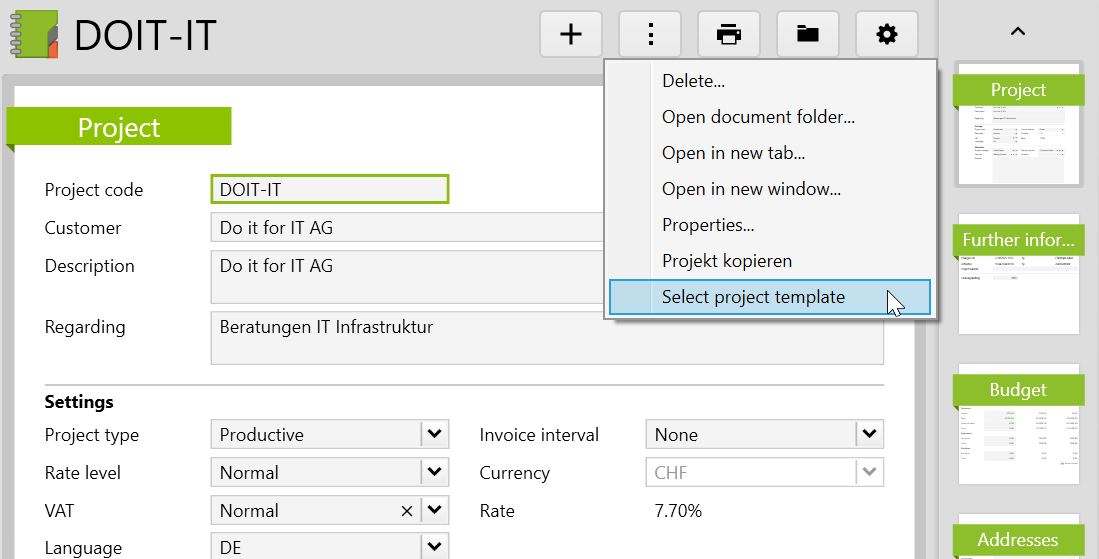
Select Project template via the actions menu:
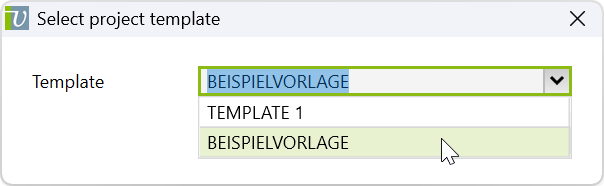
All fields that are blank by default, but in which something has been entered or selected, are retained when the template is selected. If you want to apply them from the template, the corresponding fields must be cleared first.
All fields that always contain a value are overwritten by the template (except for the project code and project leader). So these are:
Fixed price in the Invoicing section. The fields Percent and Amount are overwritten there only, if they were empty before selecting the template.
Notes:
Before importing the config set, we recommend you read the article Key information about the additional features. Config sets modify data in Vertec, which can overwrite existing data.
The exact import process is described in config sets.
You can download the additional feature with the following link:
| Version Requirement | Download |
|---|---|
| 6.7.0.7 | Configset_project templates.xml |