
Premium time allowances
This additional feature allows you to enter your services, considering special working hours such as shift, night, weekend or holiday work and automatically calculating the premium time allowance.
Operating mode
 Cloud Suite
 On-Premises
Modules
Services & Expenses
This additional feature is aimed at companies that want to record their services outside of regular working hours in a simplified way and for which the premium time allowances are to be calculated automatically. Vertec already provides three integrated premium time definitions. However, you are free to adapt them to your operational settings or create new ones.
This guidance describes the supplied premium time definitions and lists the corresponding examples.
This application is an additional feature. You can find the corresponding config set here.
Application
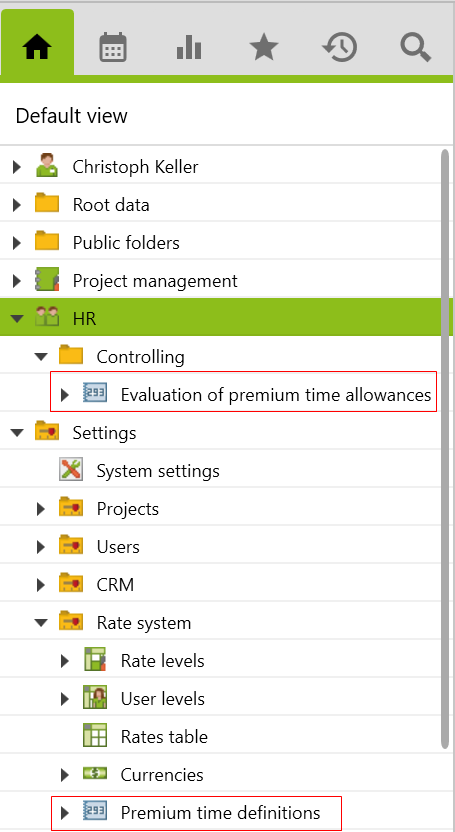
After importing the config set, two folders are created: The first is the root folder HR with the folder Evaluation of premium time allowances, which shows an overview of all executed premium time allowances, and the Premium time definitions folder under Settings > Rate system, where the premium time rules can be defined.
Define premium time
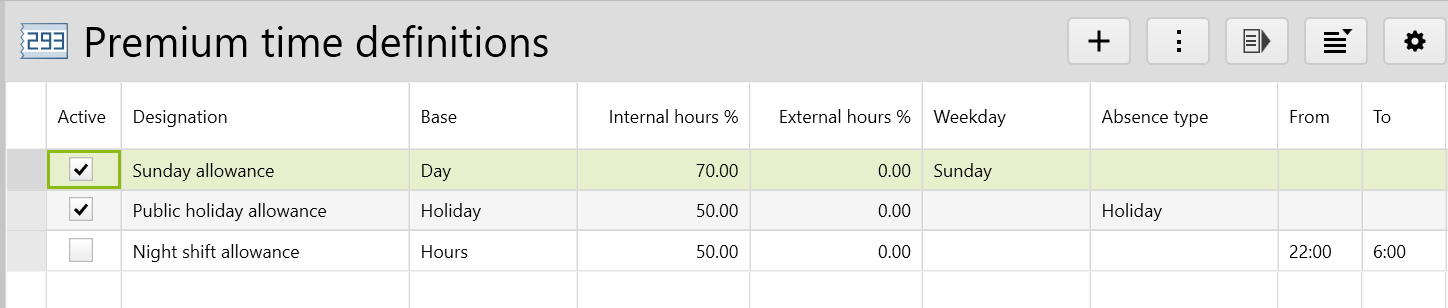
With the import of this additional feature, Vertec provides three predefined premium time definitions. These can be adapted according to the individual settings of the company, or new ones can be created by right-clicking or using the menu button New entry. Only the user group administrators can define premium time allowances.
The predefined premium time definitions include Sunday, public holiday and night shift allowance. These are delivered as inactive and must be activated manually for use.
Generally, the premium time definitions only apply to newly entered services. However, if the premium time definition is adapted or deleted after entering services, the affected service will not be automatically updated. The affected service must be adjusted manually by briefly overwriting the time indication (hours or from and to fields) and then re-entering the original time (see also the section below Example with night shift allowance). This will trigger the calculation again and apply the changed premium time definition.
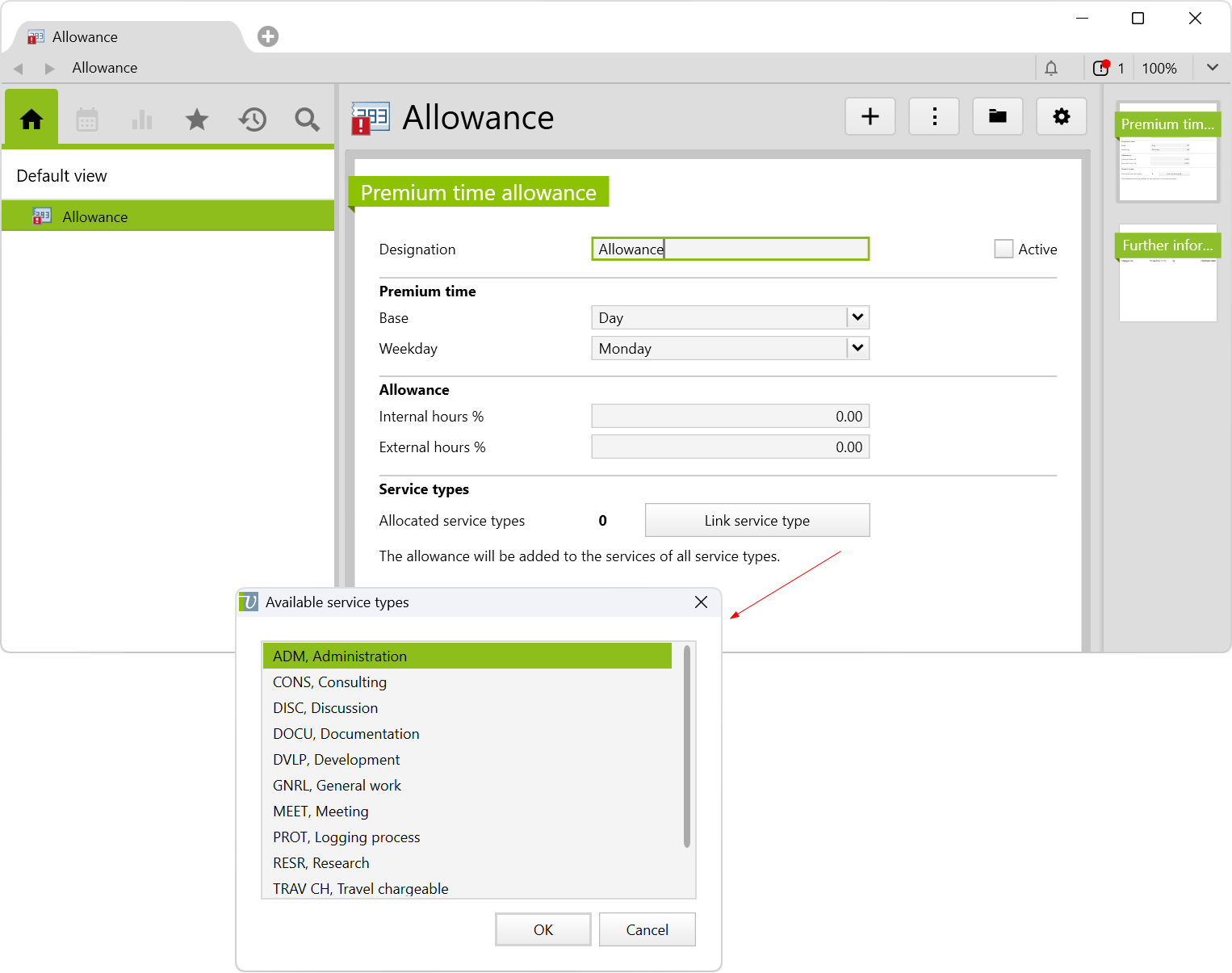
The following figure shows the single view of a newly created premium time definition, and the following table describes the content.
| Element | Description |
|---|---|
Designation |
Here, the name of the allowance is entered. The name, in turn, appears as a description when entering services. To ensure that the name of the created allowance is also shown in other languages when entering services, create an item in translations. Then change the language in the project for which you want to enter the service. |
Active |
Here, the allowance definition must be activated so that it can be executed when entering services. |
Premium time |
Here, you can choose from three types of premium time for the base:  Base:
Note: If public holidays fall on Sundays, then the allowance definition with the base 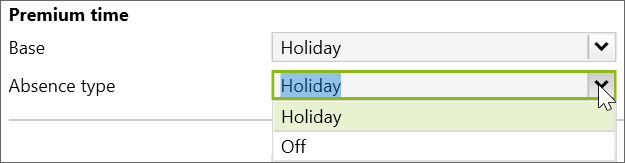 Base: Note: The public holidays in the system should correspond to the public holidays of this allowance definition. Otherwise, it will not be considered when entering services.
 Base: Note: Breaks are only considered if they also fall in the premium time allowance. |
Allowance
|
|
Service types |
With the button If no service types are allocated, the allowance definition applies to all services. |
Premium time allowance for phase allocation
If companies operate with fixed phase allocations, where services are to be entered only with allocated service types, the following should be considered:
- The service type for the allowance definition must be activated. Go to Settings > Projects, then select the service type with the code
SUPPLEMENTand activate it. - Now allocate the service type
SUPPLEMENTto the corresponding project phase (see section making allocations).
If these steps are not taken, then the allowance definition will not be considered, even if they are active.
Note: The service type SUPPLEMENT deactivates itself after the allocation, but this does not affect entering of services.
Example with night shift allowance
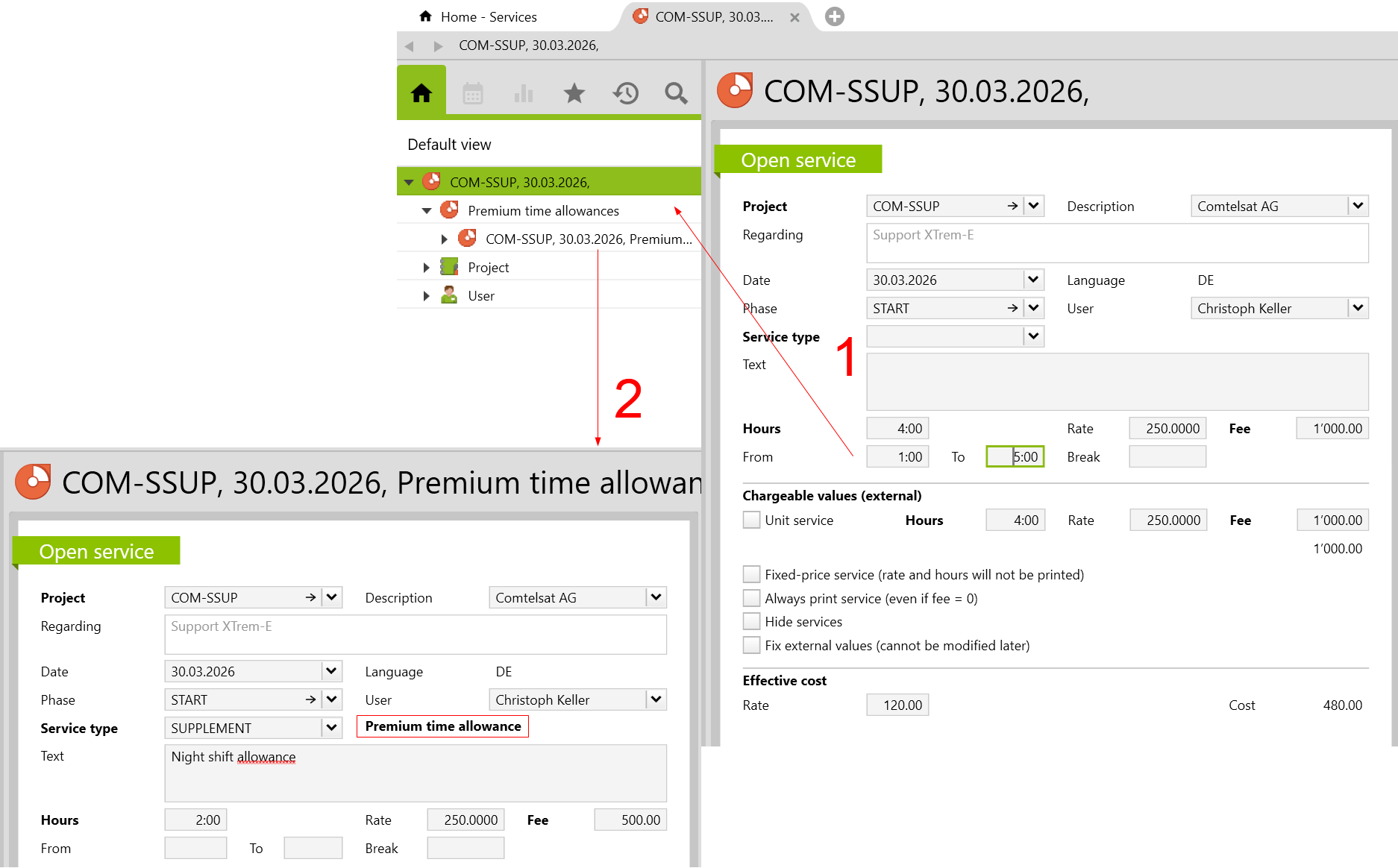
In the following application example, a service from 1:00 AM to 5:00 AM is entered. For the night shift allowance, 25% is to be calculated internally on the service.
1. Enter the hours in the From and To fields.
- After that, the service with the premium time allowance is created immediately after the main service.
2. Click on the premium time allowance.
- Here, you can see the calculated percentage, which is 25% of the service. Thus, 25% of four hours results in a night shift allowance of one hour. The service is also highlighted with the note
Premium time allowance.
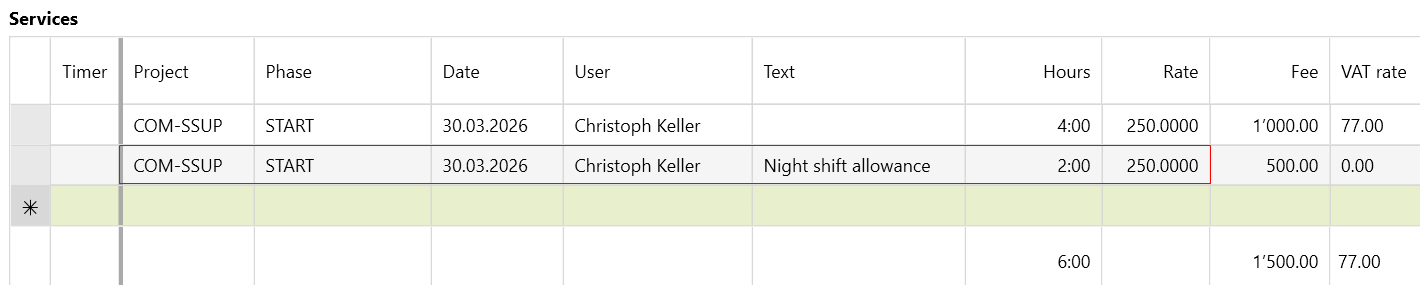
If you go further to the overview of services, you will see the entered main service with the allowance:
Notes:
- The project supervisors user group can edit the description text of all premium time definitions while entering the services.
-
The project managers user group can edit the description text of the premium time definitions when entering services, only for their own projects.
Example with several premium time definitions
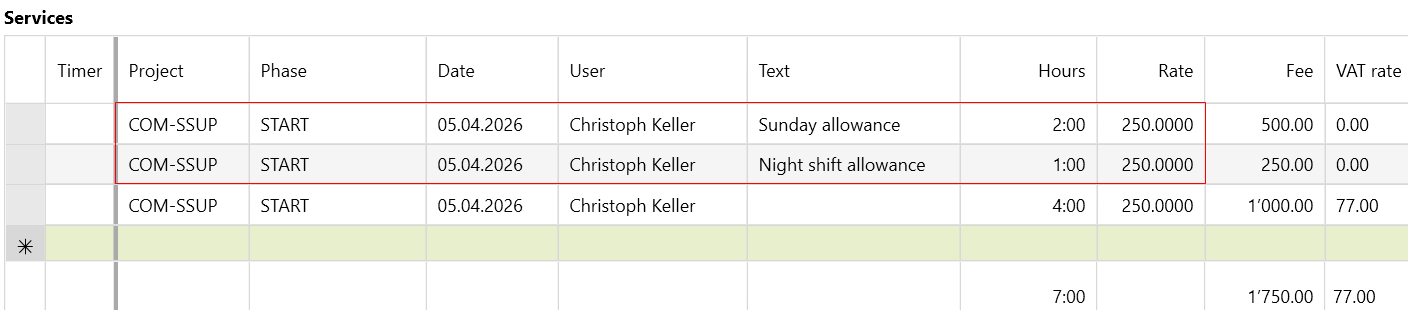
It is possible that several premium time definitions should be considered on one day. In this example, an employee worked overnight on Sunday. The predefined sunday and night shift allowances are used for this. For the night shift allowance is again 25% internally entered, and for the Sunday allowance is 50% internally entered.
If both allowances are activated, enter the working hours as described above (here four hours) and both allowances are included and a row is automatically created for each allowance.
In the overview of the services, it looks as follows:
- For the night shift allowance, 25% of four hours equals: 1 hour
- For the Sunday allowance, 50% of four hours equals: 2 hours
View premium time allowances
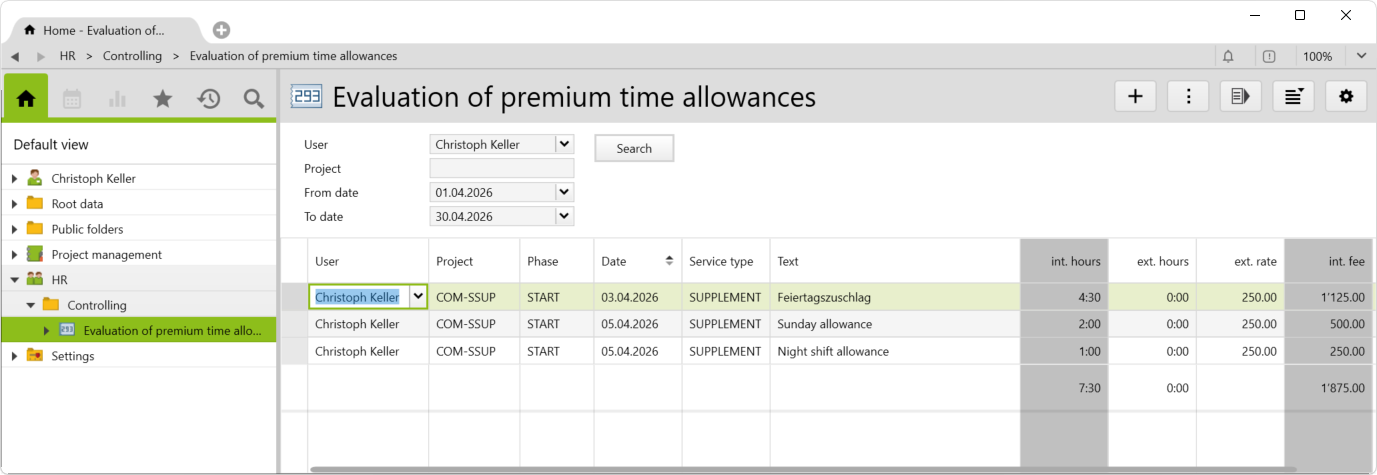
All entered premium time allowances can be viewed in the Evaluation of premium time allowances folder in the HR root folder. They can be filtered by user, project and form and to date.
Requirements and download
- The Services & Expenses module must be licensed.
Before importing the config set, we recommend you read the article Key information about the additional features. Config sets modify data in Vertec, which can overwrite existing data.
The exact import process is described in config sets.
You can download the additional feature with the following link:
| Version Requirement | Download |
|---|---|
| 6.8.0.1 | ConfigSet_PremiumTimeAllowances.xml |