How the full-text search works in Vertec
 Cloud Suite
 On-Premises
As of Vertec 6.8, Vertec features a full-text search function that searches emails (incl. attachments) and documents stored in Vertec in addition to the texts.
Clicking on the magnifying glass in the navigation menu (or F6 and F12) opens the Vertec search page:
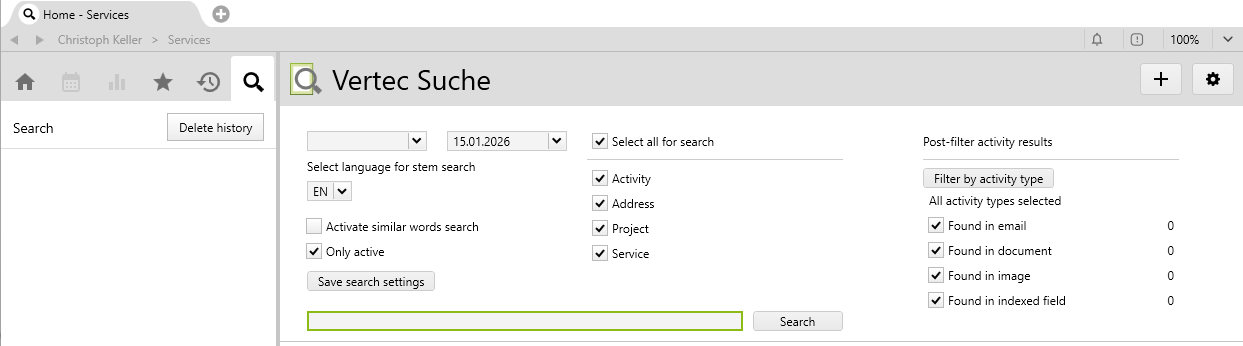
There are the following search fields:
Date from, to |
If you specify a date range, only search objects within that interval are considered. The date for the different search objects is the following:
By default, today's date is used as the To date. |
Select language for stem search |
The language selection for the word stem search is shown if additional search languages (commas-separated) are specified in the system settings. The word stem search means that, for example, a search for "house" will also find "houses". The word stem search is language-dependent. The search for "bikes" will only find "bike" if EN is selected as the language. By default, the language of the current user interface is pre-selected, if available. Otherwise the default language is used. Results only appear if there is an index for the corresponding language (see System settings - Full-text search). |
Activate similar words search |
With this option, the search can be expanded to include similar terms if you feel that the exact search results are too few. This option is not used for umlauts, special characters, word stems, etc. These are already covered by the normal search, see section about the search syntax. For example, the normal search for "bear" also finds "bare" and "bears". With the similarity search turned on, "bank", "banks", "baron", etc., are also found. |
Only active |
If this option is activated (default), only active entries are shown in the result list.
|
Class selection |
As of Vertec 6.8.0.9, you can preselect the classes to be searched. All classes can be selected for which Index field definitions are available. If a class has specified a Display class name, this name is shown. With the checkbox |
Save search settings |
As of Vertec 6.8.0.15 the search settings can be saved. The following values are saved:
The settings are saved permanently. Each time the full-text search is called, even after a restart of Vertec, the search settings are preset accordingly. There is no reset. You can simply save a new search setting. The default is: Active Only = True, Similarity search = False, all class check marks set. Please note that Save screen settings is indipendent, search settings are not automatically saved when saving session settings. |
Search term |
This term is searched for. How exactly this works is explained under the search syntax section. |
Post-filter activity results |
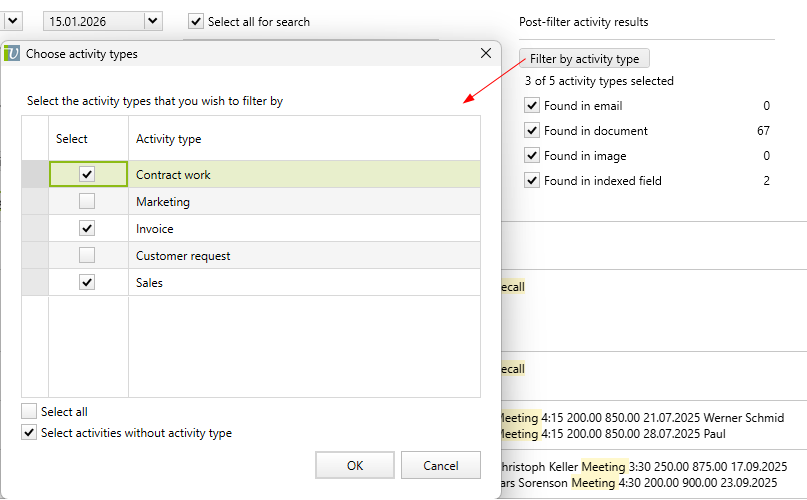
This area only appears if the class After the search results have appeared, found activities can be further filtered.
In addition, you can filter by location: found in emails, documents, pictures or in the activity itself (in an indexed field).
|
Click on Search or Enter to start the search. The results appear below:
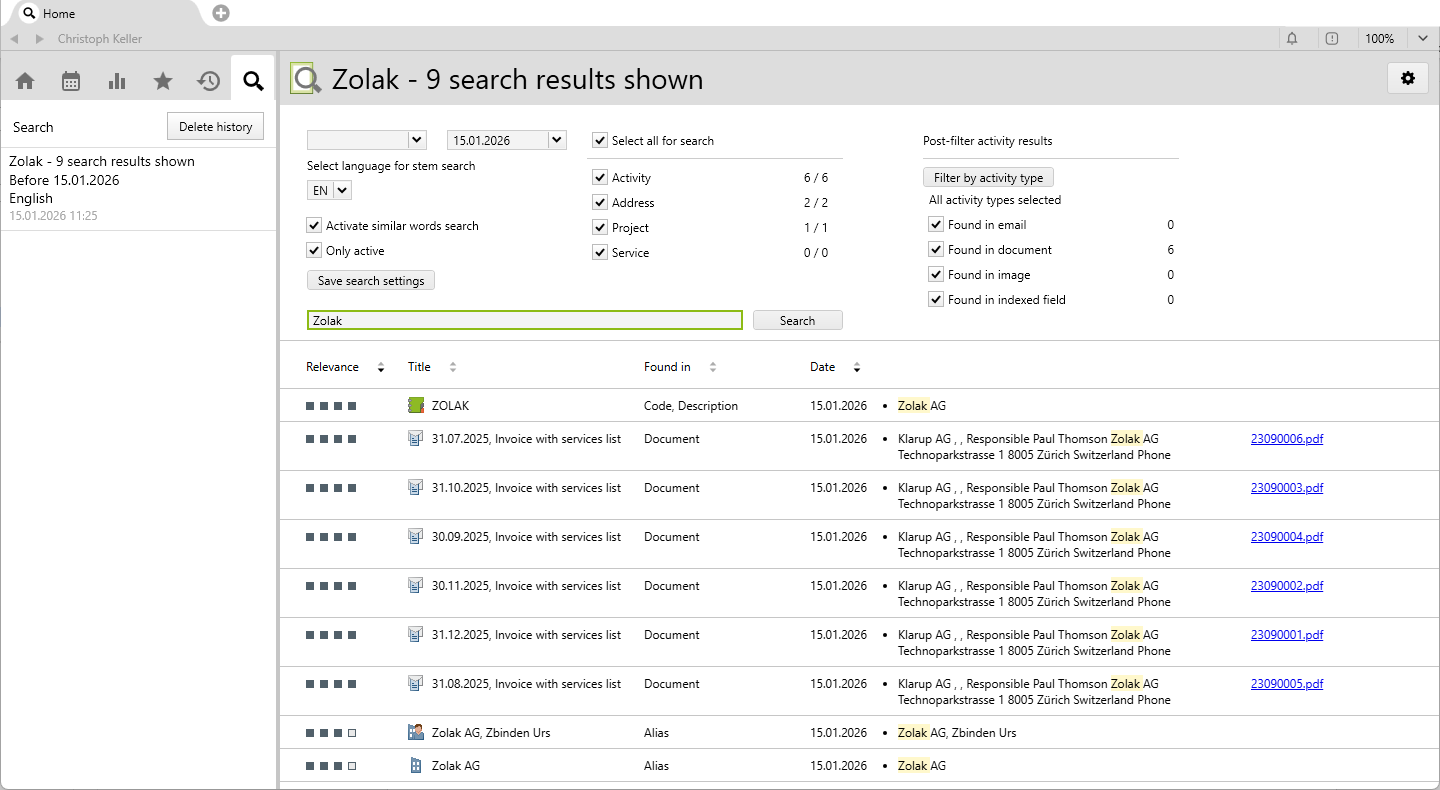
By default, the search results are sorted in descending order by relevance and date.
Double-clicking on a search result opens the corresponding object in a new tab. Starting with Vertec 6.8.0.23, the object can also be opened in a new window via Shift + double-clicking.
Documents and email attachments in which the search term was found are shown as a link and can be opened directly in a new tab or as of Vertec 6.8.0.23 via Shift + Click in a new window.
For activities, the project and the contact, if available, are also shown. These are also direct links to the relevant object:

A total of 500 search results will be shown, even if more than 500 entries were found in one search. Above, for each class, you can see how many entries are shown and how many were found in total (shown / found). This is especially useful if more entries have been found than can be shown:
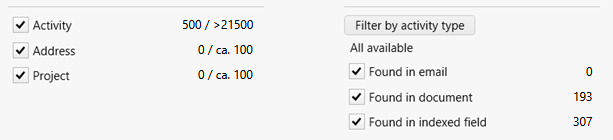
In this case, the search result can be narrowed down by adjusting the search and filter options.
The total of the objects found is given as follows:
shown and found are equal.>1500. ca. 100. Search terms can be enclosed in quotation marks. In this case, the entire term is searched. For example, the search for "Christoph Keller" finds only entries in which this term occurs in this exact way. If, on the other hand, you search for Christoph Keller, without quotation marks, all entries containing Christoph and Keller will be found.
If more than one word is entered as a search term, the words are searched with AND, so only results containing a combination of the words are shown.
This can be adjusted as follows:
OR: The Or search can be used to search for several terms without having to find all terms in the same entry. The search for Christoph OR KellerNOT: Certain terms can be excluded with NOT. The search for Christoph NOT Keller finds all the entries that contain Christoph, but not Keller.AND, NOT and OR must be written in capital letters. The words can be combined with keywords and quotation marks or wildcards (see below).
You can use the question mark ? to replace any character, allowing you to enter search terms with varying letters without having to enter each possible scenario individually. Example:
globali?ation finds both the terms globalization and globalisation.You can use the asterisk * as a wildcard to expand the search for the entered term. The asterisk replaces any number of characters. Examples:
globalization. If you enter the word global, the search does not find anything. However, if you enter global* it finds the relevant activity.0018 will not find anything. However, if you search for *0018, you will find activities and invoices relating to the queried invoice number:

Note: Using wildcards deactivates both the similarity search and the word stem search. This means, for example, that a search for globaal* or globaalisat?on delivers no results.
Umlauts and special characters are ignored, in both indexing and in the search. For example, the search for “Müller” searches for “Muller” and thus finds both “Müller” and “Muller,”. The search for “Sørenson” finds “Sørenson,” “Sörenson” and “Sorenson”. This achieves the best results across all languages.
As of Vertec 6.8.0.15 there are no more stop words.
In earlier versions, there is a set of language-specific stop words that are not searched for, such as “and,” “in,” etc. If a search term consists only of stop words, no results are shown.
For typographical errors (typos), the Levenshtein distance is used If Activate similar words search is enabled. This means that a certain deviation is tolerated.
In the Vertec full-text search, the following rules apply:
In English, the search for abcense (two characters swapped), absense (one character changed) or absnce (one character omitted), finds the term absence. In German, the search for Rechnugn (two characters swapped), Rechnunn (one character changed) or Rechung (one character omitted), finds the term Rechnung.
The word stem search means that, for example, the search for house also find houses.
The word stem search is always active automatically. It is language-dependent and is based on the language selected on the search page.
For example, the search for bikes, only finds bike if EN is the language selected.
In addition to the default language, the languages defined as additional search languages in the system settings are available for the word stem search.
In the full-text search, all indexed data and documents are searched.
All objects for which at least one configuration is defined are considered. For this, there is a subfolder indexed fields in the
class settings on each class:

In addition, you can find an overview of all index field definitions in the folder Settings > Full-text search:

Here, you can define additional index fields and include them in the search index. The index configurations shown here are supplied by Vertec as the default.
Note: Indexing of documents and emails is not configured here. It is defined in the System settings for full-text search.
string/varchar. The index field must be a persistent member of the class.blob. See section below Receipt search of creditors/expenses.The label is used later when the search results are displayed on the search page to indicate the field in which the search term was found. If no label is set, the value index field is shown instead.
If new index fields are defined, the indexing must be refreshed before corresponding results appear. This can be done with one of the Python functions or with the scheduled tasks.
As of version 6.8.0.18, it is possible to index receipts (images & PDFs) in expenses and creditors. Also for these classes index field definitions are usually entered, which are structured as follows:

As of version 6.8.0.21, the member document is also supported in the index field. If both document and receipt members exist for a class, matches form document are prioritized in the search results. As a search result, the document name is output as a Receipt. As with documents and attachments in emails, it can be opened directly from there.
As of version 6.8.0.21, the feature fo saving the report on the invoice extends the full-text search to include this report. An index field definition can also be entered for invoices, with the index type Field and the index field document. As a search result, the document name is output as an Invoice.