
Additional feature that implements a process for the approval of creditors.
 Cloud Suite
 On-Premises
This additional feature is used to record and log track the approval process of creditors. A standard process is provided, which can be customized according to individual requirements.
The corresponding config set can be found here.
When the config set is imported, three folders are created:
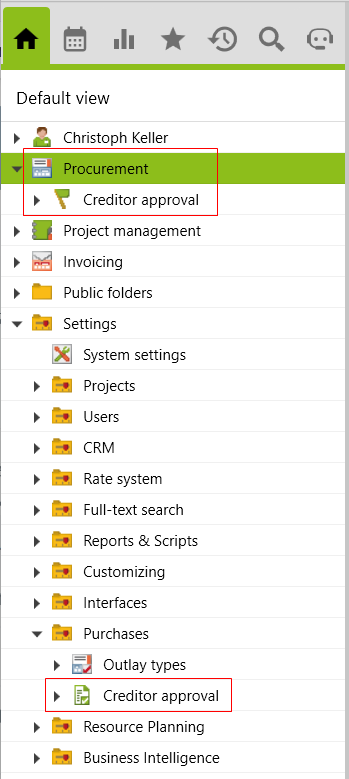
For the root folder Procurement, the users must be assigned to the User Group Folder access procurement, and for the folder Creditor approval in the settings, administrator rights are required because this is a configuration in the root folder Settings.
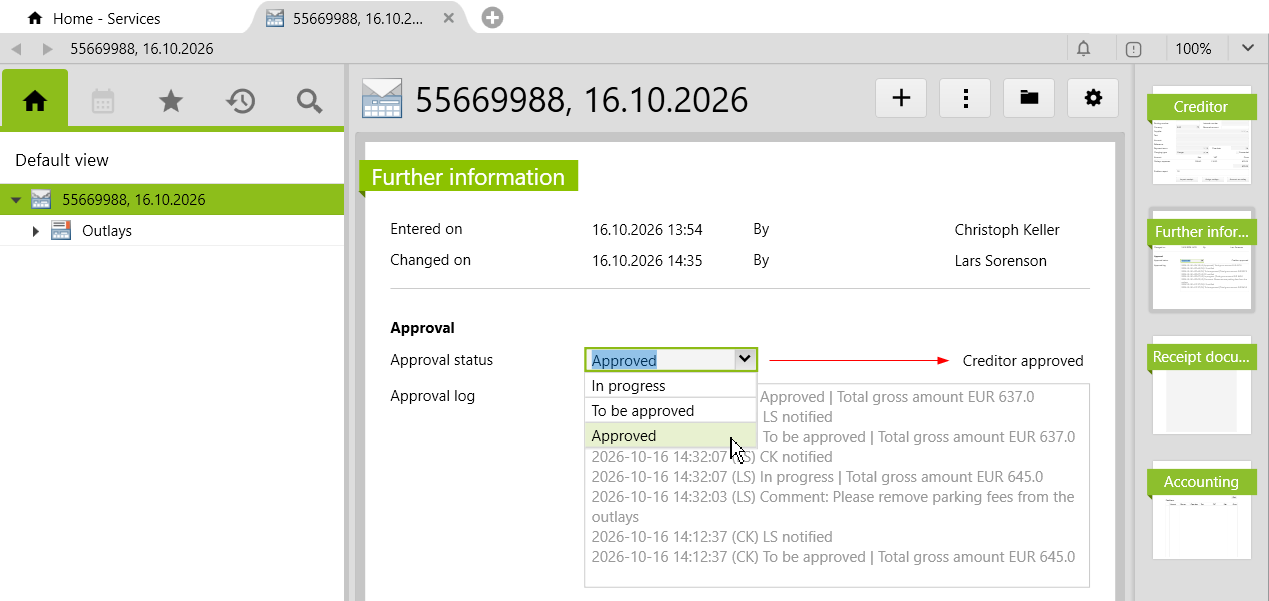
To implement the approval process in the creditors, you need created and fully entered creditors. Open a creditor and navigate to the Further information page. There you will find the approval section, which is automatically created with the import of the config set.
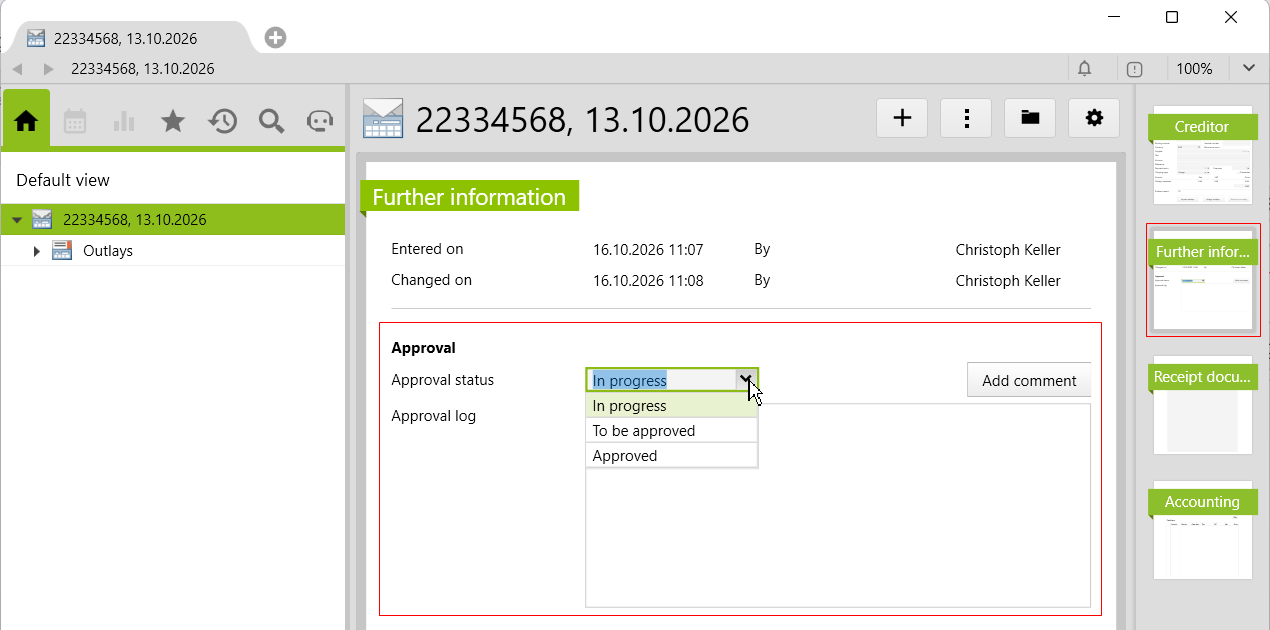
Here, the status of the creditor can be changed to In progress, To be approved and Approved. By default, the value In progress is set, which is initially not tracked. This value is not logged until a different value has been selected and then you switch back to it. These settings can be adjusted as needed (see Configuration in the settings).
Changes to the release status are recorded in the log as follows:
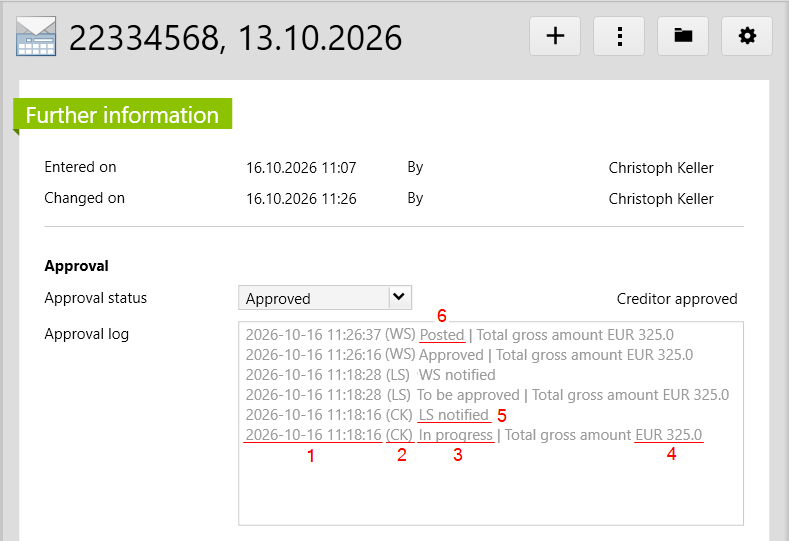
In this example, Lars Sorenson is the key user of the project and Christoph Keller has created the creditor and set it for approval. This will notify Lars Sorenson of this. He can then review the creditor and add a comment if necessary, which will also be recorded in the approval log.
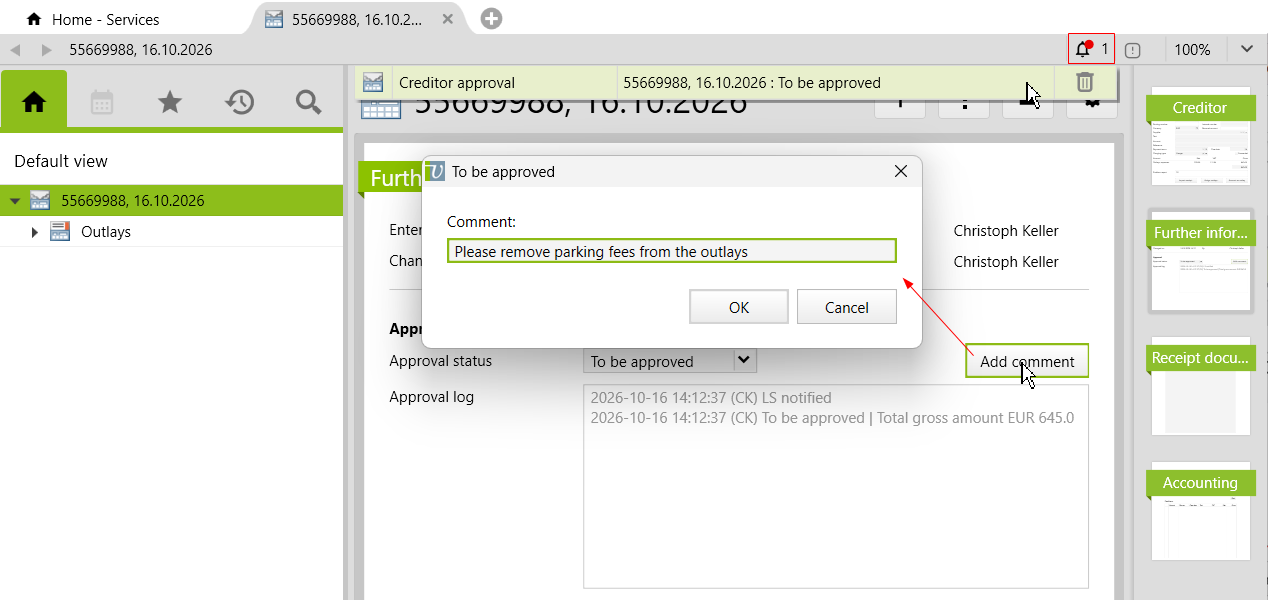
Lars Sorenson has set the creditor to In progress again and Christoph Keller is notified of the change. He adjusts the creditor accordingly and releases it via To be approved. As soon as the status is set to Approved, it is no longer possible to enter comments. However, the release process can always be changed just as after the creditor has been posted.
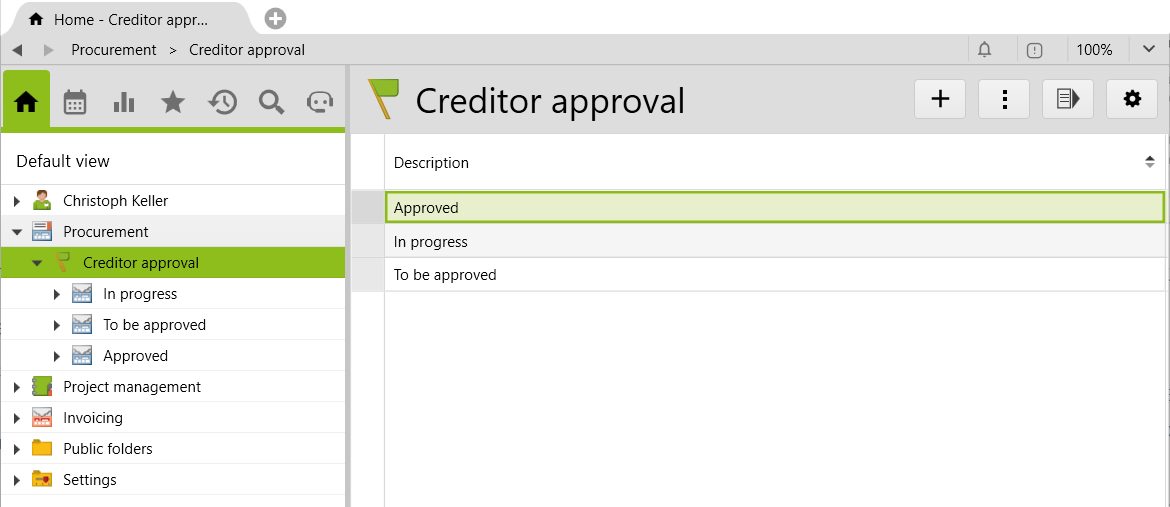
In the folder Creditor approval located in the Procurement folder, creditors are grouped into three subfolders, where they can be viewed according to the respective approval status. In the Approved folder, you can also filter by posted creditors using the Posted checkbox.
The Creditor approval folder is located under folder Settings > Purchase, in which the three states are defined by default. These can be removed, edited or extended by further approval steps (e.g. Approval 1, Approval 2). The following options can be configured for each status:
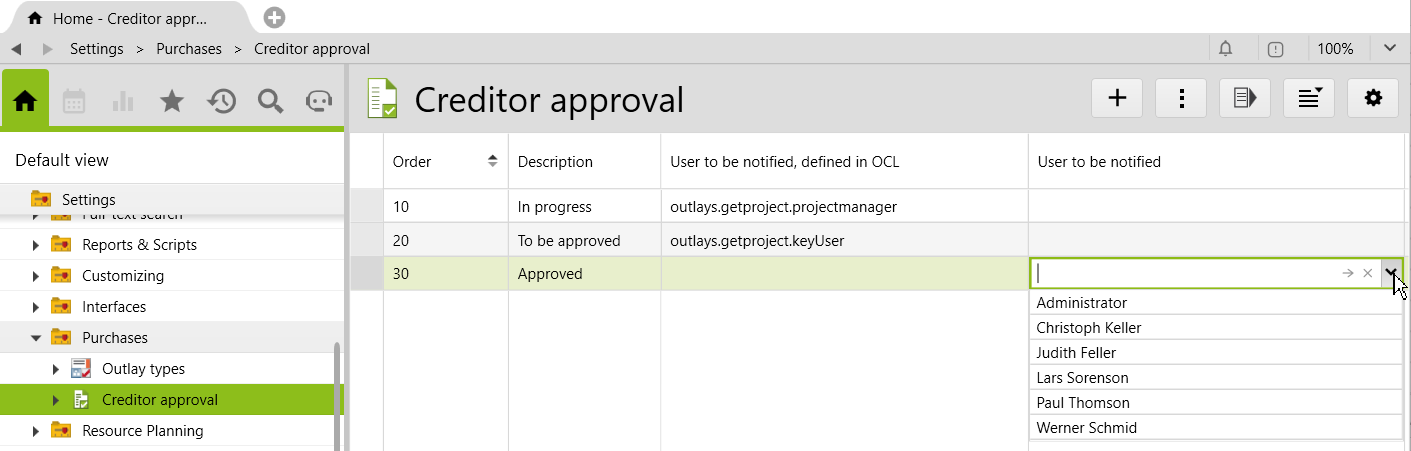
| Order | Here the order of the release status is defined. The status with the highest number corresponds to the last status in the release process. |
| Description | The designations of the release status are entered here. |
| User to be notified, defined in OCL |
Here you can enter an OCL expression to define the user to be notified dynamically. The following values are preset:
|
| User to be notified | The user to be notified can also be manually selected. If a user is specified here, only this user is notified, and the OCL expressionon no longer applies. |
The Procurement & Purchases module must be licensed.
Important information before importing the config set can be found in the Worth knowing about the additional features article. Config sets modify data in Vertec, which can overwrite existing data.
The exact import process can be found in the Articles about the config sets.
Download the additional feature with the following download link:
| Version Requirement | Download |
|---|---|
| 6.8.0.20 | ConfigSet_CreditorApproval.xml |