
Use this additional feature to view the history of changes to your Vertec objects at a glance.
 Cloud Suite
 On-Premises
From the moment of deployment, this additional feature enables to show the history of objects from their creation to their deletion. This also includes additional classes and custom fields. To retrieve the object history, administrator rights are required. You can find the corresponding config set here.
This additional feature is based on the standard Audit Trail feature. Therefore, we recommend that you refer to the KB article Audit Trail to broaden your understanding of this topic.
After importing the additional feature, both the history of changes and deletions of objects and folders can be shown.
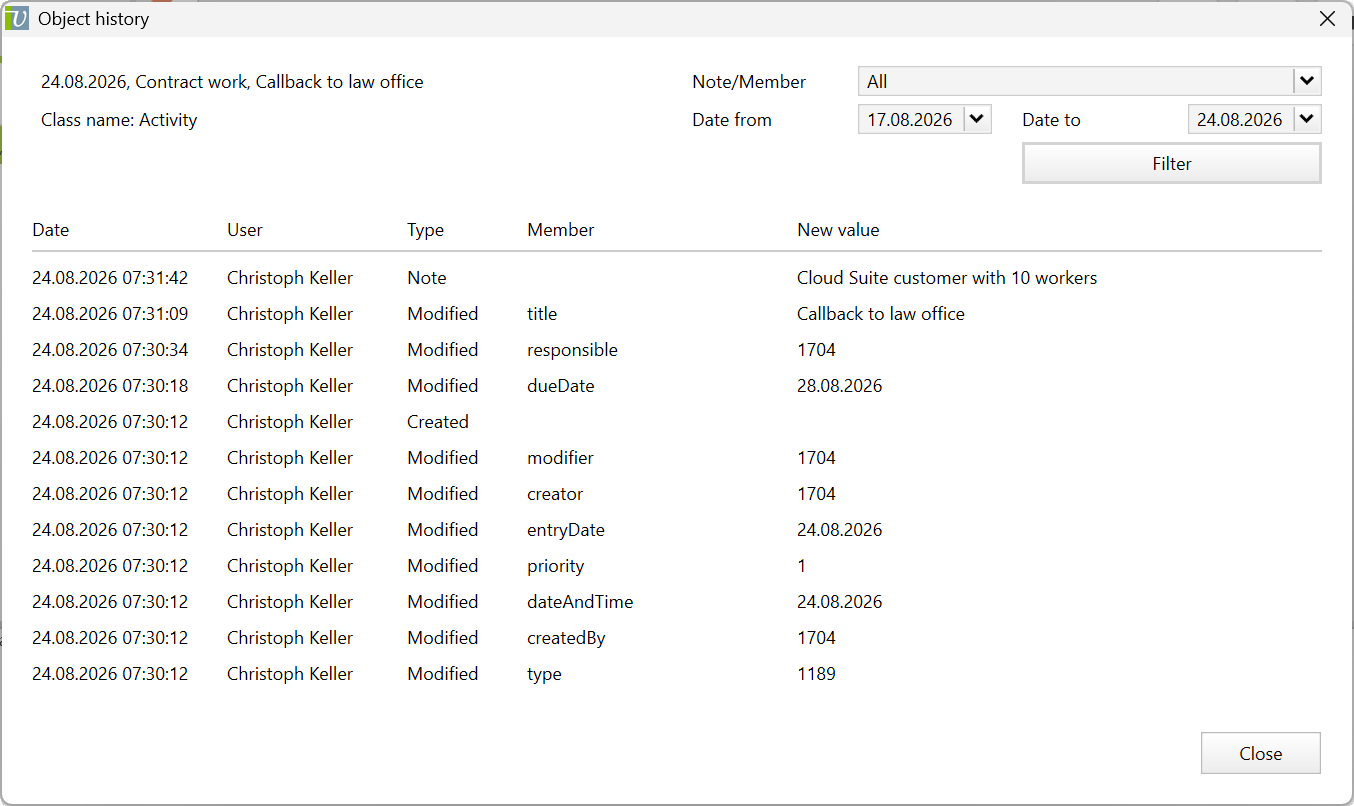
In this example, the object history is retrieved for activities by right-clicking on the entry or using the Show object history feature in the actions menu. The following window will appear:
Class name |
This contains the class name, the creation date and the title of the object. |
Note/Member |
Here, you can filter between the members of the corresponding class. Furthermore, notes created by Python on the object can be filtered in the display. Notes also belongs to one of the specified types. Depending on the class, the member list is therefore of different lengths. |
Date from
|
Here, you can filter by a specific date. By default, it is limited to the last seven days. |
Date |
This is the date and time for each edit that was made to the object or folder. The latest change will be shown first. |
User |
This is the name of the user who made the edit. |
Type |
Here is the type of editing. There are four of them: Created, Modified, Note and Deleted. |
Member |
Here is the member whose value has been changed. The quantity and type of members vary depending on the class. |
New value |
Here is the entered or changed value of the member. |
All values above are logged only if the system setting Maintain full change log is enabled; this setting will be automatically activated after the additional feature is imported. If it is disabled, only the date and type are recorded, and specific changes as well as user data are omitted.
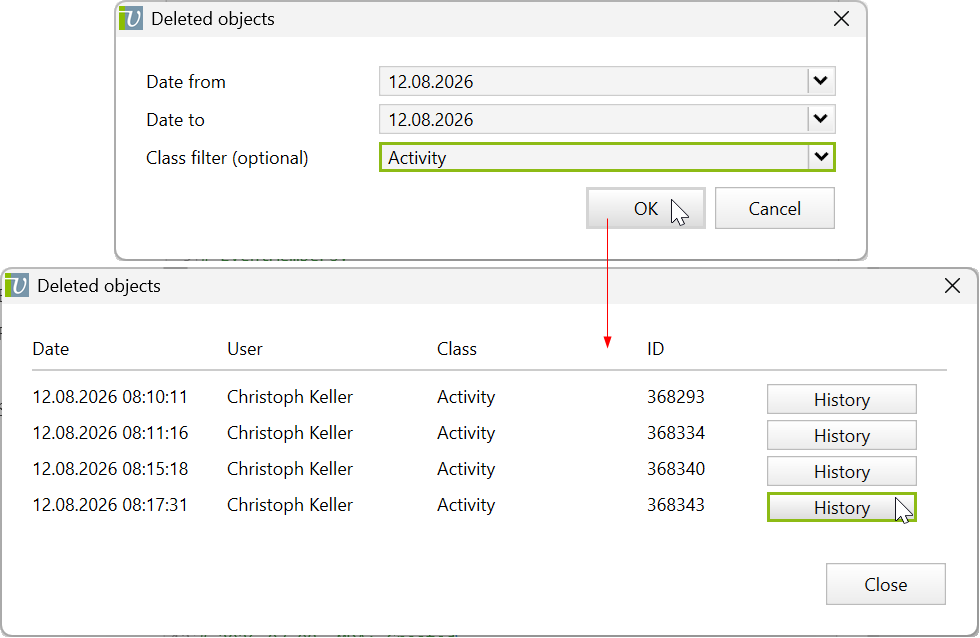
Another feature is to retrieve the history of deleted objects. This feature is executed directly in the script. It is located in Settings > Reports & Scripts > Scripts and is called Browse deleted objects in AuditTrail. Now click on the Execute... button.
First, you limit the time and select the corresponding class/es. Second, click on History, and the same window will appear as in the previous section. In contrast to that, you can switch here back and forth in the list in case of several histories.
Note: If the time period is longer, it may take several minutes for the complete list to load.
Before importing the config set, we recommend you read the article Key information about the additional features. Config sets modify data in Vertec, which can overwrite existing data.
The exact import process is described in config sets.
You can download the additional feature with the following link:
| Version Requirement | Download |
|---|---|
| 6.8.0.20 | ConfigSet_AuditTrailObjectHistory.xml |