
Display of the validity and status of entries via the icons
 Cloud Suite
 On-Premises
The Icon shows whether an entry is valid or invalid as well as active or inactive.
Only valid entries can be saved. Certain basic conditions are specified by Vertec to ensure a smooth process. However, you can also define conditions, so-called Constraints, in Vertec.
If an entry is inactive, the corresponding icon appears grey:
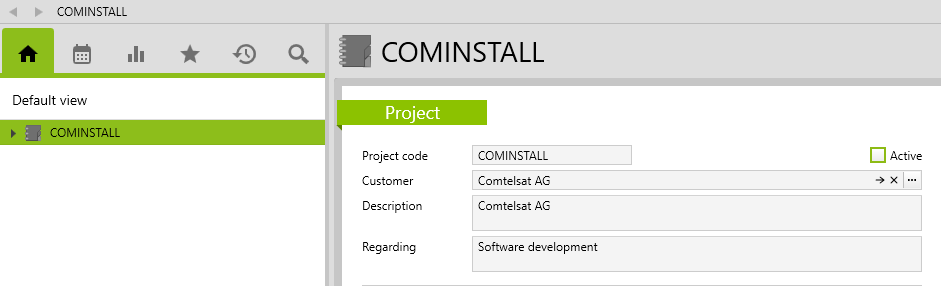
Also in the list, the grey triangle in the first column shows if an entry is inactive:

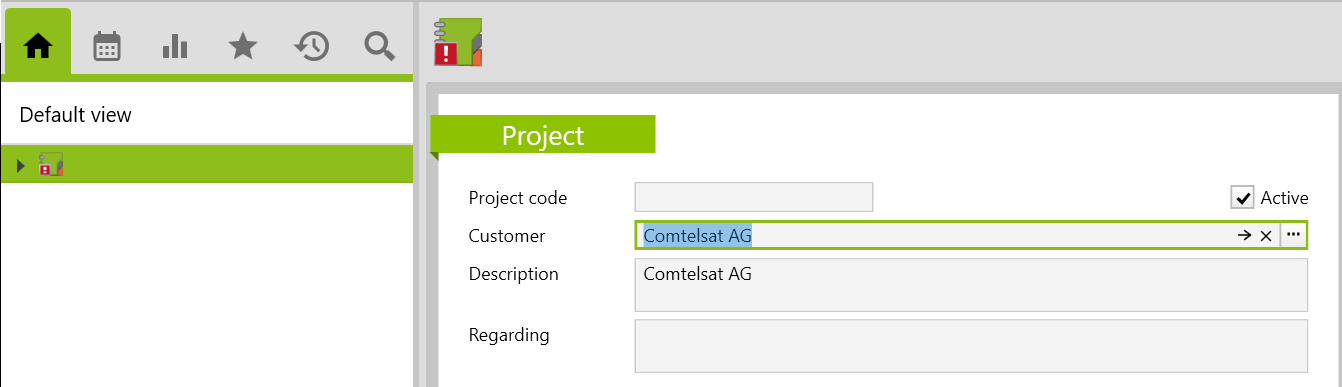
If an entry is invalid, the icon has an exclamation mark:
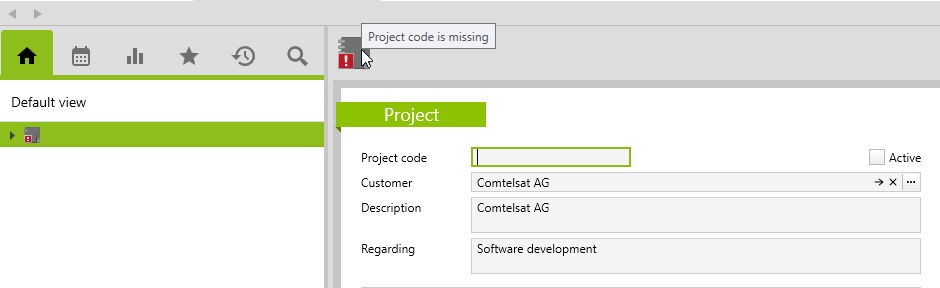
If you want to know why an entry is invalid, place the mouse pointer on the icon:
The list also shows if and why an entry is invalid:

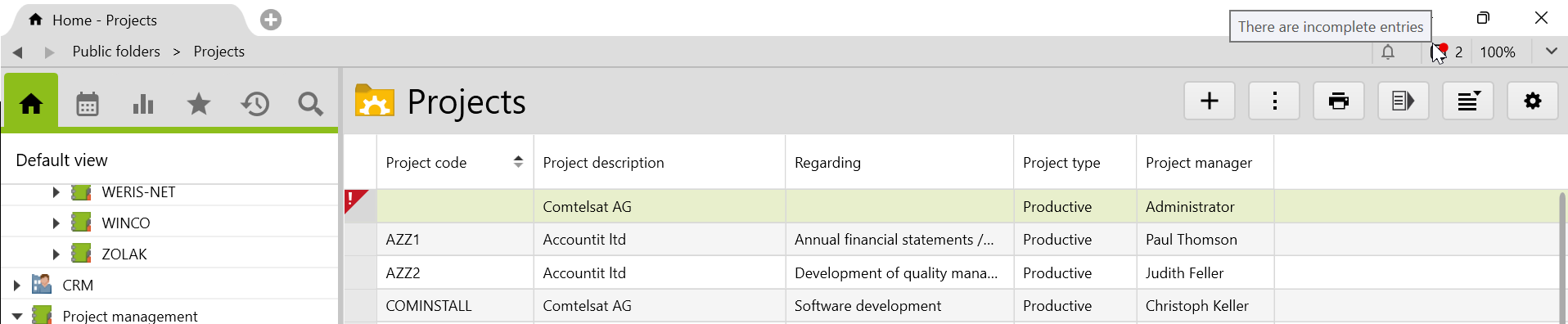
In the top right corner of Vertec you will be shown if there are invalid entries anywhere in the system. Only entries that have never been valid will be shown. Entries that have already been valid will be shown in the system as invalid (see above), but will not appear in this list.
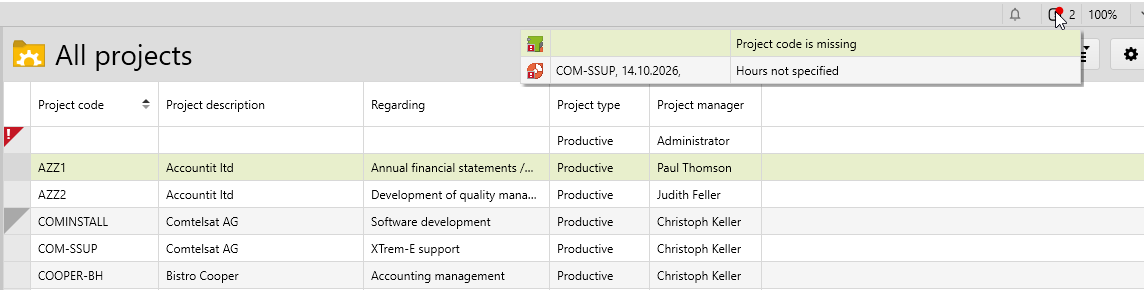
Clicking on this display will open a list of all invalid new entries. Double-clicking on an entry in the list will open it in a single window so that you can correct it.
If there are still invalid entries when closing Vertec, the following window appears:
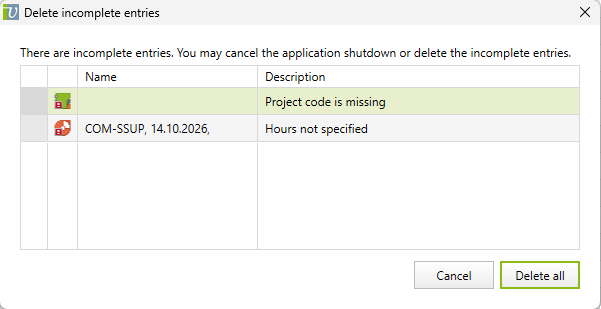
The entries can still be opened and corrected here. All new invalid entries will be automatically deleted when Vertec exits. Only entries that have never been valid will be deleted. Entries that have already been valid and become invalid will not be deleted when Vertec is closed.
As of version 6.6, invalid objects will only be deleted by sessions of the full-featured Apps (desktop, cloud and Web App) and all non-full-featured apps (e.g. Outlook App) will no longer delete invalid objects.