
Working with activities
 Cloud Suite
 On-Premises
Vertec activities allow you to manage project-oriented events, tasks, follow-ups and documents. Activities are usually entered by an employee on a project or a subproject. Typically, activities are entered for contacts with the customer (telephone, email). An activity can also have a task character. For this purpose, a responsible employee and a resubmission date can be specified on the activity.
A new activity is entered via the menu button +:
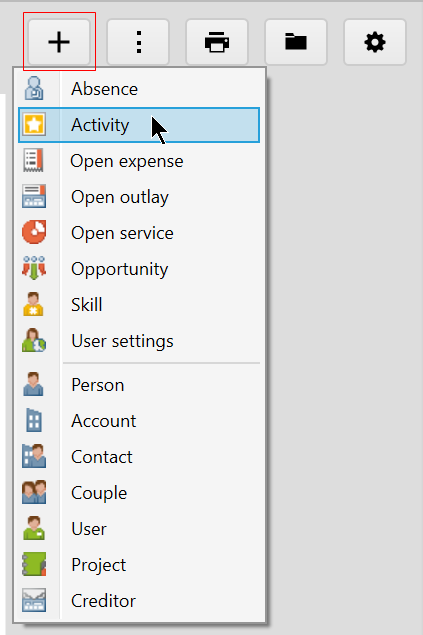
or directly in the activity list. An employee has 2 different activity lists by default:
This list view has the following filter options:
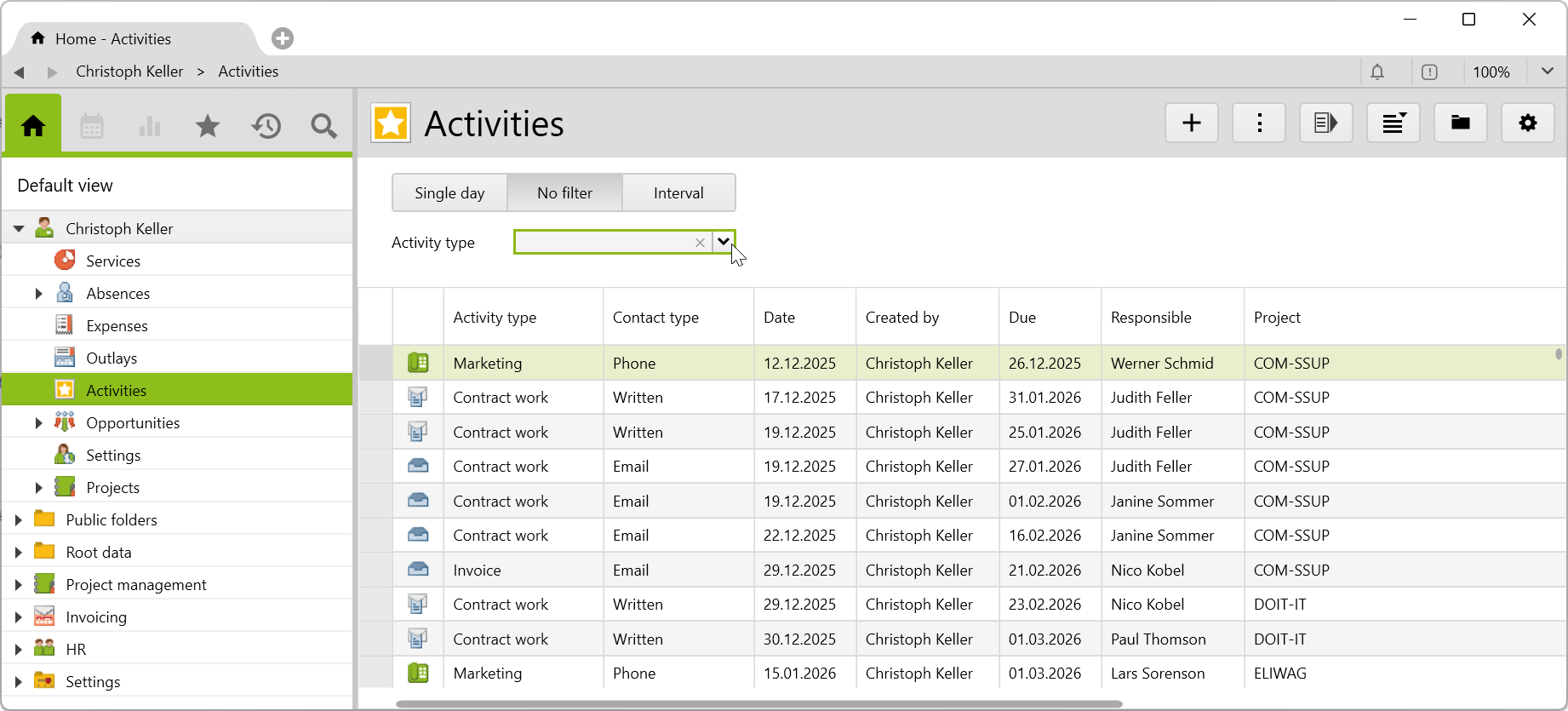
These filter fields are available on the container classes ActivityContainer, ActivityDateFilterContainer and DateFilterContainer.
This list shows all the employee’s unfinished activities and is only visible if the employee has unfinished activities for which he is registered as responsible.
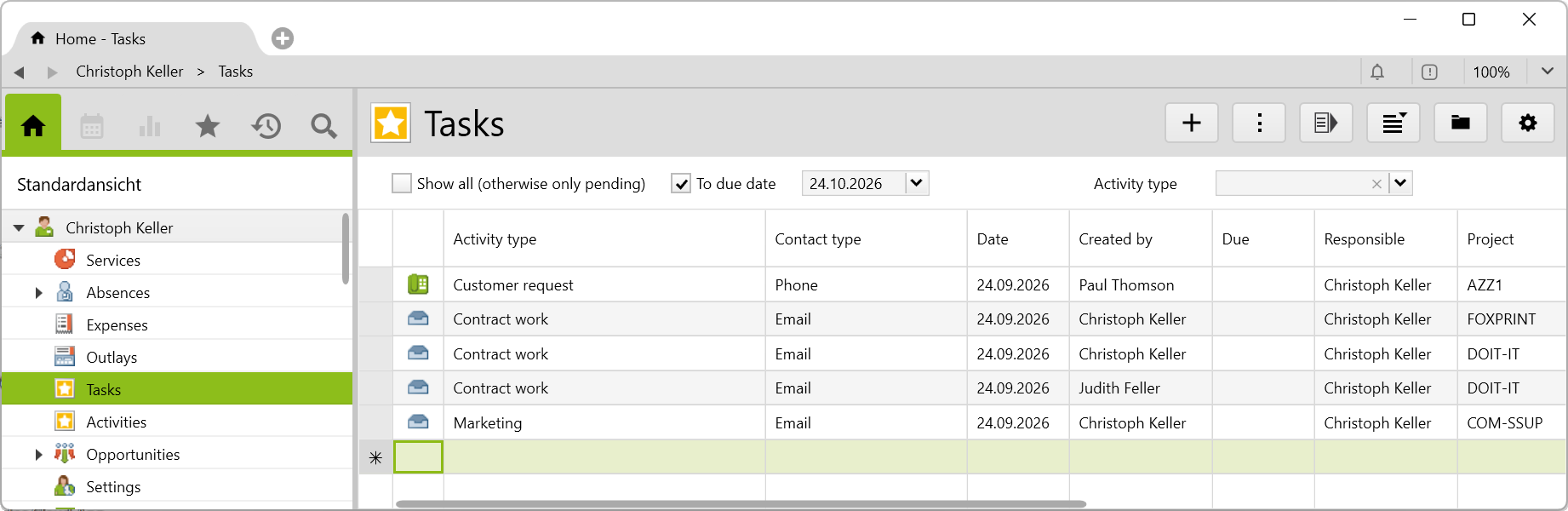
The displayed activities can optionally only be listed up to a specific due date. The default value for the To due date is calculated from today’s date. The offset used can be set in System settings > CRM / Activities > Number of days preview in tasks.
To due date is ignored.Show all is disabled. All activities with the following criteria are shown if:
completed checkbox is unchecked.Due field is nothing or a date before the To due date is entered.the completed checkbox is not checked.
These filter fields are available on the ActivityContainerOpen container class.
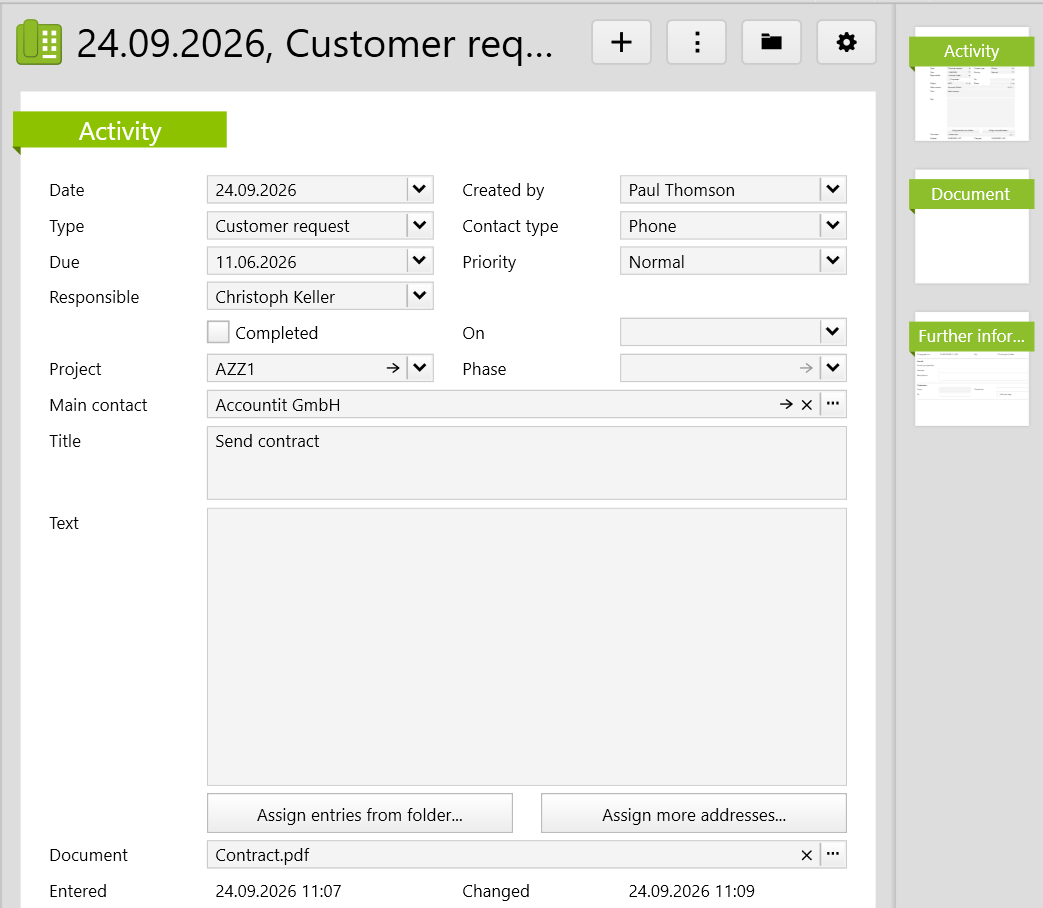
An activity includes the following information:
Date |
Date of collection or a date relevant to the activity. |
Created by |
Employee who entered the activity. |
Type |
Type of activity. Possible activity types are entered in Settings > CRM > Activity types. |
Contact type |
Type of contact: Phone, Email, Written, Onsite, Note, In-house or Online meeting (from version 6.6.0.8). These contact types are predefined and cannot be expanded. However, you can rename them as needed. |
Due |
If it is the case, a due date can be specified here. |
Priority |
Choice of high, normal or low. |
Responsible |
Employee responsible for completion if the activity is pending. |
Completed |
Checkbox for completed status for pending activities. |
On |
Date of the last “Completed” switch. |
Project |
Project to which the activity belongs. |
Phase |
Project phase to which the activity belongs. |
Main contact |
Customer or contact person (address) involved in activity. |
Title |
Short text for activity. |
Text |
Longer, descriptive text. |
Assign entries from folder... / Assign more addresses... |
In addition to the individual fields for contact and project, other addresses and objects can be assigned to the activity. Below the text field there are two buttons: 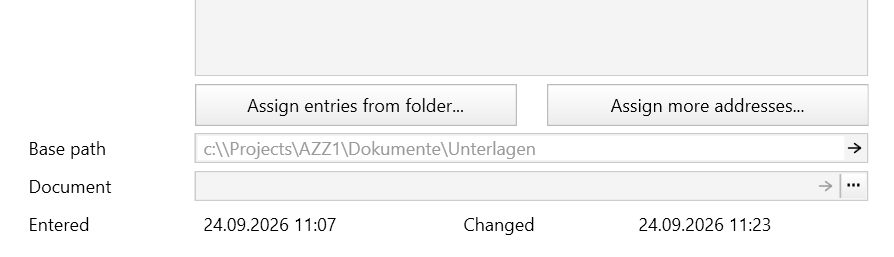 Assigning entries from folder...If you want to associate an activity with many objects at the same time (invitations, announcements, mass mails, etc.), you can do this by selecting a folder. All objects in the associated folder will be associated with the activity. Multiple folders can also be assigned. To link an activity to the objects via folder selection, click the button Assigning entries from folder and select the appropriate folder from the Vertec dialog. After clicking OK, all entries in the selected folder will be assigned. Repeat the process for additional folders if desired. For each entry, the activity will then appear in the list of activities. The activity will be stored as a reference with the associated entries and will continue to exist only once in the system, regardless of how many entries it is assigned with. Assign more addresses...If you want to assign more addresses to an activity in addition to the contact, this can be done via the button Assign more addresses.... The address-search-dialog appears, with which you can search for the desired address. From the result of the address search, one or more addresses can be assigned to the activity. All assigned addresses are listed on the Linked addresses tab. For each address, the activity will then appear in the list of activities. The activity will be stored as a reference at the assigned addresses and will continue to exist only once in the system, regardless of how many addresses it is assigned to. |
Base path |
The path of a file associated with the activity is entered here. The base path for the document is determined based on the project assignment. The field appears only if the system setting Document storage on |
Document |
The Document management on activities depends on the system setting Document storage . The document is either stored directly in the Vertec database (option All information can be found in the article Document handling on activities. As of Vertec version 6.8.0.18, PDF documents in activities can created as creditors by using the feature |