
Explanation of the system settings in the Project/Case tab
 Cloud Suite
 On-Premises
Assign default phaseIf Yes, the default phase of the selected project is automatically assigned when a service, expense or outlay is entered. The first phase of a project is always the default phase. This can be changed on the Phases tab of the project. PropertyName: |
Automatically set project descriptionIf Yes, the customer is automatically applied as the project description. If No, the project description has to be entered manually. PropertyName: |
Block by approvalsIf Yes, the entering of new services, expenses, outlays, and absences that are in the period of approval are blocked as soon as the user activates the checkmark blocking by approvals. The type of block by user approvals is the same as for the other blocks (block date, blocks also apply to projects and phases, etc.). PropertyName: |
Block project assignment of posted outlays and expensesAvailable from version 5.4.1.36. The creditors extension provides the possibility to obtain creditor client information from the projects of purchases or expenses. In this case, it should no longer be possible to change the project for such a purchase or expense. By default, this system setting is set to No. PropertyName: |
Blocking dateIn certain situations, you may not want it to be possible to change old services, expenses, outlays, and absences. You can prevent changes by specifying a date under the blocking date. For services, expenses, outlays, and absences older than or at this date, certain information can no longer be changed. See also: Working with data blockings. Later, you can also adjust external values and service types (or expense types and outlay types). Furthermore, a service can still be hidden or the external value can be fixed. New services, expenses, outlays and absences that have been created (during the current run time of the application) and whose date is during this time are automatically invalid. PropertyName: |
Blocking date for rates recalculationNo services will be updated before the blocking date specified here. This setting refers to the automatic recalculation rate (change of phase, service type, project, etc. of a service). The explicit recalculate hourly rate setting in the context menu is not affected by this. PropertyName: |
Blocking periodIn certain situations, you may not want it to be possible to change old services, expenses, outlays, and absences. In the blocking period field/Under blocking period, you can specify a number of days. Services, expenses, outlays, and absences which are older than this number of days from today cannot be changed or created again. PropertyName: |
Blockings apply also to expensesIf this system setting is set to Yes, the blocking date and blocking period apply to expenses. If this system setting is set to No, the blocks have no effect on expenses. PropertyName: |
Blocks apply also to outlaysPurchases can be excluded from the normal blocks (blocking period, blocking date). To turn off the blocks for purchases, set this system setting to No. PropertyName: |
Blocks apply also to project- and phase allocationsThe system setting blocking date (see above) does not affect project and phase allocations. This means that services, expenses, and outlays can be transferred to another project or phase outside the blocking date. If you want to prevent this, set this system setting to Yes. PropertyName: |
Blocks do not apply to supervisorsIf Yes, users who belong to the project supervisors user group can also adjust services, expenses, and outlays that are subject to a block (see blocking date, blocking period, above). This right also applies to teamleaders: If a user has teamleader rights and the setting Undo blocks for supervisor is active, they get write access to their own blocked services, expenses and outlays, and those of their team members. PropertyName: |
Charging type for outlays on new projectsOn the Settings page of each project, you can specify whether the charging type of outlays is charged or forwarded. With this system setting, you can set the default value for new projects. See also the article about creditors. PropertyName: |
Check block date when date is changedInvalid objects in Vertec are deleted after querying when the application is exited.This ensures that no new entries can be entered during this time for the blocking date and the blocking period. However, there is still a possibility to make entries during this time. If an entry was already valid when exiting the program and becomes invalid only later due to a change, it is no longer deleted when exiting the program. In order to close this gap during the time, this setting allows a project entry to be automatically deleted again after the date has been changed. PropertyName: |
Compulsory allocation of expense types to phases (on new phases)Here, you can define whether the expense types, for which services can be entered in a specific phase, must be assigned to this via an expense type link/assignment. The value defined here is a default value and can be overridden at the individual project phase. PropertyName: |
Compulsory allocation of outlay types to phases (on new phases)Here, you can define whether the purchase types, for which services can be entered in a specific phase, must be assigned to this phase by means of an purchase type phase link. The value defined here is a default value and can be overridden on the individual phase. PropertyName: |
Compulsory allocation of service types to phases (on new phases)Here, you can define whether the service types for which you enter services in a specific phase must be assigned to it via an activity assignment. The value defined here is a default value and can be overridden at the individual project phase. PropertyName: |
Compulsory allocation of users to phases (on new phases)Here, you can define whether all users that are to enter services for a specific phase must be allocated to it via a user link allocation. The value defined here is a default value and can be overridden on the individual project phase. PropertyName: |
Display minutes
PropertyName: |
Don't round hourly rates (when using as gross rates)If the setting is set to Yes, then the rate table and all other fields for hourly rates allow rates to be entered with up to 4 decimal places, and the amounts are not rounded. If you work with gross hourly rates, i.e. have agreed hourly rates including VAT with your customer, this setting allows you to use exactly recalculated net hourly rates. This is the only way to ensure that the rates including VAT are displayed on the customer invoices as agreed. This topic is discussed in more detail in the article Rounding in Vertec. PropertyName: |
Expenses must be approvedIf Yes, this has the following implications:
PropertyName: |
Fees for services visible to usersIf you do not want your employees to be able to see the fees charged for their work, switch to No. The relevant figures are then hidden when entering. PropertyName: |
Load active projects on application startup
PropertyName: |
Outlays must be approvedIf Yes, this has the following consequences:
PropertyName: |
Project manager is allowed to make changesIf this option is activated, the project manager may change services, expenses and outlays on projects for which they are identified as a project manager. PropertyName: |
Round expenses and outlays
This topic is described in more detail in the article about rounding in Vertec. PropertyName: |
Round minutes toSpecifies how many minutes should be rounded to. For example, if the value is 5, the values are rounded to 5 minutes. For example, if a service of 3 hours 2 minutes is entered, Vertec rounds it to 3 hours. PropertyName: |
Round-up time registered by timerIf Yes, the time entered by the timer is rounded up to the quantity of minutes specified in the system settings under Round minutes to (also in the project tab, see above). This applies to the currently logged-in user. PropertyName: |
Selection of suppliers only with creditor personal accountIf Yes, only creditor addresses that have a creditor code (personal account number) can be assigned to a creditor (third-party invoice). Otherwise, all addresses can be selected. PropertyName: |
Show absences list for service entryAvailable from Vertec 6.8.0.9. With this option, you can show and hide the absence list in the service entry. PropertyName: |
Show charged services and expensesIf this option is set to Yes, the charged services, expenses, and outlays are shown in separate tabs on the project. However, this can slow down the display speed of the project when there are many charged entries. Therefore, this setting is set to No by default. PropertyName: |
Show presence time list for services entryShows the attendance time list for the current user. PropertyName: |
Show Punch in/Punch out for time trackerShows or hides the punch in/punch out button. PropertyName: |
Show standard hours overview for services entryThe day's standard hours can now be shown similar to the timer, attendance time and weekly overview. If this system setting is set to Yes, a bar with the standard hours appears above the list for the service entry. PropertyName: |
Show timer for services entryShows the timer for the current user. PropertyName: |
Show totalsWith this setting you can define whether the budget values should be shown by default on projects and phases. This setting can be overridden on an individual project and phase by activating the checkbox Show values?. However, in order to show budget figures, Vertec must take into account the services, expenses and outlays of the respective phase. Therefore, configuring such a display may be accompanied by a slowdown. PropertyName: |
Show weekly overview for services entryShows the weekly overview table in the Services entry screen. PropertyName: |
Status for new phasesHere, you can set whether the status for new phases should be set to offer or directly to granted. PropertyName: |
Template folder for project searchFrom Vertec 6.8.0.4. Here you can define an SQL folder for the project search. All SQL folders that have entered When searching in project fields with the three dots (e.g. when entering services and expenses), this template folder will be shown instead of the standard Vertec project search. Only projects on which the logged-in user is allowed to entered are shown. For detailed information, see the article SQL search dialog for project references. PropertyName: |
Track budget value changes on phaseFrom version 5.3, changes to all budget values can be tracked to phase with a date. For this, this system setting must be set to Yes. PropertyName: |
Use commercial rounding rules
This setting only affects monetary amounts. For display-only rounding or time-specific rounding, mathematical rounding is always used. This topic is described in more detail in the article about rounding in Vertec. PropertyName: |
Use outlay positionsAvailable from Vertec 6.7.0.7. If Yes, it can be used for outlays with outlay positions After activating this system setting, Vertec must be restarted. PropertyName: |
Use receipt recognition (additional contract terms)Available from Vertec 6.7.0.14. It activates automatic receipt recognition for expenses in the full-featured apps as well as in the Phone App. To do so, you must accept the current General terms and conditions as well as the order data processing regulation. If you activate this option, you will receive this message: 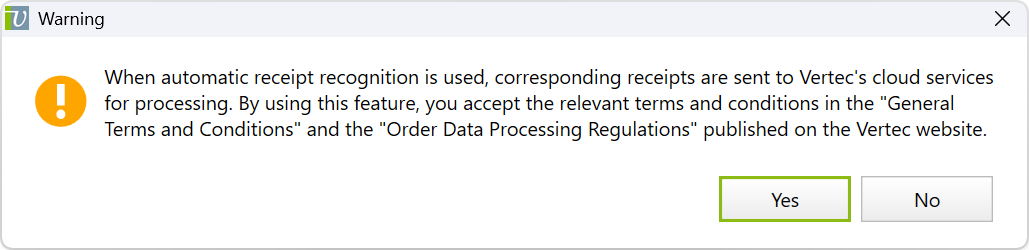 If you answer with PropertyName: |
User must be allocated to projectsIf Yes, only certain users can enter services, expenses, downpayments or purchases on the projects for which they have been assigned. The assignments are made for each project individually or on a superordinate basis on the project type. This setting also applies to the Outlook App. If it is activated, only projects that have been assigned to the relevant user appear in the Outlook App selection field. PropertyName: |